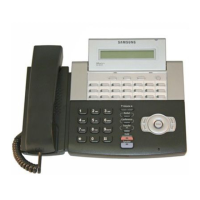
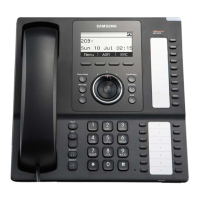
SMT-i5220 IP Phone User Manual
15
Network setting
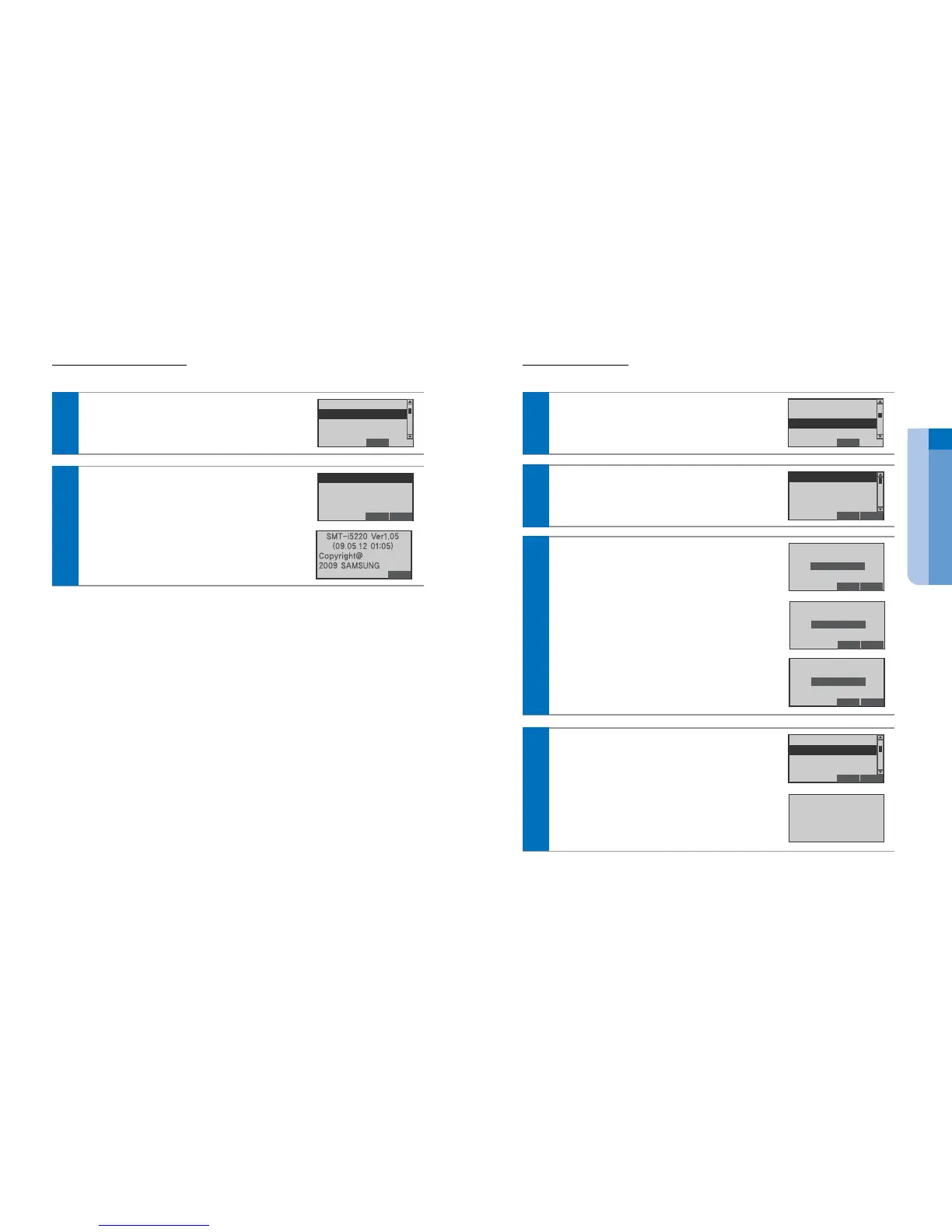
You can set up the your IP Phone’s S/W version, Network information and MAC address.
In Activation screen, select the 3 Network Settings,
and press the Enter[OK] button.
End
1 Easy Install
2 System Info
3 Network Setting
4 IDLE mode Seting
1
ⓒ
SAMSUNG Electronics Co., Ltd.
14
System Informations
You can confirm the your IP Phone’s S/W version, Network information and MAC address.
In Activation screen, select the 2 System
Information, and press the Enter[OK] button.
End
1 Easy Install
2 System Info
3 Network Setting
4 IDLE mode Seting
1
Select desired Information mode, and press the
Enter[OK] button.
You can show the each informations screen.
End Back
1 Version
2 Network Info
3 MAC Address
You can show the Network setting screen.
Select desired network mode, and press the
Enter[OK] button.
End Back
1 Static IP
2 Dynamic IP
3 PPPoE
4 VLAN(LAN Port)
2
In case of 1 Static IP.....
Enter the IP Address Subnet Mask Address
Gateway Address, and press the Enter[OK]
button.
- The System information inquires to administrator.
Del. Back
165.213.109.2
Enter IP Address
Del. Back
255.255.255.0
Enter Subnet Mask
Del. Back
255.255.255.0
Enter Gateway
In case of 2 Dynamic IP.....
Enter the IP Address Subnet Mask Address
Gateway Address, and press the Enter[OK]
button.
End Back
1 Static IP
2 Dynamic IP
3 PPPoE
4 VLAN(LAN Port)
Set DHCP Mode
[Network Setting]


 To Next Page