EasyManua.ls Logo

Samsung SCP-3120 - User Manual

Samsung SCP-3120
100 pages
Print Icon
To Next Page IconTo Next Page
Loading...
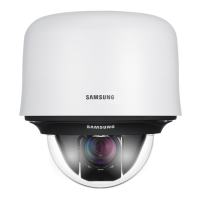
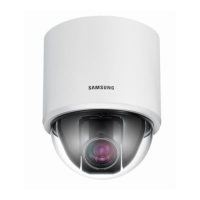
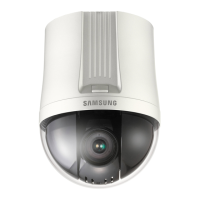
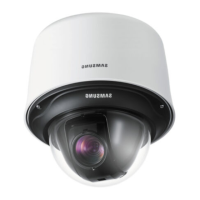
12X SPEED DOME CAMERA
User Manual
SCP-3120/3120V/3120VH

Other manuals for Samsung SCP-3120

Questions and Answers

  • H
    Hannah LeonardAug 17, 2025
    Why isn't pan, tilt, zoom, or focus working on my Samsung SCP-3120?
    • S
      Samuel JohnsonAug 17, 2025
      If the pan, tilt, zoom, or focus functions are not working on your Samsung Security Camera, check if the power and video cables are securely connected. Also, check if Pan Limit and/or Tilt Limit are set, and if so, remove them. A motor or the lens may be overheated. If so, contact your service personnel or system provider for assistance.
  • C
    Christopher RamirezAug 20, 2025
    Why is my Samsung SCP-3120 Security Camera picture flickering?
    • L
      Lindsey Wiggins MDAug 20, 2025
      If your Samsung Security Camera picture is flickering, check if the dome cover or the camera lens is dirty or smudged and clean it. Also, check if the camera is pointing directly at a fluorescent light or sunlight; if so, change the camera's direction.
  • N
    Nicholas ThomasAug 23, 2025
    What to do if Samsung Security Camera monitor displays a white image?
    • T
      Tiffany CrawfordAug 23, 2025
      If your Samsung Security Camera monitor displays a white image, check if the iris of the lens is open and adjust the iris menu accordingly.
  • M
    Miranda CardenasAug 26, 2025
    What to do if my Samsung SCP-3120 displays no picture?
    • B
      Breanna JohnsonAug 26, 2025
      If your Samsung Security Camera isn't displaying a picture, check if the power cable is securely connected to both the camera and the monitor, and ensure the video cable is properly connected. Also, check if the iris of the lens is closed and adjust the iris menu if needed. Finally, verify the camera's fixed shutter speed and adjust the shutter menu if necessary.
  • P
    Philip BrooksAug 28, 2025
    How to fix out of focus picture on Samsung SCP-3120 Security Camera?
    • M
      Michael GilmoreAug 28, 2025
      If your Samsung Security Camera picture is out of focus, start by checking if the dome cover or the camera lens is dirty or smudged, and clean it if necessary. Then, verify the distance between the camera and the subject, considering the subject's surroundings. If auto-focusing is problematic, switch to manual focus mode. You can also try restoring the camera settings to default using the reset menu, or adjust the sharpness level.
  • A
    Amanda GreenAug 31, 2025
    How to adjust brightness on Samsung SCP-3120 Security Camera?
    • R
      Richard SnowAug 31, 2025
      If the picture from your Samsung Security Camera is too dark or too bright, check the camera's Brightness menu and adjust it accordingly.
  • P
    pphillipsSep 3, 2025
    Why does my Samsung SCP-3120 Security Camera picture have digital noise?
    • H
      hallleslieSep 3, 2025
      If digital noise appears in your Samsung Security Camera's picture, first check if the video cable is properly connected. Also, ensure that the power and video cables do not exceed the recommended maximum lengths. Finally, adjust the sharpness level.
  • G
    Gabrielle Roberts DDSSep 5, 2025
    How to troubleshoot Samsung SCP-3120 Security Camera controller?
    • V
      Victoria CampbellSep 5, 2025
      To troubleshoot a non-working Samsung Security Camera controller, first check if the camera and peripheral devices are properly connected. Also, verify the setups of ID, protocol, and baud rates.
  • N
    Nichole MolinaSep 8, 2025
    Why do afterimages appear in my Samsung SCP-3120 picture?
    • K
      Kathleen HallSep 8, 2025
      If afterimages appear in your Samsung Security Camera's picture, check the Sens-Up settings.
  • J
    Jeffrey ObrienSep 12, 2025
    Why does my Samsung SCP-3120 Security Camera switch between color and B&W frequently?
    • R
      Robert HansonSep 12, 2025
      If your Samsung Security Camera frequently switches between color and black & white modes, adjust the Duration and Dwell Time in the Day & Night menu.

Summary

Introduction and Components

Product Features

Details the key features of the 12X Speed Dome Camera.

Camera Components and Accessories

Lists and illustrates the camera's components and optional accessories.

Component Names and Functions

Identifies and explains the function of each camera component.

Camera Installation Guide

Setting Up Protocols and DIP Switches

Guides users on configuring communication and ID settings via DIP switches.

Preparing Cables and Adapters

Details the necessary power adapters and cables for camera setup.

Installation Examples

Provides visual guides for common camera mounting types.

Camera Operation and Functions

Interface Symbols and OSD Menu Navigation

Explains interface symbols and OSD menu structure for operation.

Camera Settings Explained

Covers core camera settings like Zoom/Focus, White Balance, and Exposure.

Sequence and PTZ Control Features

Details functions for preset management, sequences, and PTZ control.

Advanced Settings and Maintenance

OSD and Alarm Configuration

Configures On-Screen Display (OSD) and alarm input/output functions.

Camera Initialization and Password Security

Covers camera initialization, default settings, and password management.

Status Monitoring

Displays current camera settings, software versions, and protocol status.

Troubleshooting and Specifications

Troubleshooting Common Issues

Provides solutions for common problems like no picture or focus issues.

Technical Product Specifications

Lists detailed technical specifications for the camera models.

Physical Dimensions

Shows the physical dimensions of the camera.

Compliance and Sales Information

Declaration of Conformity

States the equipment conforms to relevant EU directives.

Worldwide Sales Network

Lists contact information for Samsung Techwin worldwide sales offices.

Samsung SCP-3120 Specifications

General IconGeneral
BrandSamsung
ModelSCP-3120
CategorySecurity Camera
LanguageEnglish

Related product manuals