EasyManua.ls Logo

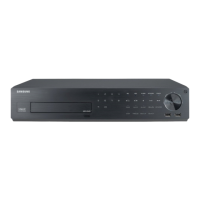
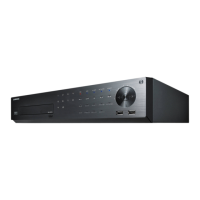
Samsung SRN-873S - User Manual

Samsung SRN-873S
192 pages
Print Icon
To Next Page IconTo Next Page
Loading...
NETWORK VIDEO RECORDER
User Manual
SRN-473S/873S/1673S

Table of Contents

Other manuals for Samsung SRN-873S

Questions and Answers

  • M
    Mario GomezSep 23, 2025
    Why does the recording screen slow down on my Samsung SRN-873S?
    • E
      emilysnyderSep 23, 2025
      If the recording screen slows down on your Samsung DVR, check if the recording specifications for each HDD condition (refer to the recording setting in the menu) are appropriate for the actual recording setting. If the data processing rate exceeds the play performance (refer to the product specifications in the menu), only the main video frames will play.
  • H
    Heather WhiteAug 23, 2025
    What to do if some channels on my Samsung DVR show a black screen?
    • C
      Christina FieldsAug 23, 2025
      If your Samsung DVR displays a black screen on some channels despite receiving video sources, start by checking if the camera is properly supplied with power. Then, verify the video output by connecting to the camera's web viewer. Also, ensure the network port is correctly connected and the network settings are properly configured. As a last resort, try changing the hub to one that supports Gigabit.
  • J
    Jack RogersAug 25, 2025
    Why is my Samsung SRN-873S not recording when I press the REC button?
    • M
      Marie PrestonAug 25, 2025
      If your Samsung DVR isn't recording when you press the REC button, first check if there is available recording space on the HDD. Next, go to the menu and ensure that the recording mode is turned ON. Also, verify that the number of general recordings is not turned OFF in the menu.
  • L
    librittanyAug 26, 2025
    Why does my Samsung SRN-873S screen display the logo image repeatedly?
    • L
      Lisa BeanAug 26, 2025
      If your Samsung DVR displays the logo image repeatedly, it may indicate a problem with the main board or corrupted software. Contact the nearest service center for more information.
  • A
    Alicia JohnsonAug 27, 2025
    What to do if no video is played on the connected monitor with my Samsung DVR?
    • E
      Eric MartinAug 27, 2025
      If you are unable to view video on the connected monitor with your Samsung DVR, first check if the necessary cables are properly connected to the monitor. If the screen remains blank, use the remote control and press the [STOP (@)] ? [ZOOM] ? [STOP (@)] ? [ZOOM] ? [MENU] buttons to launch the basic resolution information window, where you can set the desired resolution. If the screen is still not displayed, wait until the basic resolution window appears, then try switching to another resolution before setting the final output resolution. Also, verify that the monitor resolution is supported by the NVR output (HDMI or VGA).
  • T
    Traci ThompsonSep 18, 2025
    Why is recording not performed in accordance with the settings on my Samsung DVR?
    • D
      Douglas MillerSep 18, 2025
      If recording is not being performed in accordance with the settings on your Samsung DVR, and the recording status shows that the input data is exceeded, navigate to Menu – Recording – Recording Setting, and increase the max data capacity to a value greater than the input data.
  • K
    Kimberly LiuSep 15, 2025
    Why is my external storage device not recognized on my Samsung SRN-873S DVR?
    • A
      angelasmithSep 15, 2025
      If you've connected an external storage device (USB Memory, USB HDD) to your Samsung NVR and it's not being recognized, consult the compatibility list of external storage devices to ensure the connected device is supported by the NVR. Contact the retailer where you purchased the NVR for the compatibility list.
  • T
    Tiffany GomezSep 16, 2025
    Why does the frame rate of the actual recording not match that of configured to the camera on my Samsung SRN-873S?
    • J
      Jonathan CarrollSep 16, 2025
      If the frame rate of the actual recording on your Samsung DVR does not match the configured frame rate of the camera, it may be because multiple profiles were applied to one camera for video transmission, causing the camera to service the video stream at a lower frame rate than specified. Configure your camera to use one profile for data streaming if possible. For example, set the same profile for recording and network profiles to ensure the specified frame rate is used for recording. Note that the allowed limit bitrate for recording / recording settings should be set to be bigger values than that of camera's feed.
  • L
    Lauren BennettSep 6, 2025
    How to fix the screen that does not switch automatically in the web viewer of my Samsung SRN-873S DVR?
    • P
      Patricia PerezSep 6, 2025
      If the screen does not switch automatically in the web viewer of your Samsung DVR, you need to select the desired layout for sequence operation in the automatic switching menu.
  • M
    Mallory MartinSep 3, 2025
    Why won't the cursor move to the Start button on my Samsung SRN-873S calendar search?
    • R
      Robert JoyceSep 4, 2025
      If the cursor won't move to the Start button when starting a calendar search on your Samsung DVR, ensure that both the channel and the date you want to play are marked with the V symbol. Both must be checked before you can use the Start button.

Summary

OVERVIEW

Important Safety Instructions

Crucial safety guidelines for using the unit properly and avoiding hazards.

Features

Lists the key functionalities and capabilities of the product.

Remote Control

Explains the functions of buttons on the remote control for device operation.

INSTALLATION

Checking the Installation Environment

Guidelines for ensuring a suitable environment for product installation.

HDD Addition

Steps and precautions for adding or replacing the Hard Disk Drive.

CONNECTING WITH OTHER DEVICE

Connecting the Network

Guides on establishing network connections via Ethernet or router.

LIVE

Getting Started

Initial steps to power on the system and view the live screen.

Install Wizard

Step-by-step guide for initial setup, including language, network, and camera registration.

Live Screen Configuration

Explanation of icons and status indicators displayed on the live screen.

Live Screen Mode

Describes different screen display modes for live video feeds.

PTZ Control

How to control Pan, Tilt, and Zoom functions for PTZ-enabled cameras.

MENU SETUP

System Setup

Configuration options for date, time, language, user, system properties, and logs.

Setting the Device

Covers setup for cameras, storage devices, and monitors.

SETTING THE RECORDING

Settings for recording schedules, event triggers, and related configurations.

Record Setting

Configuring resolution, frame rates, and recording types for channels.

Setting the camera recording profile

Selecting and configuring video profiles for recording on connected cameras.

Setting the Event

Configuring sensor detection, camera events, and video loss detection.

Network Configuration

Setting up network connection routes, protocols, and IP configurations.

SEARCH & PLAY

Search

Performing searches for recorded data by time or event criteria.

Time Search

Searching for recorded data based on specific dates and times.

PLAYBACK

Playing back recorded data from HDD and backup storage.

Play

Playing back recorded data from HDD and backup storage.

STARTING WEB VIEWER

Connecting Web Viewer

Steps to connect to the NVR using a web browser.

LIVE VIEWER

Live Viewer Screen

Overview of the Live Viewer interface and its components.

CONTROLLING A CONNECTED NETWORK CAMERA

Operating Pan, Tilt, and Zoom functions for PTZ-enabled cameras.

Controlling PTZ

Operating Pan, Tilt, and Zoom functions for PTZ-enabled cameras.

SEARCH VIEWER

Search Viewer Screen

Interface for remotely searching and playing video records from the NVR.

SETUP VIEWER

Settings Screen

Overview of the setup viewer interface and navigation elements.

Permission Management

Managing user access levels and permissions for system functions.

Storage Device

Checking and changing settings related to data storage devices.

Device;format

Checking storage device status, usage, type, and format options.

Record

Settings related to recording schedules and types.

Recording Schedule

Setting up scheduled recording times and days for specific channels.

Record Setup

Selecting recording frame rates for normal and event recordings.

DHCP Server

Setting up the internal DHCP server and IP address allocation.

APPENDIX

Product Specification

Detailed technical specifications for different NVR models.

Default Setting

Resets system to factory default settings for system, device, and recording.

Network

Default factory settings for network protocols, DDNS, IP filtering, SSL, 802.1x, and DHCP.

Troubleshooting

Lists common issues and their corresponding solutions for system operation.

Problem

Addresses issues related to frame rate mismatches and recording settings.

Samsung SRN-873S Specifications

General IconGeneral
Languages supportMulti
Maximum resolution- pixels
Alarm input channels4
Video input channels8 channels
Alarm output channels3
Video formats supportedH.264, M-JPEG
Audio RCA inputs8
USB 2.0 ports quantity2
VGA (D-Sub) output ports1
Power over Ethernet (PoE)Yes
Ethernet LAN (RJ-45) ports9
Supported network protocolsTCP/IP, UDP/IP, RTP (UDP), RTP (TCP), RTSP, NTP, HTTP, DHCP (Server, Client), PPPoE, SMTP, ICMP, IGMP, ARP, DNS, DDNS, uPnP, HTTPS, SNMP, ONVIF (Profile-S)
HDD interfaceSerial ATA
Maximum storage capacity12 TB
Total installed storage capacity1000 GB
Browser supportedMicrosoft Internet Explorer, Mozilla Firefox, Google Chrome, Apple Safari
Mac operating systems supportedMac OS X 10.6 Snow Leopard, Mac OS X 10.7 Lion, Mac OS X 10.8 Mountain Lion, Mac OS X 10.9 Mavericks
Mobile operating systems supportedAndroid
Windows operating systems supportedWindows 7 Enterprise, Windows 7 Enterprise x64, Windows 7 Home Basic, Windows 7 Home Basic x64, Windows 7 Home Premium, Windows 7 Home Premium x64, Windows 7 Professional, Windows 7 Professional x64, Windows 7 Starter, Windows 7 Starter x64, Windows 7 Ultimate, Windows 7 Ultimate x64, Windows 8, Windows Vista Business, Windows Vista Business x64, Windows Vista Enterprise, Windows Vista Enterprise x64, Windows Vista Home Basic, Windows Vista Home Basic x64, Windows Vista Home Premium, Windows Vista Home Premium x64, Windows Vista Ultimate, Windows Vista Ultimate x64, Windows XP Home, Windows XP Home x64, Windows XP Professional, Windows XP Professional x64
Power consumption (typical)166 W
Operating temperature (T-T)0 - 40 °C
Operating relative humidity (H-H)20 - 85 %
Weight and Dimensions IconWeight and Dimensions
Depth320 mm
Width370 mm
Height44 mm
Weight3400 g

Related product manuals