41
The Sapling Company, Inc.
1633 Republic Road
Huntingdon Valley, PA 19006
USA
P. (+1) 215.322.6063
F. (+1) 215.322.8498
www.sapling-inc.com
IP Monitor Software - Main Screen (ctd.)
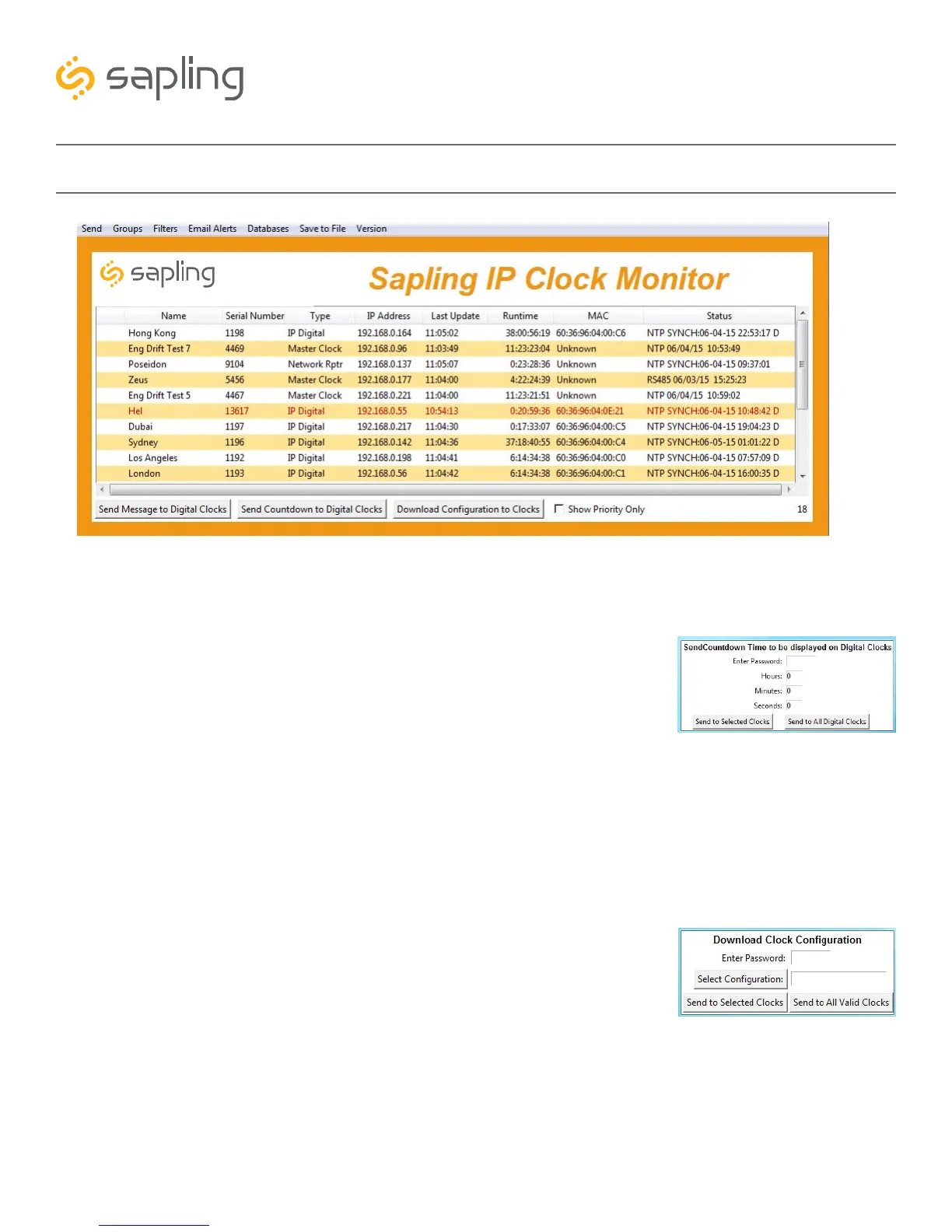
1. Send Countdown to Digital Clocks - Allows the user to generate a countdown that will be sent to digital clocks.
a. Enter Password - The default password is 6063
b. Start values - Enter the starting hour, minute, and second into the
fields. For example, entering a 1 into each field will start a countdown
from 1:01:01
c. Send to Selected Clocks - Applies the countdown to whichever
clocks have been highlighted on the Device List.
d. Send to All Valid Clocks - Applies the countdown to all applicable
devices on the Device List. For instance, a Round IP clock configuration
file would be applied to every round IP clock on the Device List.
2. Download Configuration to Clocks - If a configuration file was created using “Upload and
Save Configuration” on the Quick Access Menu, this option lets the user apply the configuration
file to other clocks highlighted within the monitor. Pressing this button will cause the Download
Configuration window to appear:
a. Enter Password - The default password is 6063
b. Select Configuration - Pressing the button allows the user to browse
their computer for a previously-saved configuration file.
c. Send to Selected Clocks - Applies the configuration file to whichever
clocks have been highlighted on the Device List.
d. Send to All Valid Clocks - Applies the configuration file to all
applicable devices on the Device List. For instance, a Round IP clock
configuration file would be applied to every round IP clock on the Device List.
3. Show Priority - By selecting this option, the IP device(s) the user previously “marked as priority” will
be the only clocks shown in the program window.
4. Device Count - This number is the amount of IP devices that are displayed on the IP Monitor Software.
A
B
D
C
1 2 3
4
Synchr
A
B
D
C


 To Next Page