Section 1 - Introduction
Page 6
5. Using the Driver Checker to update your drivers is a two-step process:
A. If you have an internet connection, Click on the
Download
button then follow the
instructions to download the current drivers from SBIG’s Servers. If you don’t have an
internet connection on this machine then make sure you have downloaded the latest Driver
Checker Installer from SBIG’s web site, copied it to this machine and run it.
B. Whether you have an internet connection or not then click the
Update
button. This will
copy the current drivers to your system and make sure they are properly installed. Some
new computers without parallel ports will report that the SBIGUDRV.SYS was not started.
Don’t worry about that. The SBIGUDRV.SYS is the parallel port camera driver and is not
use with USB cameras.
You may be asked to reboot your system as well. If so, click Done and do so. Otherwise
simply click Done.
6. Follow the instruction in Sections 1.2.2.1, 1.2.2.2 or 1.2.2.3 below depending on the version of
Windows you have on your computer.
1.2.2.1. Add New Hardware Wizard for Windows XP Users
1. With the camera disconnected from the computer, plug in the power to the camera and if
your power supply has a power switch turn on the power to the camera.
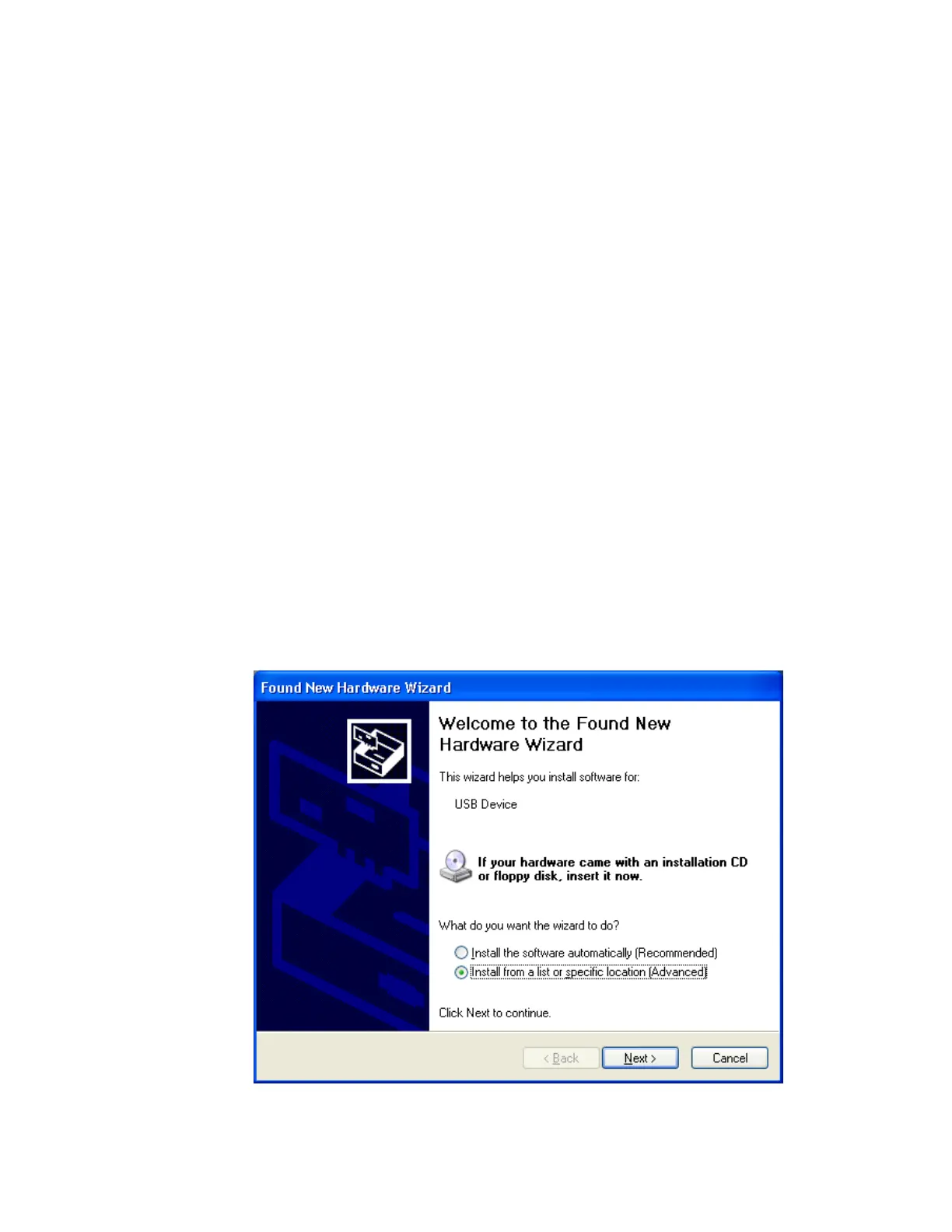
2. Plug the camera into the computer with the supplied USB cable. The computer will then
present you with the Found New Hardware Wizard. Click the “
Install from a list…
” radio
button then click the
Next
button.


 To Next Page