Getting Started P746/EN GS/G31
(GS) 3-
12
MiCOM P746
1.7 Relay configuration
The relay is a multi-function device that supports numerous different protection, control and
communication features. In order to simplify the setting of the relay, there is a configuration
settings column which can be used to enable or disable many of the functions of the relay.
The settings associated with any function that is disabled are made invisible, i.e. they are not
shown in the menu. To disable a function change the relevant cell in the ‘Configuration’
column from ‘Enabled’ to ‘Disabled’.
The configuration column controls which of the four protection settings groups is selected as
active through the ‘Active settings’ cell. A protection setting group can also be disabled in the
configuration column, provided it is not the present active group. Similarly, a disabled setting
group cannot be set as the active group.
1.8 Front panel user interface (keypad and LCD)
GS
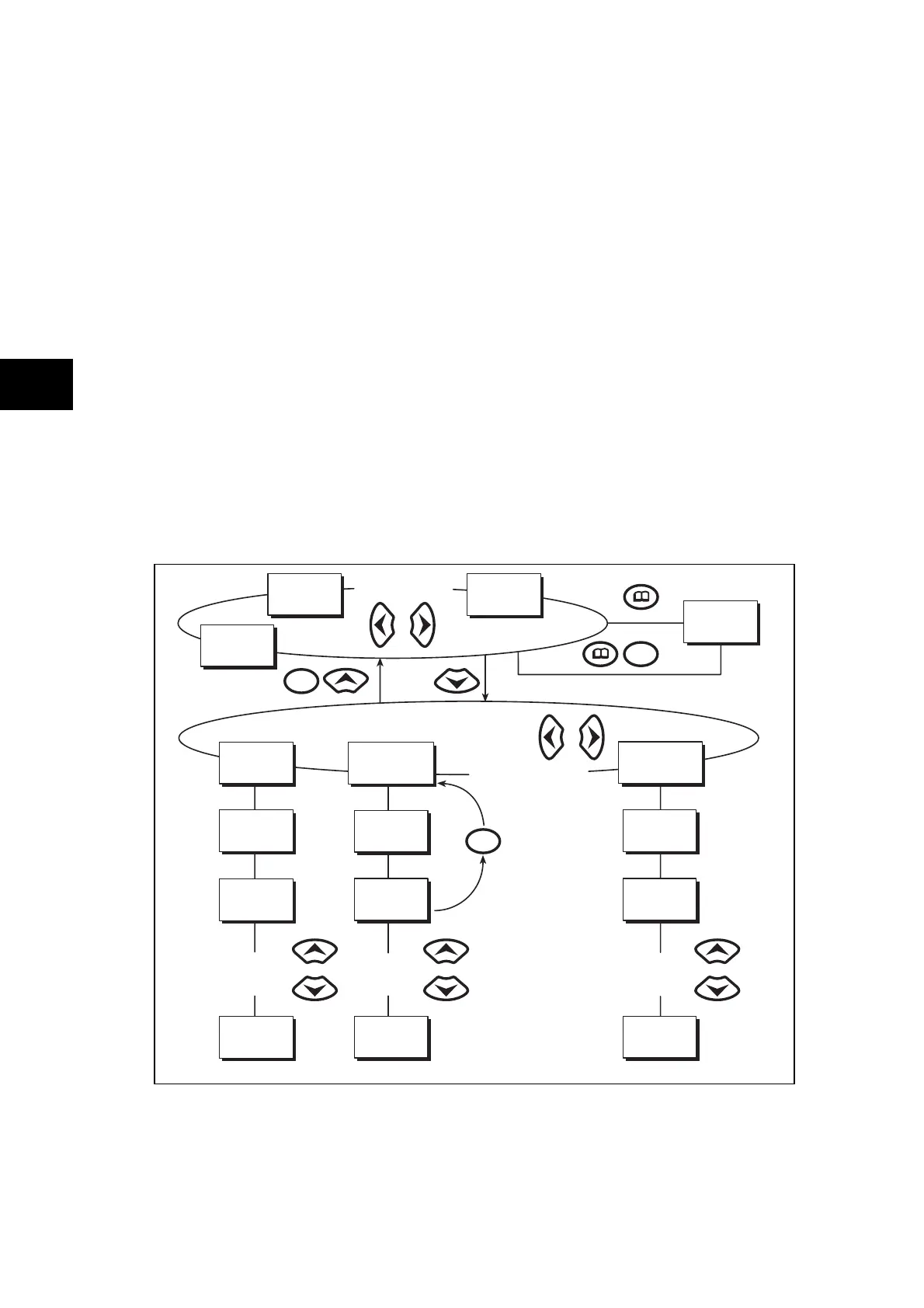
When the keypad is exposed it provides full access to the menu options of the relay, with the
information displayed on the LCD.
The
, , and keys which are used for menu navigation and setting value changes
include an auto-repeat function that comes into operation if any of these keys are held
continually pressed. This can be used to speed up both setting value changes and menu
navigation; the longer the key is held depressed, the faster the rate of change or movement
becomes.
System
frequency
Date and time
3-phase voltage
Alarm messages
Other default displays
C
olumn
1
S
y
s
tem
data
C
olumn
2
V
iew
re
c
ord
s
C
olumn
n
G
roup
4
O
ver
c
urrent
Data 1.1
Language
Data 2.1
Last record
Data 1.2
Password
Data 2.2
Time and date
Data 1.n
Password
level 2
Data 2.n
C - A voltage
Data n.n
I> char angle
Data n.2
I>1 directional
Data n.1
I>1 function
Other setting
cells in
column 1
Other setting
cells in
column 2
Other setting
cells in
column n
Other column headings
Note: The C key will return
to column header
from any menu cell
C
C
C
P0105ENa
FIGURE 4: FRONT PANEL USER INTERFACE



 To Next Page