Getting Started P746/EN GS/G31
MiCOM P746 (GS) 3-
17
1.8.6 Setting changes
To change the value of a setting, first navigate the menu to display the relevant cell. To
change the cell value press the enter key , which will bring up a flashing cursor on the
LCD to indicate that the value can be changed. This will only happen if the appropriate
password has been entered, otherwise the prompt to enter a password will appear. The
setting value can then be changed by pressing the or keys. If the setting to be
changed is a binary value or a text string, the required bit or character to be changed must
first be selected using the and keys. When the desired new value has been reached it is
confirmed as the new setting value by pressing . Alternatively, the new value will be
discarded either if the clear button is pressed or if the menu time-out occurs.
For protection group settings and disturbance recorder settings, the changes must be
confirmed before they are used by the relay. To do this, when all required changes have
been entered, return to the column heading level and press the key. Prior to returning to
the default display the following prompt will be given:
Update settings?
Enter or clear
Pressing
GS
will result in the new settings being adopted, pressing will cause the relay to
discard the newly entered values. It should be noted that, the setting values will also be
discarded if the menu time out occurs before the setting changes have been confirmed.
Control and support settings will be updated immediately after they are entered, without the
‘Update settings?’ prompt.
1.9 Front communication port user interface
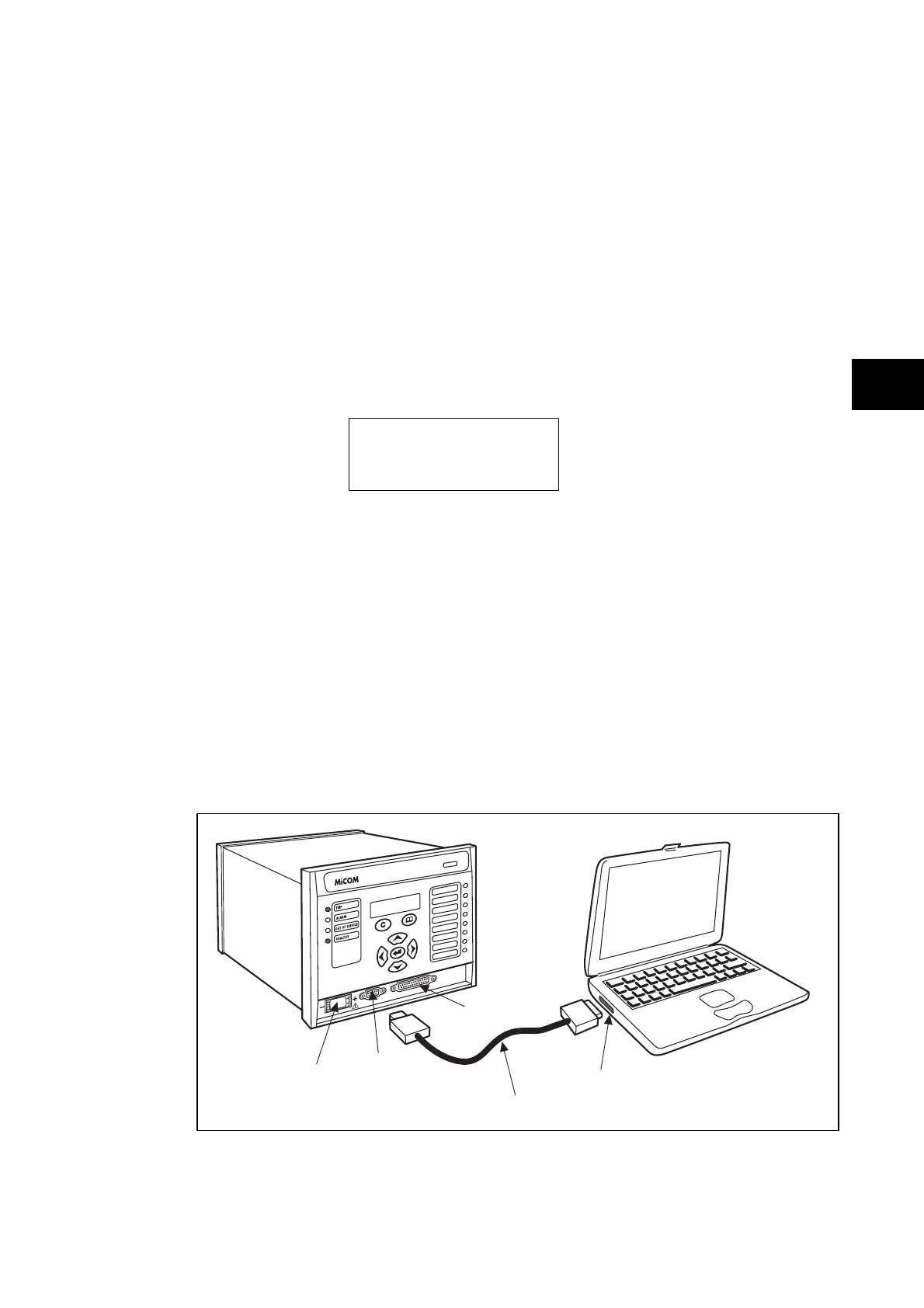
The front communication port is provided by a 9-pin female D-type connector located under
the bottom hinged cover. It provides EIA(RS)232 serial data communication and is intended
for use with a PC locally to the relay (up to 15m distance) as shown in Figure 7. This port
supports the Courier communication protocol only. Courier is the communication language
developed by Schneider Electric to allow communication with its range of protection relays.
The front port is particularly designed for use with the relay settings programs MiCOM S1 or
MiCOM S1 Studio (Windows 2000, Windows XP or Windows Vista based software
package).
S
K 1
SK 2
MiCOM relay
Laptop
Serial communication port
(COM 1 or COM 2)
Serial data connector
(up to 15m)
25 pin
download/monitor port
Battery
9 pin
front comms port
P0107EN
FIGURE 7: FRONT PORT CONNECTION



 To Next Page