Getting Started P746/EN GS/G31
(GS) 3-
14
MiCOM P746
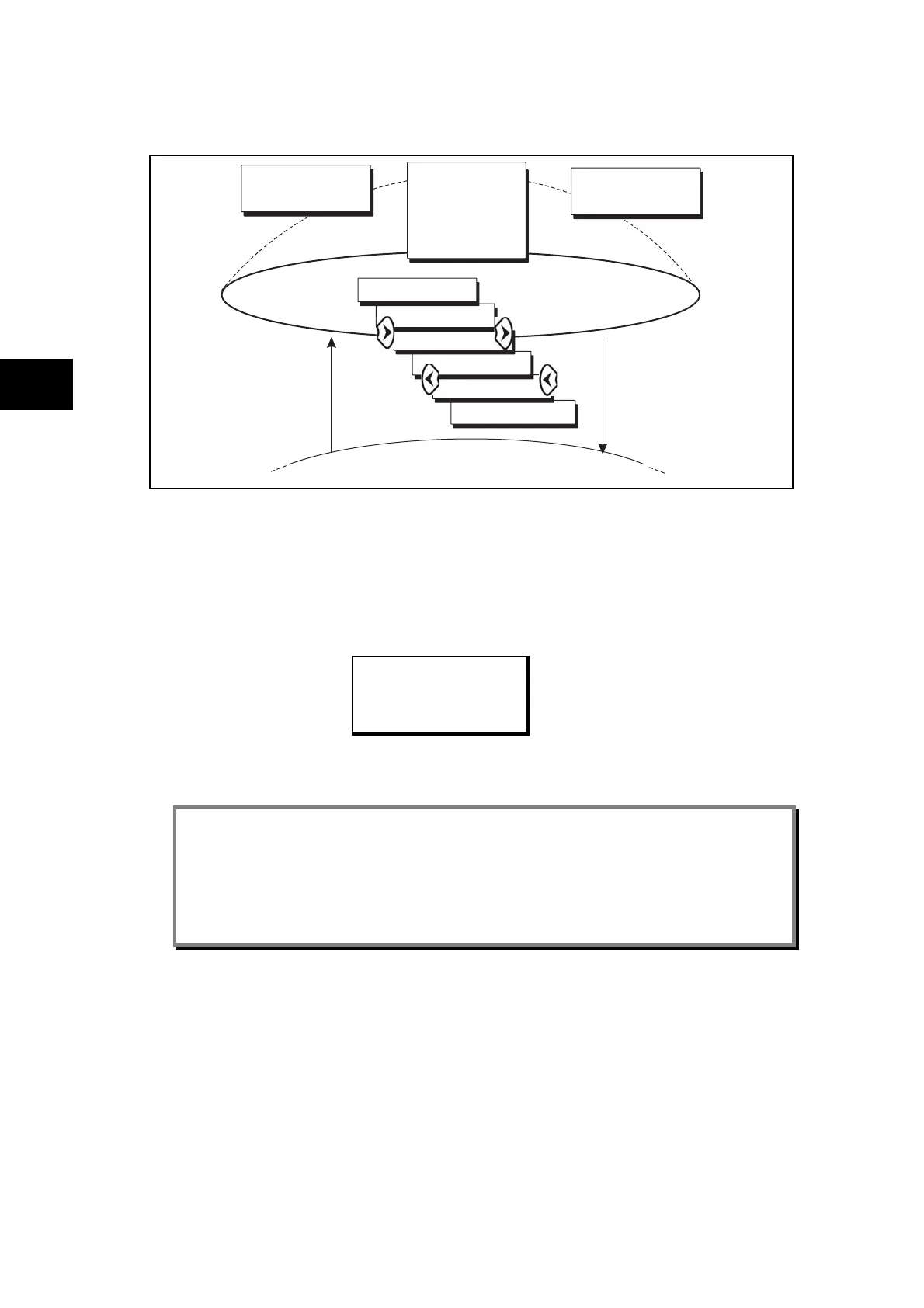
FIGURE 5 depicts the navigation between default displays.
NERC Compliant
Banner
Access level
Date and Time
Description
Plant reference
Access level
Other default displays
DISPLAY NOT NERC
COMPLIANT. OK?
DISPLAY NOT NERC
COMPLIANT. OK?
6
8
2
4
P3071ENa
GS
FIGURE 5: DEFAULT DISPLAY NAVIGATION
The right cursor key takes you to the next menu option in a clockwise direction, whereas the
left cursor key takes you to the next menu option in an anti-clockwise direction.
If the device is not yet configured for NERC compliance (see cyber Security chapter) a
warning will appear when moving from the "NERC compliant" banner. The warning message
is as follows:
DISPLAY NOT NERC
COMPLIANT. OK?
You will have to confirm with the ENTER button before you can go any further.
Note: The unit is delivered with the NERC-compliant default display. Please see the Cyber
Security chapter for further details
Note: Whenever the unit has an uncleared alarm the default display is replaced by the text
Alarms/ Faults present. You cannot override this default display. However, you can
enter the menu structure from the default display, even if the display shows the
Alarms/Faults present message.
1.8.2 Menu navigation and setting browsing
The menu can be browsed using the four arrow keys, following the structure shown in Figure
5. Thus, starting at the default display the
key will display the first column heading. To
select the required column heading use the
and keys. The setting data contained in
the column can then be viewed by using the
and keys. It is possible to return to the
column header either by holding the [up arrow symbol] key down or by a single press of the
clear key
. It is only possible to move across columns at the column heading level. To
return to the default display, press the
key or the clear key from any of the column
headings. It is not possible to go straight to the default display from within one of the column
cells using the auto-repeat facility of the
key, as the auto-repeat will stop at the column
heading. To move to the default display, the
key must be released and pressed again.



 To Next Page