Getting Started P746/EN GS/G31
(GS) 3-
16
MiCOM P746
GS
1.8.4 Password entry
Configuring the default display (in addition to modification of other settings) requires level 3
access. .You will be prompted for a password before you can make any changes, as follows.
The default level 3 password is AAAA.
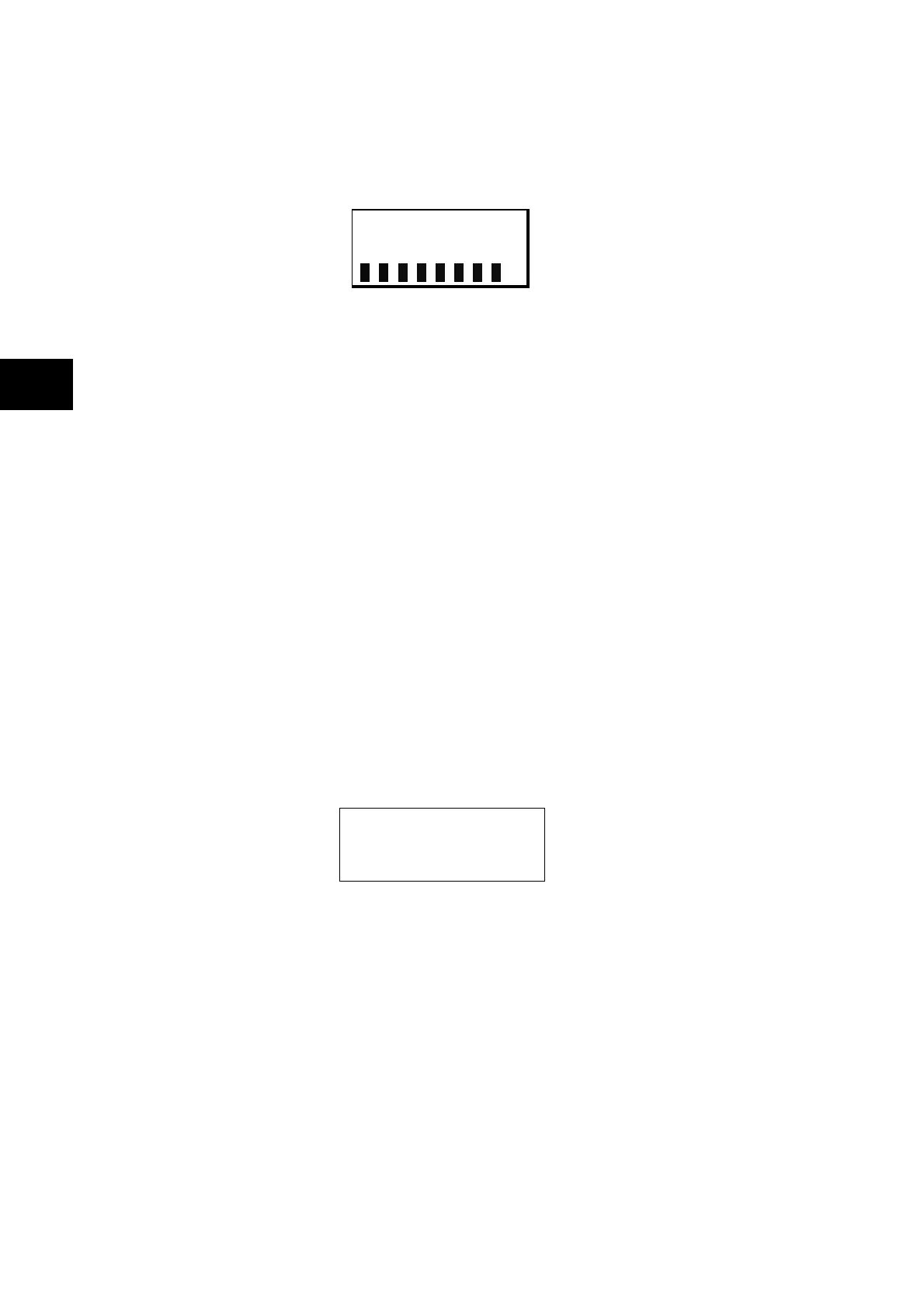
Enter Password
1. A flashing cursor shows which character field of the password can be changed. Press
the up or down cursor keys to change each character (tip: pressing the up arrow once
will return an upper case "A" as required by the default level 3 password).
2. Use the left and right cursor keys to move between the character fields of the password.
3. Press the Enter key to confirm the password. If you enter an incorrect password, an
invalid password message is displayed then the display reverts to Enter password.
Upon entering a valid password a message appears indicating that the password is
correct and if so what level of access has been unlocked. If this level is sufficient to edit
the selected setting, the display returns to the setting page to allow the edit to continue.
If the correct level of password has not been entered, the password prompt page
appears again.
4. To escape from this prompt press the Clear key. Alternatively, enter the password using
System data > Password. If the keypad is inactive for 15 minutes, the password
protection of the front panel user interface reverts to the default access level.
5. To manually reset the password protection to the default level, select System data >
Password, then press the clear key instead of entering a password.
1.8.5 Reading and clearing of alarm messages and fault records
The presence of one or more alarm messages will be indicated by the default display and by
the yellow alarm LED flashing. The alarm messages can either be self-resetting or latched,
in which case they must be cleared manually. To view the alarm messages press the read
key c. When all alarms have been viewed, but not cleared, the alarm LED will change from
flashing to constant illumination and the latest fault record will be displayed (if there is one).
To scroll through the pages of this use the c key. When all pages of the fault record have
been viewed, the following prompt will appear:
Press clear to
reset alarms
To clear all alarm messages press ; to return to the alarms/faults present display and
leave the alarms uncleared, press c. Depending on the password configuration settings, it
may be necessary to enter a password before the alarm messages can be cleared (see
section on password entry). When the alarms have been cleared the yellow alarm LED will
extinguish, as will the red trip LED if it was illuminated following a trip.
Alternatively it is possible to accelerate the procedure, once the alarm viewer has been
entered using the c key, the key can be pressed, and this will move the display straight
to the fault record. Pressing again will move straight to the alarm reset prompt where
pressing once more will clear all alarms.



 To Next Page