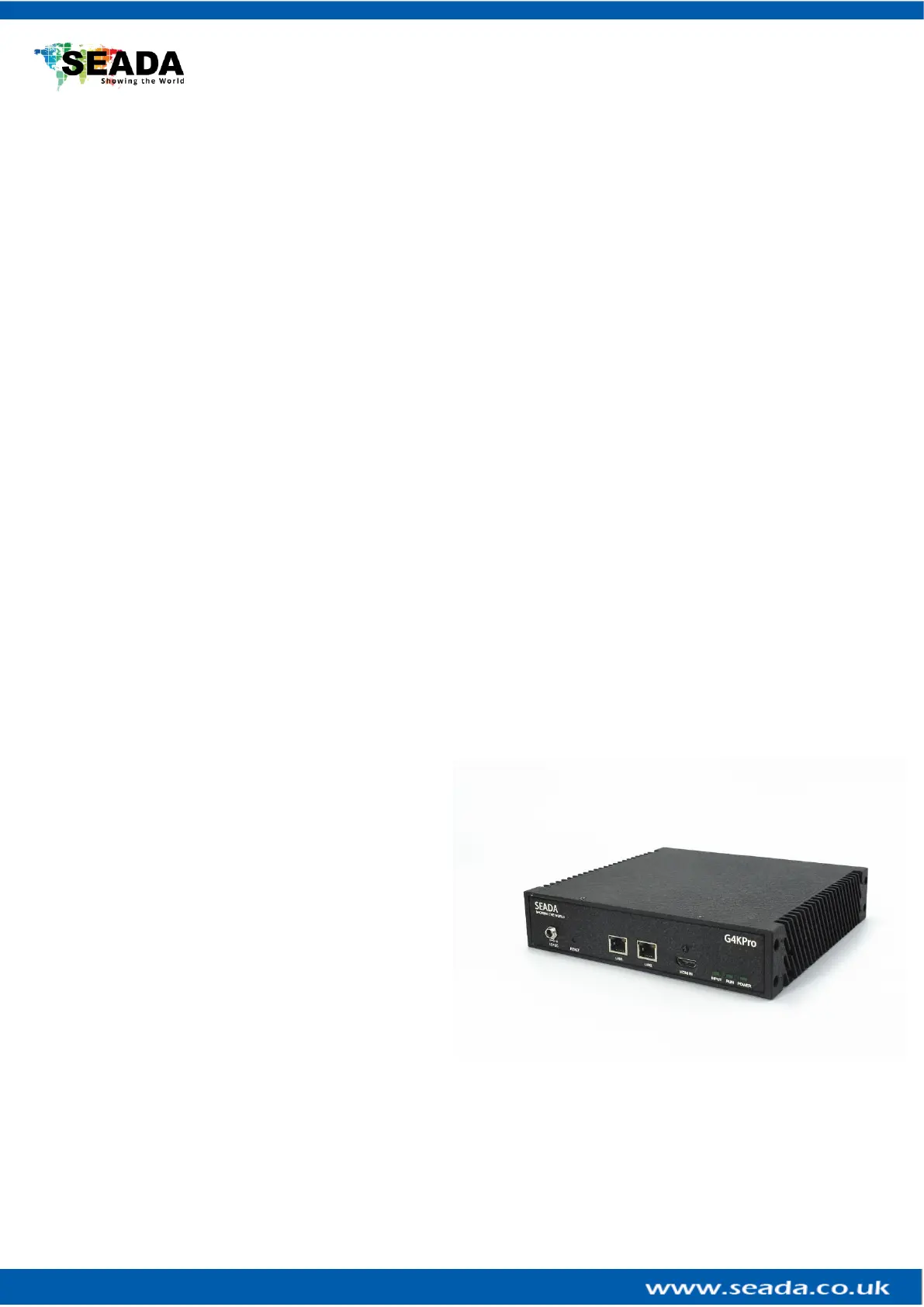
G4K Pro User Guide
4. Troubleshooting
4.1. No Connection
4.1.1. Ensure the G4K Pro is powered up
4.1.2. Ensure the PC and G4K Pro at the same IP group
4.1.3. Ensure the IP address is correct for G4K Pro
➢ IP address of each device will be shown on screen when no video input is
applied.
4.2. No Output
4.2.1. If IP address is shown on screen, it means no input video source being
detected.
➢ Ensure the video source is on
➢ Ensure the video source device sends the signal out (G4K Pro INPUT statue
LED light will be on if input video signal presents)
4.2.2. Black screen
➢ Ensure the G4K Pro and screens are powered up
➢ Ensure the connection to screens are OK
➢ Ensure the screens on correct channel (DVI or HDMI or VGA)
➢ Ensure the G4K Pro is on main device mode or is daisy-chained properly if
works as slave device
Note: The header of each G4K Pro in ‘Device’ of G4K Pro management software
has 5 different colour to indicate which mode this device is on (3.1.2.5, No.5)
➢ Ensure the input source window is applied and covers the screen in ‘Input’
of G4K Pro management software
SEADA Technology Ltd
Oak Tree Park
Burnt Meadow Road
Moons Moat North Industrial Estate
Redditch
Worcestershire
B98 9NW
United Kingdom
Email: sales@seada.co.uk
Phone: +44 (0)1527 584364
Fax: +44 (0)1527 962998



 To Previous Page