G4K Pro User Guide
3.1.2. Connect multiple G4K Pro as daisy chain
3.1.2.1. Set Up unique IP address for each G4K Pro
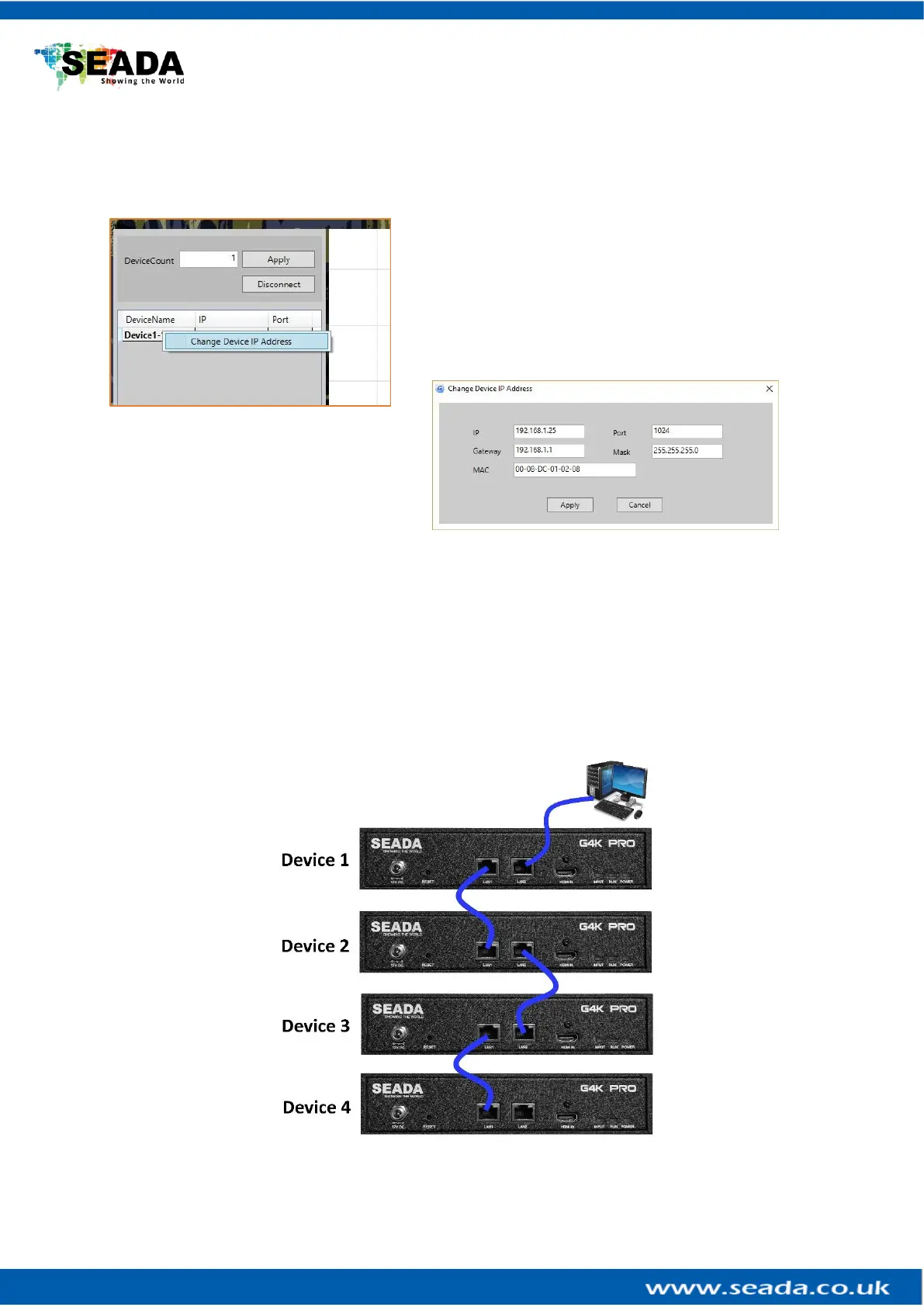
Since the default IP address of each G4K Pro is the same, users need to change the IP addresses
of these devices to avoid IP conflict.
1) Users need to connect the G4K Pro one by one using
default IP address: 192.168.1.25 to set up the connection
between device and control PC.
2) Make sure the device has been connected and then
right click the Device Name and then choose Change
Device IP Address to open the ‘Change Device IP Address’
dialog window.
3) Please give a unique IP address for each device in the same system.
e.g.
Device 1 192.168.1.25
Device 2 192.168.1.26
Device 3 192.168.1.27
Device 4 192.168.1.28
3.1.2.2. Daisy chain units with CAT cables
Daisy chain all the units via dual RJ45 ports and connect to the control PC for command and control.



 To Next Page