G4K Pro User Guide
3. G4K Pro management software
There are three main groups of tools in this software to help users design a creative video wall layout.
Device, Output and Input
3.1. Device
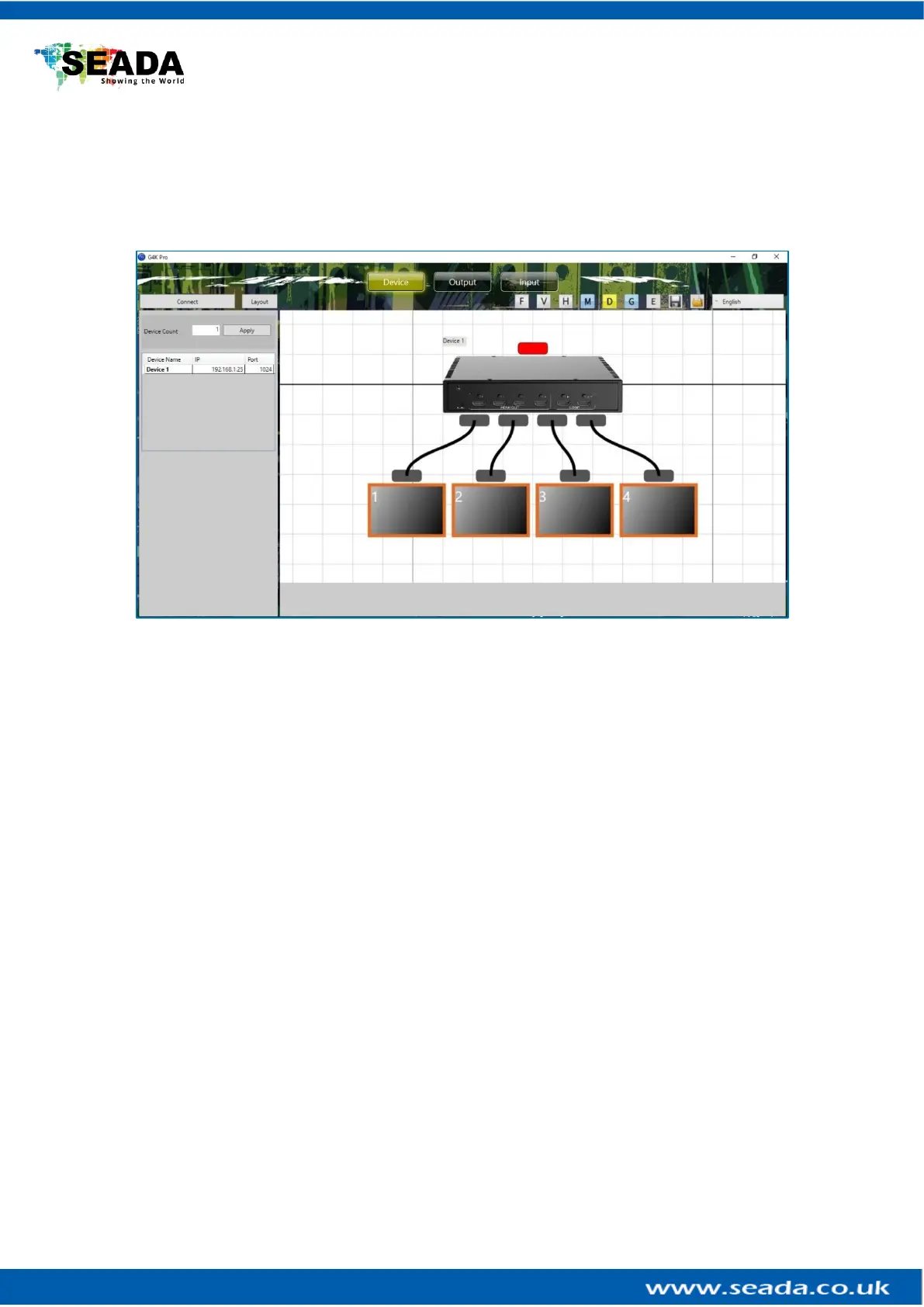
Users are able to configure G4K Pro devices and connect the devices to control PC in this section.
3.1.1. Connect singe G4K Pro
The default IP address of G4K Pro is 192.168.1.25. Users need to change the IP address of
control PC to the same IP group of G4K Pro.
• Open the ‘Ethernet Properties’ windows on Control PC
• Highlight the TCP/IPv4 in Networking and click the Properties button to open the TCP/IPv4
Properties window
• Change the ‘Obtain an IP address automatically’ to ‘Use the following IP address to set up
a static IP address
➢ IP address: any address between 192.168.1.1 and 192.168.1.255 except the
address which has been taken by the G4K Pro
➢ Subnet mask: 255.255.255.0
➢ Default Gateway: 192.168.1.1



 To Next Page