Using the AMBEO Soundbar
AMBEO Soundbar | 39
Network connection via WiFi or Ethernet
Use the WiFi connection or the Ethernet connection for:
•Chromecast
• UPnP (Universal Plug and Play)
•Updates
Using Chromecast
To use Chromecast:
▷ Download the Google Home app.
▷ Start the setup in the app.
Establishing a WiFi connection
To establish a WiFi connection:
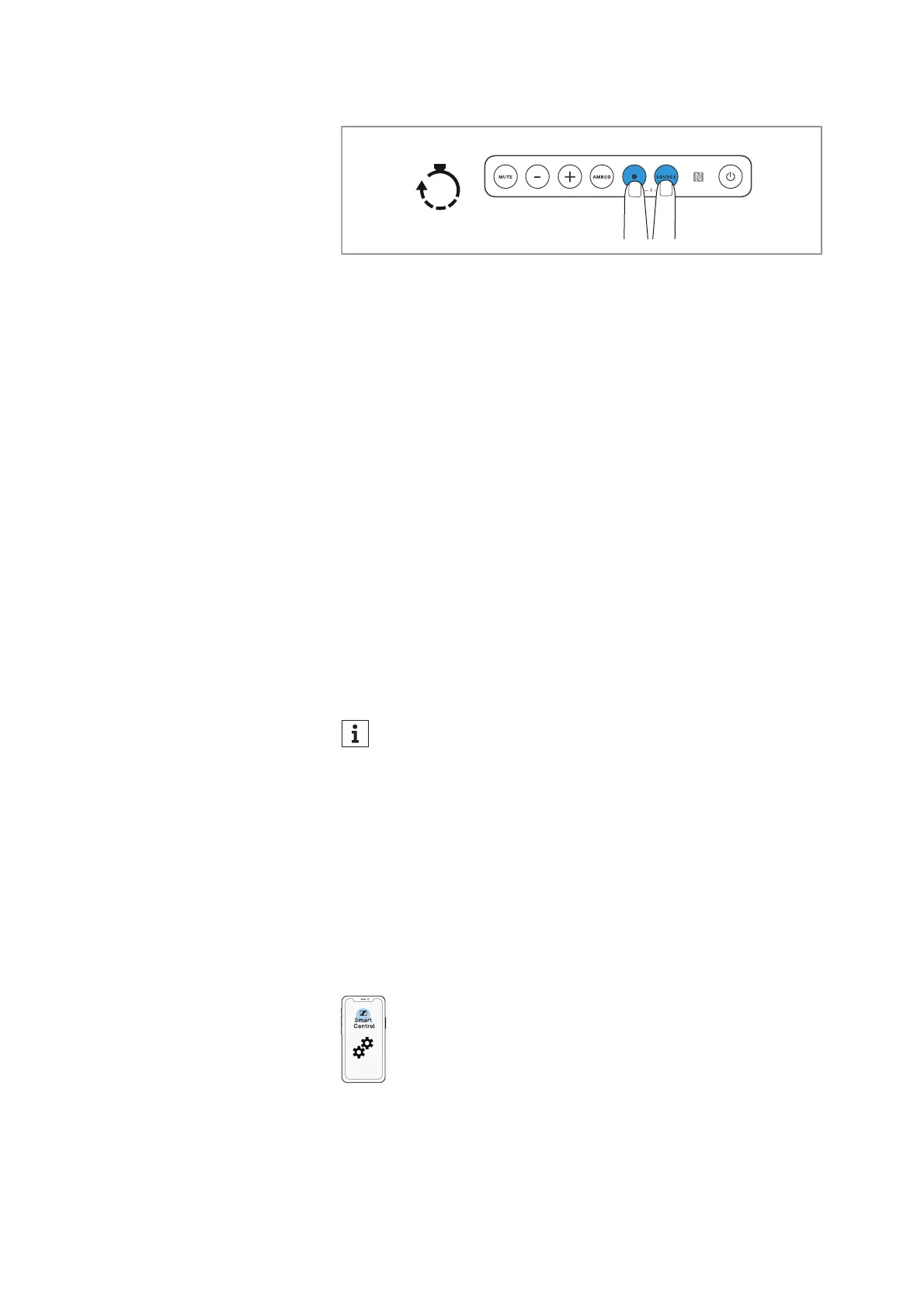
▷ Press the SETUP button for approx. 2 seconds to activate WPS
(WiFi Protected Setup).
The Soundbar searches for a connection.
The display shows “WPS searching” and the status LED flashes
or
ange.
If no connection is established within 2 minutes, the search is
terminated.
0 Press the WPS button on your router.
The Soundbar connects to the WiFi.
The display shows “WiFi connected” for 4 seconds and the status
LE
D lights up orange.
The Soundbar must be on the same network as the devices the
Soundb
ar wants to communicate with.
The WiFi connection can be set up
via the Google Home app and
managed via the Smart Control app.
Establishing an Ethernet network connection
▷ Make sure that the Ethernet cable is properly connected to the
Soundbar and your network (> 25).



 To Next Page