Using the AMBEO Soundbar
36 | AMBEO Soundbar
Using the AMBEO Soundbar
Connecting the AMBEO Soundbar to a
Bluetooth/NFC device
Information on the Bluetooth wireless connection
The Soundbar is compatible with the Bluetooth standard 4.2.
If your audio source supports one of
the following high-resolution
audio encoding methods, music is automatically played in high audio
quality: AAC. Otherwise the Soundbar will play your music in normal
audio quality (SBC).
When selecting the “Bluetooth” input or when switching on with the
las
t used input “Bluetooth”, the Soundbar automatically tries to con-
nect to the last used Bluetooth device.
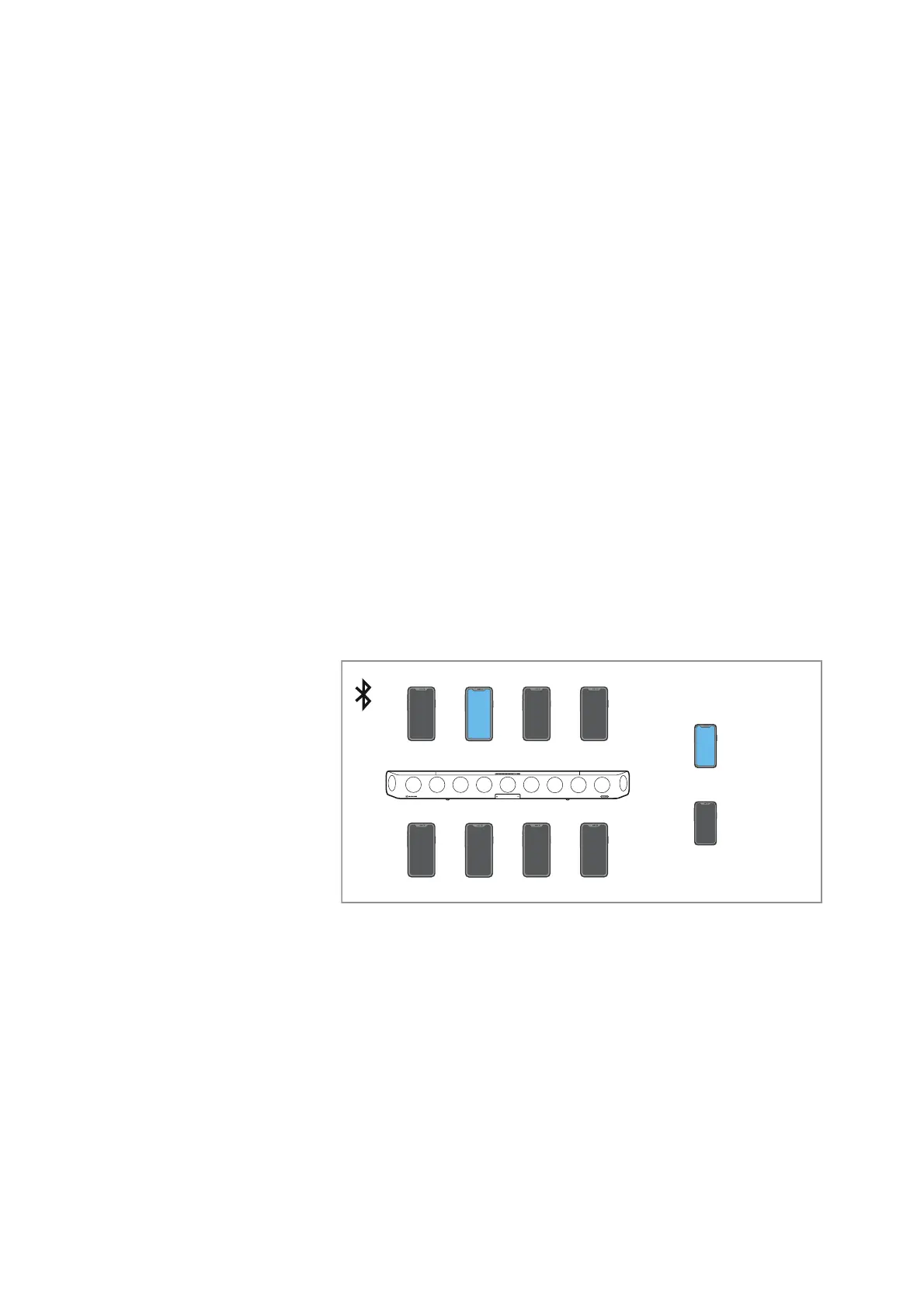
The Soundbar can save the connection profiles of up to eight Blue-
tooth devices with which it has been paired.
If you pair the Soundbar with the nint
h Bluetooth device, the saved
connection profile of the least used Bluetooth device will be over-
written. If you want to re-establish a connection with the overwritten
Bluet
ooth device, you have to pair the earphones again.
If a device is connected, you first hav
e to disconnect it to connect a
new device.
You can use the Near Field Communication (NFC) function for easy
p
airing of the devices.
Pairing the AMBEO Soundbar with a Bluetooth device
▷ Activate Bluetooth on your Bluetooth device.
▷ Press the multi-function button and the SOURCE button for 2 sec-
onds.
The status LED pulses blue.
The Soundbar is in pairing mode.
▷ Hold your Bluetooth device at a distance of approx. 20 cm to the
Soundbar.
▷ Via the menu of your Bluetooth device, start the search for new
Bluetooth devices.
All active Bluetooth devices in the
proximity of your smartphone
are displayed.



 To Next Page