How to Use the Shark HD510 CNC Machine for First Time Users (Ready2Control)
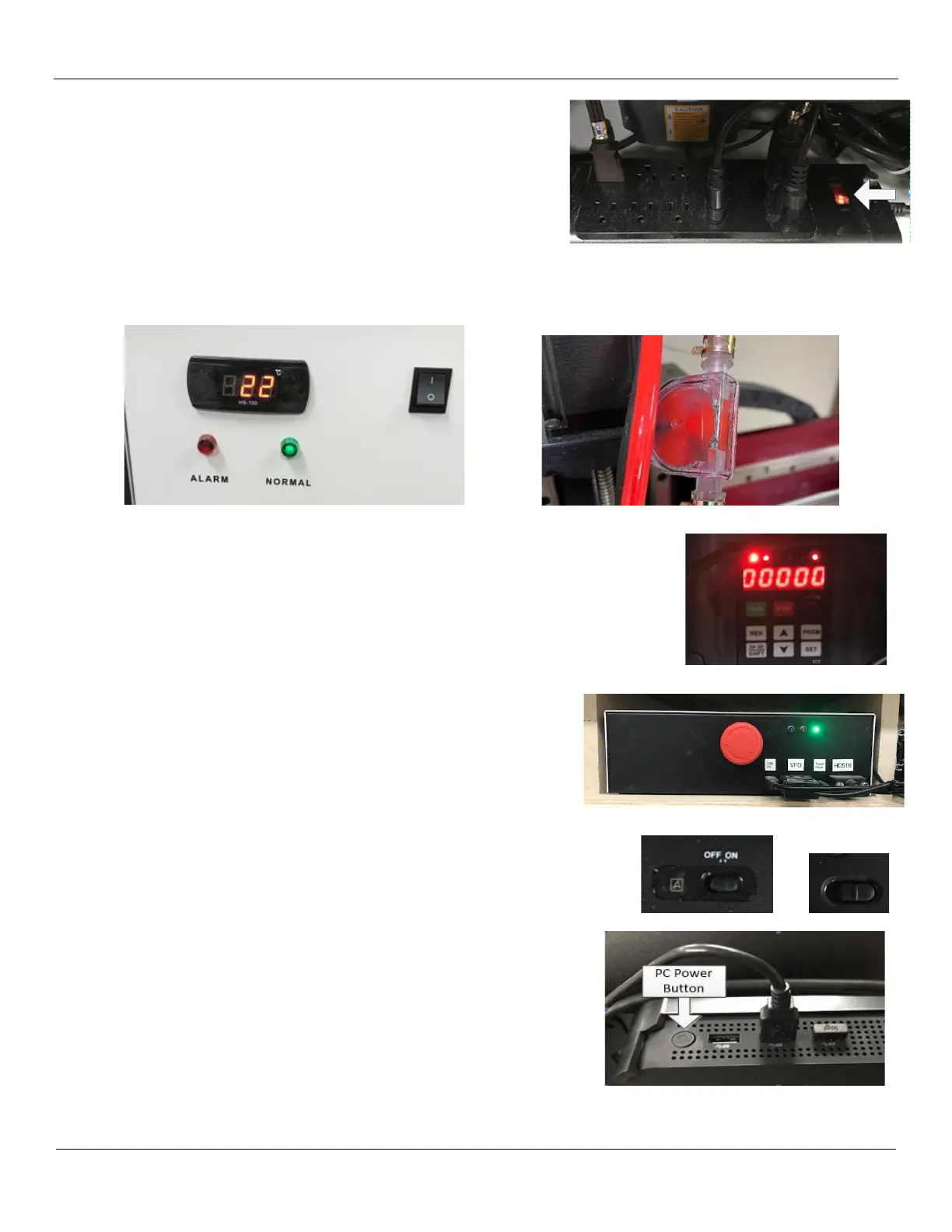
4) On the power strip press the power switch to ON. The red power
indicator light turns on. This will apply power to the:
- Shark HD510
- VFD
- Chiller
- Controller (currently switched off)
- PC/Display
Verify the green light on CW-3000 Chiller is on and visually verify that the coolant is cycling (red wheel on top of
spindle will be spinning)
Check the front of the VFD. After powering up it should be flashing 00000.
5) After you have verified that the VFD is up and running, turn on the
Controller by lightly pulling out the red knob and turning it
clockwise to pop it out and latch it in the On position. The green
and red LEDs will flash momentarily and then the green LED will
turn on solid
6) Turn on the wireless keyboard (the switch is at the top right of the
keyboard) and turn on the wireless mouse (the switch is on the bottom of
the mouse).
7) On the back of the LCD display is the Windows 10 Minix PC. Locate
and press the power on button. The blue LED on the side of the PC will
light up. The PC should boot up in a minute or so.
8) After the PC boots up you will need to login using the credentials
provided to you.


 To Next Page