EasyManua.ls Logo

Sharp CD-SW340H - User Manual

Sharp CD-SW340H
48 pages
Print Icon
To Next Page IconTo Next Page
Loading...
2008/April/18 CD-SW340H_AUS
Thank you for purchasing this SHARP product.
To obtain the best performance from this product, please read this
manual carefully. It will guide you in operating your SHARP product.
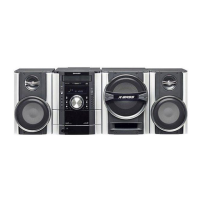
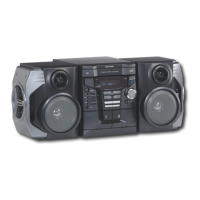
CD-SW340H Mini Component System consisting of CD-SW340H (main
unit), CP-S340H (front speaker) and CP-SW240H (subwoofer).
MINI COMPONENT SYSTEM
CD-SW340H
MODEL
OPERATION MANUAL

Other manuals for Sharp CD-SW340H

Questions and Answers

  • A
    aprilpearsonAug 18, 2025
    What to do if the remote control for my Sharp Stereo System does not operate?
    • J
      John GuerraAug 18, 2025
      If the remote control for your Sharp Stereo System isn't working, consider these potential causes: * Confirm that the AC power lead of the unit is properly plugged in. * Check the batteries in the remote to ensure they are inserted with the correct polarity. * Replace the batteries if they are dead. * Adjust the distance or angle between the remote and the unit. * Ensure that the remote control sensor isn't receiving strong light.
  • M
    Matthew LewisAug 20, 2025
    Why is there no sound coming from my Sharp CD-SW340H Stereo System?
    • C
      Cassie OrtegaAug 21, 2025
      If no sound is coming from your Sharp Stereo System, there are a few things to check: * Ensure the volume isn't set to "0". Try increasing the volume. * Make sure headphones aren't plugged in, as this will mute the speakers. Disconnect them. * Verify that the speaker wires are properly connected. Reconnect if necessary.
  • Y
    ywestAug 23, 2025
    What to do if my Sharp CD-SW340H Stereo System does not respond when a button is pressed?
    • J
      Jennifer YoungAug 23, 2025
      If your Sharp Stereo System is unresponsive when you press a button, try setting the unit to the power stand-by mode and then turn it back on. If the unit still malfunctions, reset it.
  • J
    Julia ThompsonAug 26, 2025
    Why does playback not start on my Sharp CD-SW340H?
    • H
      Heather WagnerAug 26, 2025
      If your Sharp Stereo System is not playing, stops during playback, or doesn't perform properly, check the following: * Ensure the disc is loaded the right way up. * Verify that the disc meets the compatibility standards for the system. * Replace the disc if it is distorted or scratched.
  • T
    Tammy PriceAug 28, 2025
    What to do if playback sounds are skipped on my Sharp CD-SW340H Stereo System?
    • A
      Angel DeleonAug 28, 2025
      If the playback on your Sharp Stereo System skips or stops mid-track, here’s what to check: * Move the unit away from excessive vibrations. * Clean the disc if it is dirty. * Wait until the condensation clears if condensation has formed inside the unit.
  • D
    Dana RossAug 30, 2025
    Why does my Sharp CD-SW340H Stereo System radio make unusual noises continuously?
    • E
      earlmacdonaldAug 31, 2025
      If your Sharp Stereo System radio is making unusual noises, try the following: * Move the unit away from the TV or computer. * Ensure the FM aerial or AM loop aerial is placed properly.
  • J
    Jordan LopezSep 2, 2025
    What causes sound skipping on Sharp CD-SW340H?
    • L
      lrodriguezSep 2, 2025
      If you are experiencing sound skipping, can't hear treble, or notice sound fluctuation with your Sharp Stereo System, consider the following: * Remove any slack from the tape. * Check the tape for stretching. * Clean the capstans, pinch rollers, or heads.
  • K
    Kayla FinleySep 4, 2025
    How to fix Sharp Stereo System when it cannot record?
    • C
      Chris WigginsSep 4, 2025
      If your Sharp Stereo System is unable to record, check the erase-prevention tab on the tape.
  • J
    Jerry JacksonSep 7, 2025
    What causes Sharp Stereo System to record tracks with poor sound quality?
    • H
      Heather DillonSep 7, 2025
      If you cannot record tracks with proper sound quality or cannot erase completely on your Sharp Stereo System, use a normal tape. You cannot record on a metal or CrO tape.
  • J
    jenniferflynnSep 9, 2025
    Why is the clock on my Sharp Stereo System not set to the correct time?
    • A
      Andre DurhamSep 9, 2025
      If the clock on your Sharp Stereo System is not set to the correct time, reset the clock. This may be necessary if a power failure occurred.

Summary

Precautions

Controls and Indicators

Front Panel Controls

Details and page references for all buttons and connectors located on the front of the main unit.

Controls and Indicators (Continued)

Display Indicators

Lists and describes the various indicators and their corresponding page numbers for the unit's display.

Remote Control Layout

Remote Control Functions

Lists and describes the functions of all buttons on the remote control, with corresponding page references.

Preparation for Use

System Connections Overview

Diagram showing how to connect speakers, aerials, and power to the main unit.

System Connections Details

Speaker Connection

Explains how to connect the front speakers and subwoofer to the main unit, including polarity.

AC Power Connection

Remote Control Setup

Battery Installation

Step-by-step guide on how to insert batteries into the remote control.

General Controls and Operation

Power On;Off Operation

How to turn the unit on and off, and enter the power stand-by mode.

Volume Adjustment

Details how to adjust the volume using the main unit's control and the remote control.

Setting the Clock

Listening to CD or MP3;WMA Discs

Playing CD or MP3;WMA Discs

Various Disc Playback Functions

Advanced CD;MP3;WMA Playback

Direct Track Search

How to directly select a specific track number on the current disc using the remote control.

Repeat Play Function

Random Play Function

Programmed Playback

Programmed Playback Setup

How to create a custom playback sequence of tracks from discs.

MP3;WMA File Navigation

MP3;WMA Navigation Overview

Explains how to search and play files by folder or title for MP3/WMA discs.

MP3;WMA File Navigation (Continued)

File Search by Folder or Title

Detailed steps for searching and selecting files by folder name or title (1, 2, or 3).

Character Search for MP3;WMA Files

Character Search Process

Step-by-step guide to searching for files by entering character strings for folder or title names.

MP3;WMA Programmed Playback

Programmed Playback by Folder;Title

How to program playback sequences using folders or titles from MP3/WMA discs.

Listening to the Radio

Tuning Radio Stations

How to manually or automatically tune into FM and AM radio stations.

Radio Station Management

Memorizing Radio Stations

How to store up to 40 FM and AM stations into memory for easy recall.

Listening to Cassette Tapes

Tape Playback Operation

Step-by-step guide on loading and playing cassette tapes on TAPE 1 or TAPE 2.

Recording on Cassette Tapes

Recording from CD;MP3;WMA to Tape

Cassette Tape Recording Operations

Recording from Radio

How to tune into a radio station and record it onto a cassette tape.

Using the Radio Data System (RDS)

RDS Auto Station Programming

RDS Programme Type Search

PTY Codes and Traffic Announcements

PTY Codes and Traffic Announcements (Continued)

Timer and Sleep Operation

Setting Timer Playback or Recording

Step-by-step guide for setting the ONCE or DAILY timer for playback or recording.

Configuring Timer Settings

Checking Timer Settings

Cancelling Timer Settings

Sleep Operation

Sleep Operation Setup

How to set the unit to turn off automatically after a specified time.

Troubleshooting Chart

General Troubleshooting

Addresses common problems like incorrect time, no response, and no sound.

CD Player Troubleshooting

Troubleshooting steps for issues like playback not starting, stopping, or skipping.

Cassette Deck Troubleshooting

Troubleshooting for cassette recording, sound quality, and tape removal issues.

Remote Control Troubleshooting

Diagnosing issues with the remote control not operating.

Tuner Troubleshooting

Troubleshooting for radio reception issues and unusual noises.

Handling Product Malfunctions

Clearing All Memory (Reset)

Maintenance

Speaker and Subwoofer Specifications

Sharp CD-SW340H Specifications

General IconGeneral
CD PlayerYes
FM RadioYes
BluetoothNo
USB PortNo
Number of Discs1
Playable MediaCD, CD-R, CD-RW
Tuner BandsFM
RadioYes
Speakers2

Related product manuals