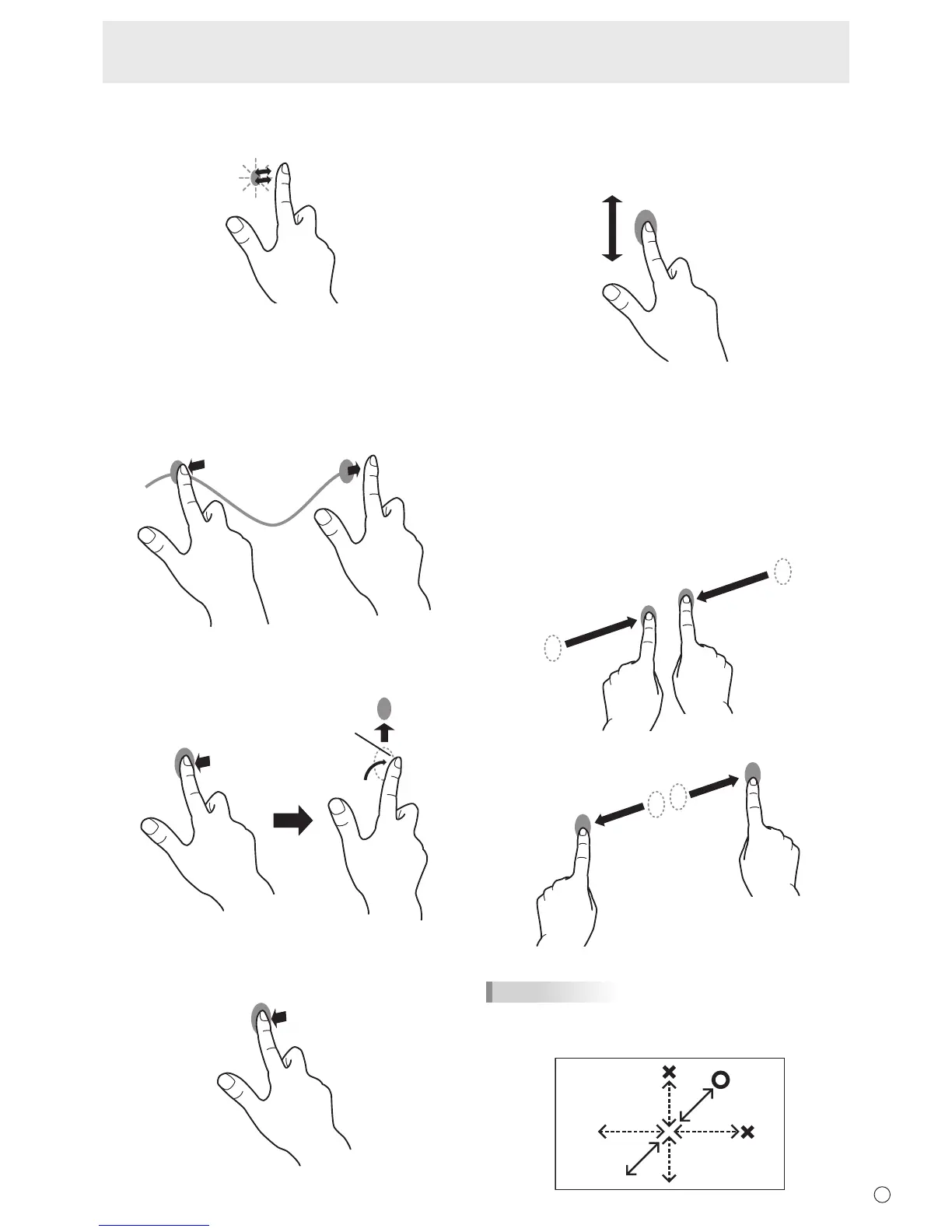
Double-tap*
1
Sameactionasdouble-clickingamouse.
Quicklytouchtwicewithyournger/pen.
Whendouble-tappingwithyournger,besuretoliftyour
ngersufcientlyoffthescreenafterthersttap.Ifthere
isinsufcientdistancebetweenthescreenandyournger,
double-tapwillnottakeplace.
Drag-and-drop
Sameactionasdrag-and-dropwithamouse.
Touchthescreenwithyournger/penandmovewithoutlifting.
When you havenishedthemovement,liftyournger/pen.
Flicks*
2
Flickyournger/peninthedirectionofthefunctionyouwant
to use.
Flickyournger
Press-and-hold*
2
Sameactionasright-clickingamouse.
Pressbrieywithyournger/pen,andthenliftyournger/pen
from the screen.
Pan*
2
Use in a screen with a scrollbar.
Withyournger/pentouchingthescreen,moveinthe
direction you want to scroll. The screen scrolls in the direction
of the movement.
*
1 InWindowsXP/WindowsVista,thesettingscanbechangedin
the touch panel driver.
*
2 Thesettingscanbechangedin"Penandtouch"ofControlPanel
inWindows7.Fordetails,seeWindowsHelp.
n
Finger actions
Zoom
Use in a screen that is capable of enlargement/reduction.
Touchthescreenwithtwongersandmoveyourngers
closer together to reduce the view, or apart to enlarge the
view.
Reduction
Enlargement
TIPS
• Moveyourngerdiagonallyacrossthescreen.Ifyoumove
yourngerhorizontallyorvertically,thescreenmaynot
respond correctly.
Touch Pen Preparations/Touch Action


 To Next Page