27
4D. USING AUTO-TUNES
Auto-tunes are similar to Reminders, but with a few key differences. First, an Auto-tune will
actually force the receiver to the auto-tuned program when it starts. This can be useful if you are
recording programs with an external device. Second, unlike Reminders you cannot set multiple
Auto-tunes for the same start time or for overlapping programs. Your HDDSR receiver supports
two different types of Auto-tunes, program-based and recurring.
PROGRAM-BASED (ONE TIME) AUTO-TUNES
Program-based Auto-tunes are set from the Program Options menu by selecting "Automatically
tune to this program". These will activate one time only and will show a white clock
symbol in the Guide.
RECURRING AUTO-TUNES
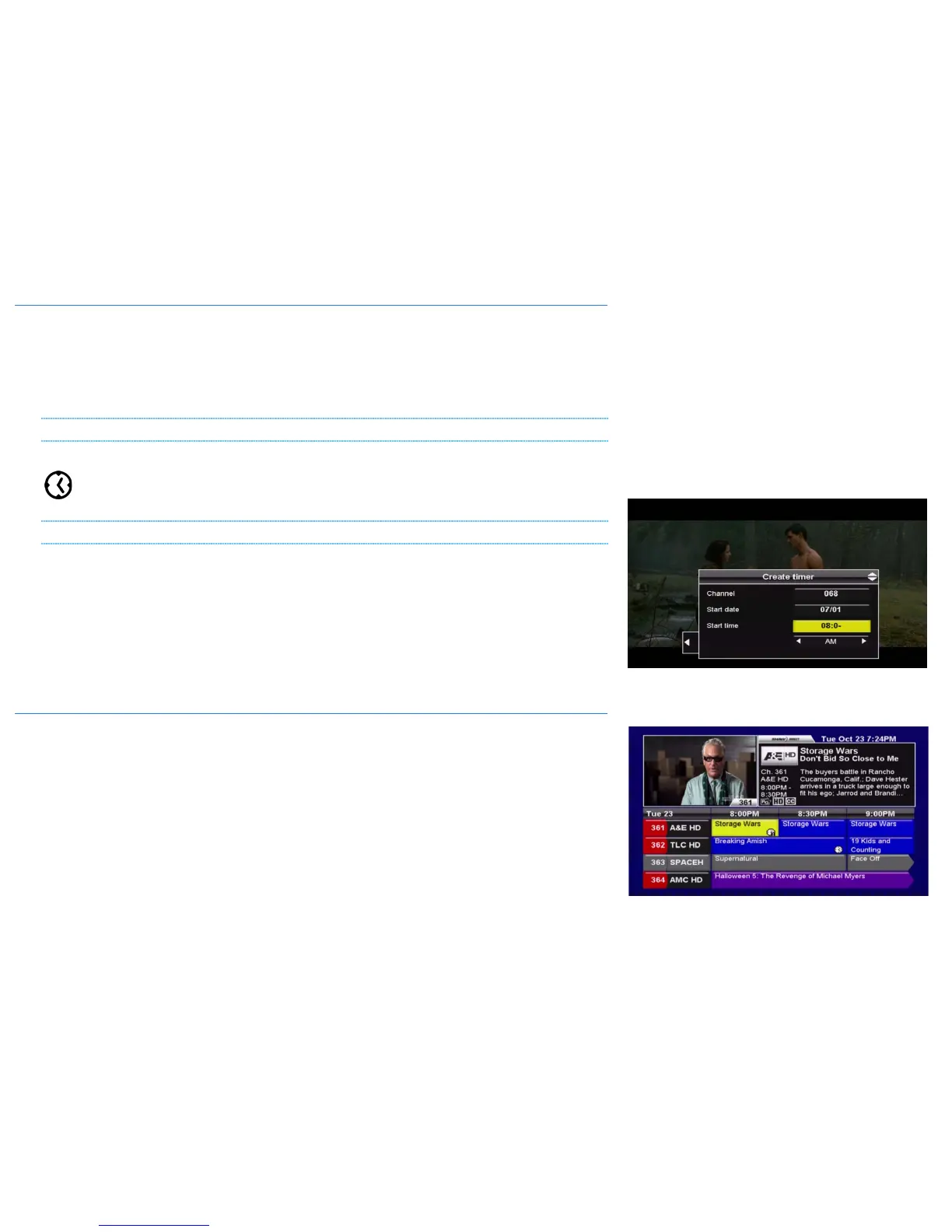
Recurring Auto-tunes are set from the "Auto-tune" section of the "Reminders" menu bar. From
this menu, you must set the channel, start date, start and end time, and frequency for the Auto-
tune. Available frequencies are Once, Daily, Weekly, and Weekdays. Press GO BACK on the
remote once all fields have been filled in to save your Auto-tune.
Once set, Auto-tunes are managed in the same way as Reminders, in the Reminders Options
menu.
4E. AUTO-TUNE CONFLICTS
In order to prevent missed content when recording with an external device, Auto-tune events
cannot overlap. If you set an overlapping Auto-tune, any previously set Auto-tune airing at the
same time as the newest Auto-tune will become “conflicted”, as indicated by the exclamation
mark over the Auto-tune symbol. Conflicted Auto-tunes will not activate.
If there is a conflict and you want to change which program is set to be Auto-tuned, either delete
or lower the priority of the undesired event(s). You can manage your Auto-tune events in the
Reminders Options menu by selecting the auto-tune you wish to change or delete and pressing
ENTER on the remote. Select "Change priority" to adjust the priority, or "Delete reminder event"
to delete a particular auto-tune event.



 To Next Page