A51
1B. HOW TO ORDER
Ordering Shaw Direct On Demand is easy once you’re connected. Not connected yet? Check out
the “Getting Connected” section starting on page 55 first.
1. FIND OR BROWSE
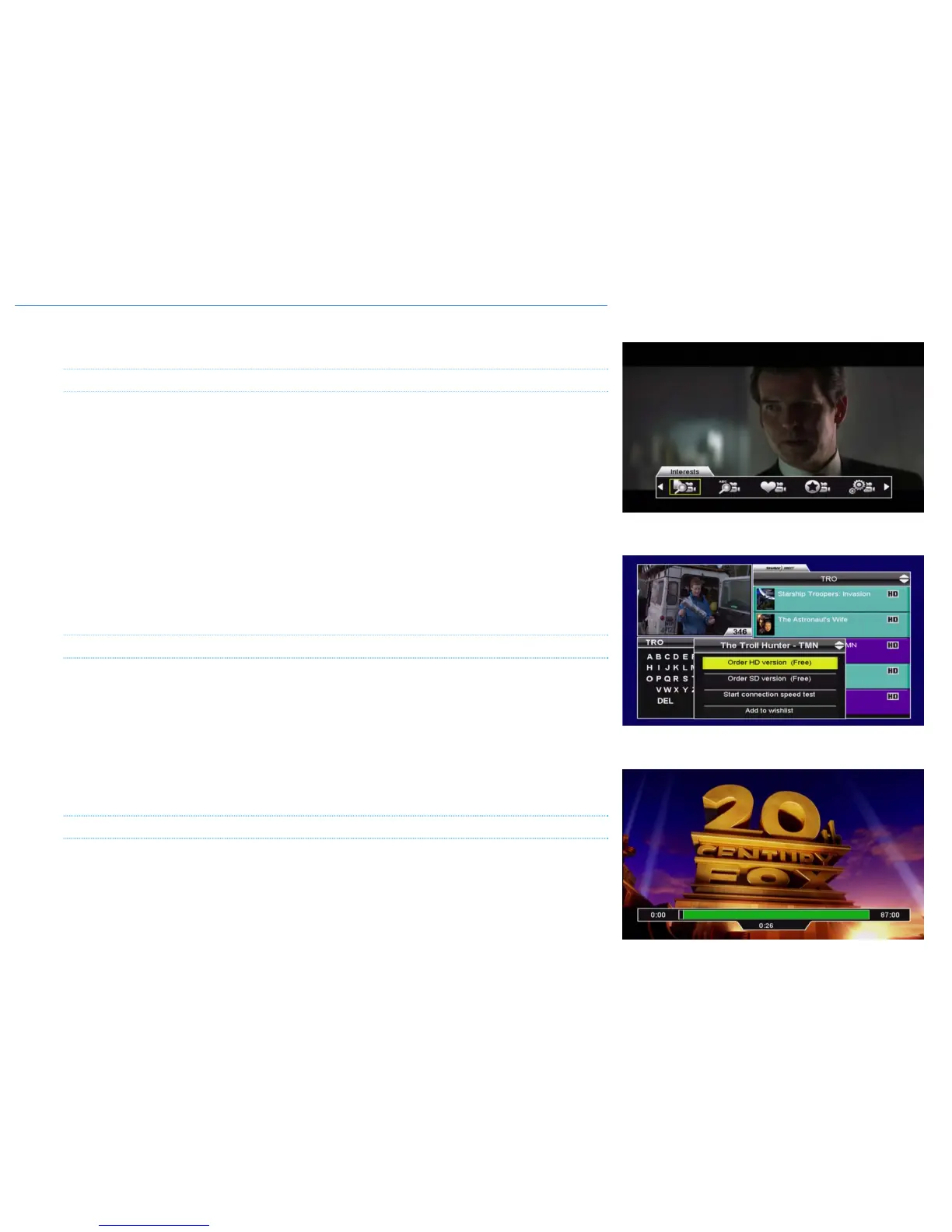
Press the D button on your Shaw Direct remote to bring up the Shaw Direct On Demand menu
bar, or select “VOD” from the main menu bar. If you know the title of the program you’d like to
order, select “Title Search”. If you’d rather browse the available library, select “Interests”. Both
title and interests search function in the same way as the regular broadcast searches, with the
added benefit of poster art and expanded show information. Plus, you can even continue to
watch your current program while you browse the VOD library.
Content follows the same colour-coding you’re used to seeing in the Guide:
o TV content may be blue, green (for sports), or orange (for kids/family)
o Purple is for movies and documentaries included in your subscription
o Aqua is for pay-per-rental movies and shows
o Grey indicates subscription content which is not included in your subscription.
2. ORDER
When you find a show you may want to order, press ENTER. The available options will be
presented, including the SD and HD prices, if available. Select the version you’d like to order,
confirm the purchase, and then get ready to sit back and enjoy!
If you’ve selected a title which exceeds your current Parental Controls ratings locks, the PIN will
be required to access the options menu. Depending on your current VOD Settings, the PIN may
be required after confirming the purchase to execute the order. Full details on Parental Controls
are available starting on page 52.
3. ENJOY
After confirming the purchase, the order will begin streaming and playback will start within a few
seconds. You can use the DVR keys on your remote to PAUSE (2) playback at any time.
Depending on the content, you may be able to also SKIP FORWARD (0) or SKIP BACK (9),
along with using Absolute Skip or Absolute Jump as explained on page 60.



 To Next Page