31
MAXIMIZING YOUR EXPERIENCE WITH SMART PVR TECHNOLOGY
By setting Smart Recording Events, your PVR has maximum flexibility and will work to record as
much as possible, subject to the parameters you have set for each Recording Event. For
example, if allowed by the “Channels” parameter, your PVR can automatically switch to a later
airing on a timeshift channel to capture as many programs as possible. By customizing each
Event and confirming the outcome in PVR Upcoming, you can ensure that exactly what you
expect will always be waiting for you in the PVR List.
5C. SAVING YOUR RECORDING SCHEDULE
Each time you make changes to your recording schedule, such as by changing a setting, adding
or deleting a series, or cancelling an episode, your PVR will take a moment to plan your recording
schedule over the next two weeks. This occurs in the background, as indicated by the blue
Scheduling bar in the top corner of the screen. The Scheduling bar will also appear when Guide
data has been updated to account for any program schedule changes.
While the receiver is scheduling, you can continue to make additional changes or additions. The
scheduler will restart each time. Once planning has completed, all recording icons, PVR
Options, and PVR Upcoming will show the updated status of each Recording Event.
5D. VIEWING UPCOMING RECORDINGS
You can easily review all upcoming recordings in the PVR Upcoming menu. To access this
menu, select “Upcoming” from the “PVR” section of the Menu Bar.
From this menu, you can ensure that all expected programs will be recorded and change or
cancel specific episodes scheduled to be recorded. If you select a specific episode scheduled to
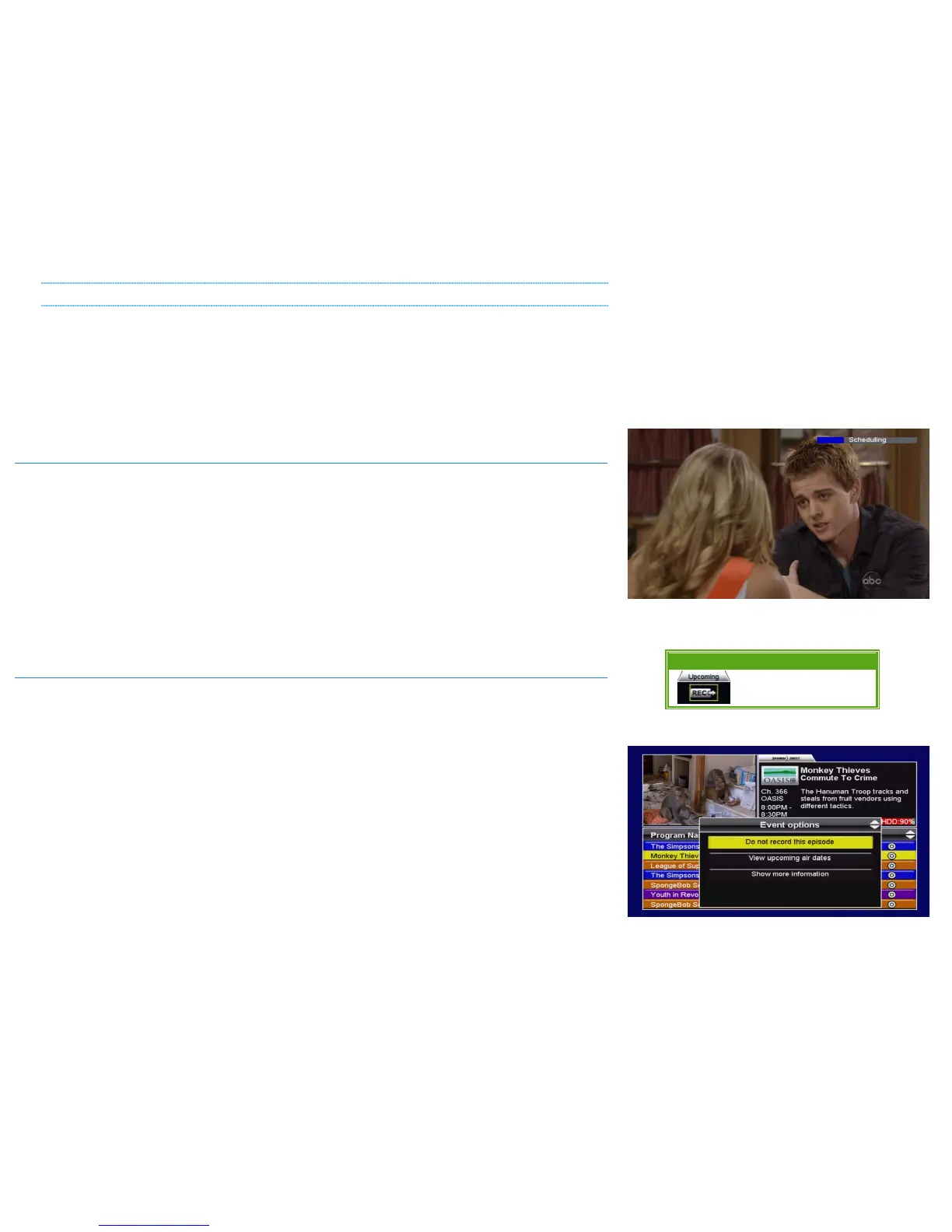
be recorded and press ENTER, you will be presented with the following Event Options:
• DO NOT RECORD THIS EPISODE or STOP THIS RECORDING: Selecting this option will cancel the
recording of this particular episode, or stop an in-progress recording. The partial
recording will still be available in the PVR List.
• VIEW UPCOMING AIR DATES: This will access the Upcoming Air Dates screen, where you can
also cancel the recording of this episode and select a different airing to be recorded.
• SHOW MORE INFORMATION: Select “Show more information” to view the Info pages for the
episode scheduled to be recorded.
Menu Bar 5XX Remote 6XX Remote



 To Next Page