SkyTab Support: (888) 647-8603
9
ACCESSORY INSTALLATION
CALLER ID
Connecting the Caller ID
1. Connect the power supply to the caller ID.
2. Connect the Ethernet cable to the caller ID and then to the TP-Link router.
3. Connect the phone lines to the caller ID.
Connecting the Phone Lines
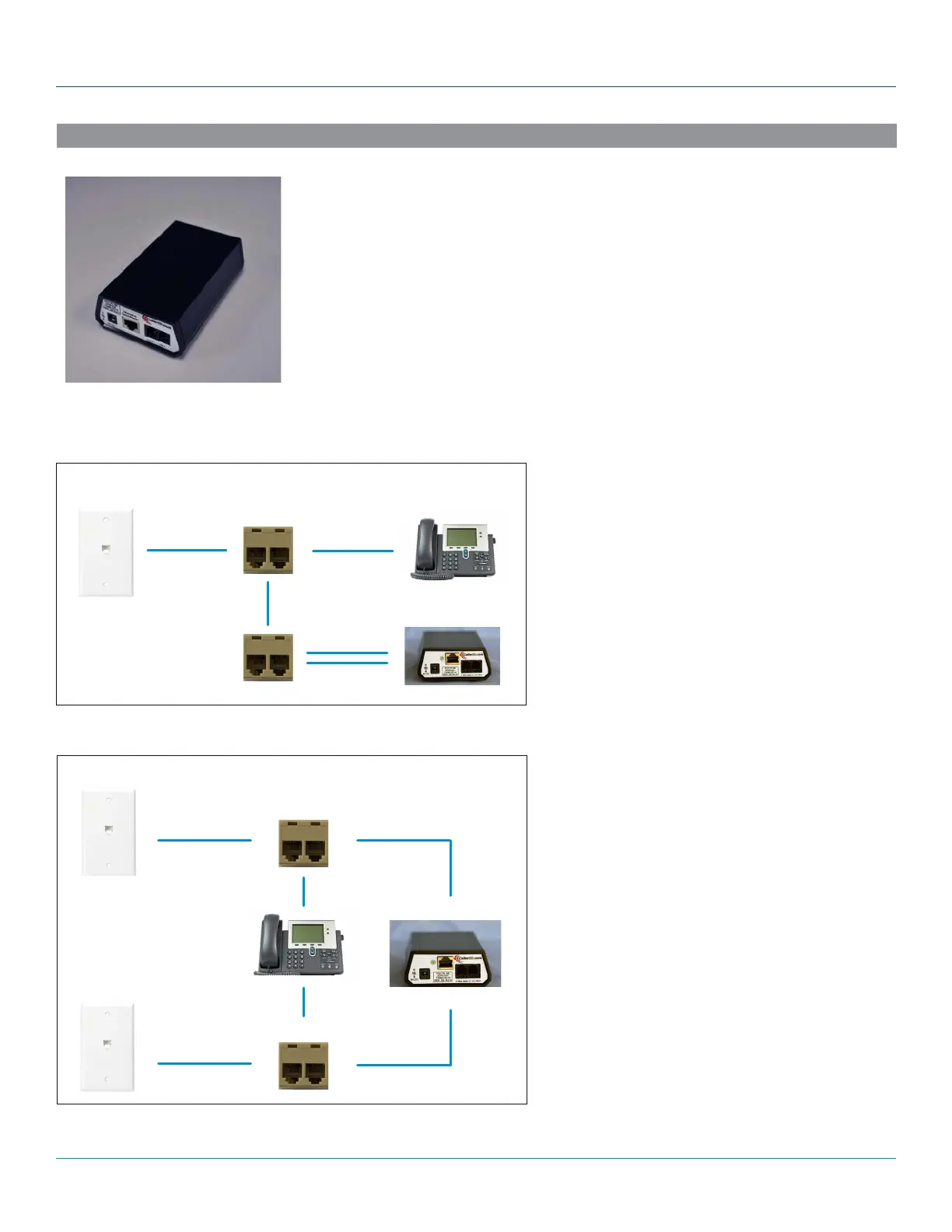
There are two main phone line setups, either having two phone numbers on a single phone
line or having one phone number per line.
Included with the caller ID are line duplicators and line splitters. The duplicator (which does
not have any indicating markers) will mirror the line it is plugged into, whereas the splitter
(which can be distinguished by “L1” and “L2” markings) will split the phone line into two
separate ports.
When connecting to a phone line that has two
numbers on it, use the duplicator so the original line
can be put through to the phone. The mirrored line
can then be plugged into the splitter to separate the
phone number prior to plugging it into the caller ID.
When connecting to a phone line that has one
number on it, only the use of a duplicator should be
required. This will allow the original line to go to the
phone and the mirrored line to go to the caller ID.
Please note: If you are having issues determining
what phone number is allocated to a particular
line, you can plug in a landline phone and dial
(800) 444-4444 which is an automatic number
announcement circuit. This will tell you the phone
number that you are currently calling from.
One Phone Number Per Line
Phone Cable
Duplicator
Phone Cable
Phone Cable
Phone Cable
Duplicator
111-222-3333
111-222-4444
Phone Cable
Duplicator
Phone Cable
Phone Cable
Phone Cable
Two Phone Numbers on One Line
111-222-3333
111-222-4444
Splitter



 To Next Page