SkyTab Support: (888) 647-8603
10
ACCESSORY INSTALLATION
KITCHEN DISPLAY SYSTEM (KDS)
Connecting the Kitchen Display System
1. Line up the stand with the vesa holes on the back of the KDS.
2. Use the included hardware to secure the base to the KDS.
3. Connect the Ethernet cable to the bottom of the KDS.
4. Connect the power adapter to the bottom of the KDS and twist to lock it in place. Plug the other end into a nearby wall outlet.
WIRELESS ACCESSORY INSTALLATION
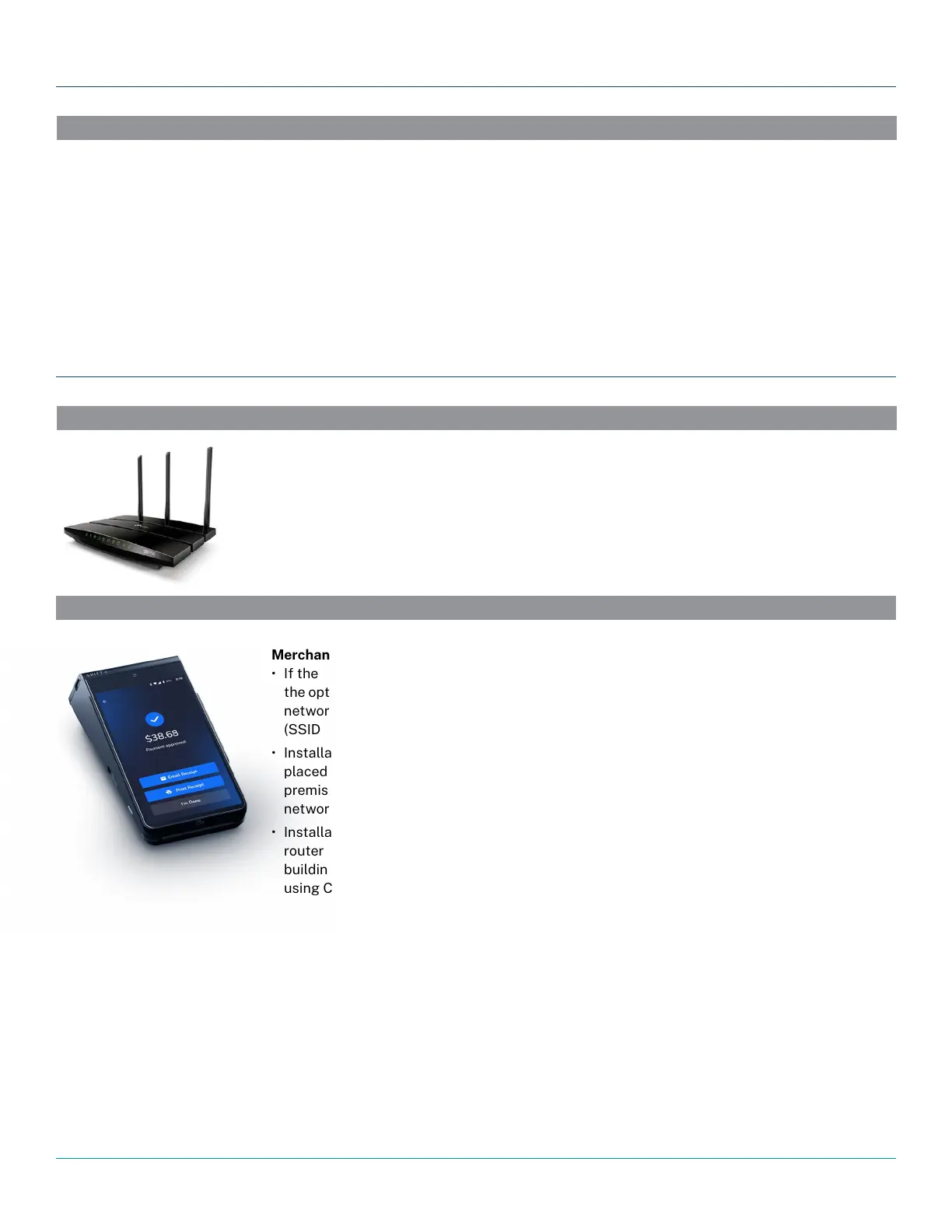
TP-LINK ARCHER ROUTER
The TP-Link Archer router is provided by Shift4 and will be the device responsible for providing
wireless access to SkyTab Glass. These routers are set up as wireless access points by default.
The required SSID and password for wireless access will be provided by your support contact.
SkyTab KDS is an all-in-one touch screen unit. It does not have a control box or bump bar like other standard kitchen display
systems. It also does not ship with a stand attached, but a vesa base is included that must be attached to the KDS.
Merchants with Existing Wi-Fi
• If the merchant location is proven to have adequate Wi-Fi coverage throughout the building,
the optimal installation procedure is to utilize SkyTab Mobile on the merchant’s existing Wi-Fi
network. Verify the Internet connection and obtain all Wi-Fi credentials from the merchant
(SSID & PSK).
• Installation of TP-Link router (model: TL-R600VPN) is standard procedure with the router
placed preferably at the building demarcation point (i.e., where the Internet enters the building
premises). All POS terminals and remote printers are to be plugged into the router using Cat5e
network connections.
• Installation of the TP-Link Wi-Fi router (model: TL-R600VPN) is standard procedure with the
router placed preferably at the building demarcation point (i.e., where the Internet enters the
building premises). All POS terminals and remote printers are to be plugged into the router
using Cat5e network connections.
Merchants Without Wi-Fi
If the merchant location loses adequate Wi-Fi coverage, the device will automatically revert to cellular service.
SKYTAB MOBILE
Installing SkyTab Mobile:
• Power on device and let load until Android desktop is shown.
• Click “Settings” > “WLAN” > choose merchant’s correct SSID.
• Input PSK (Pre-Shared Key) supplied by merchant when prompted.
• Click “Connect” > “Home”.
• Verify device has a full/strong Wi-Fi signal via notification area.
• Click the “SkyTab” icon to start software.
• Software will prompt for staff PIN to view checks.



 To Next Page