20
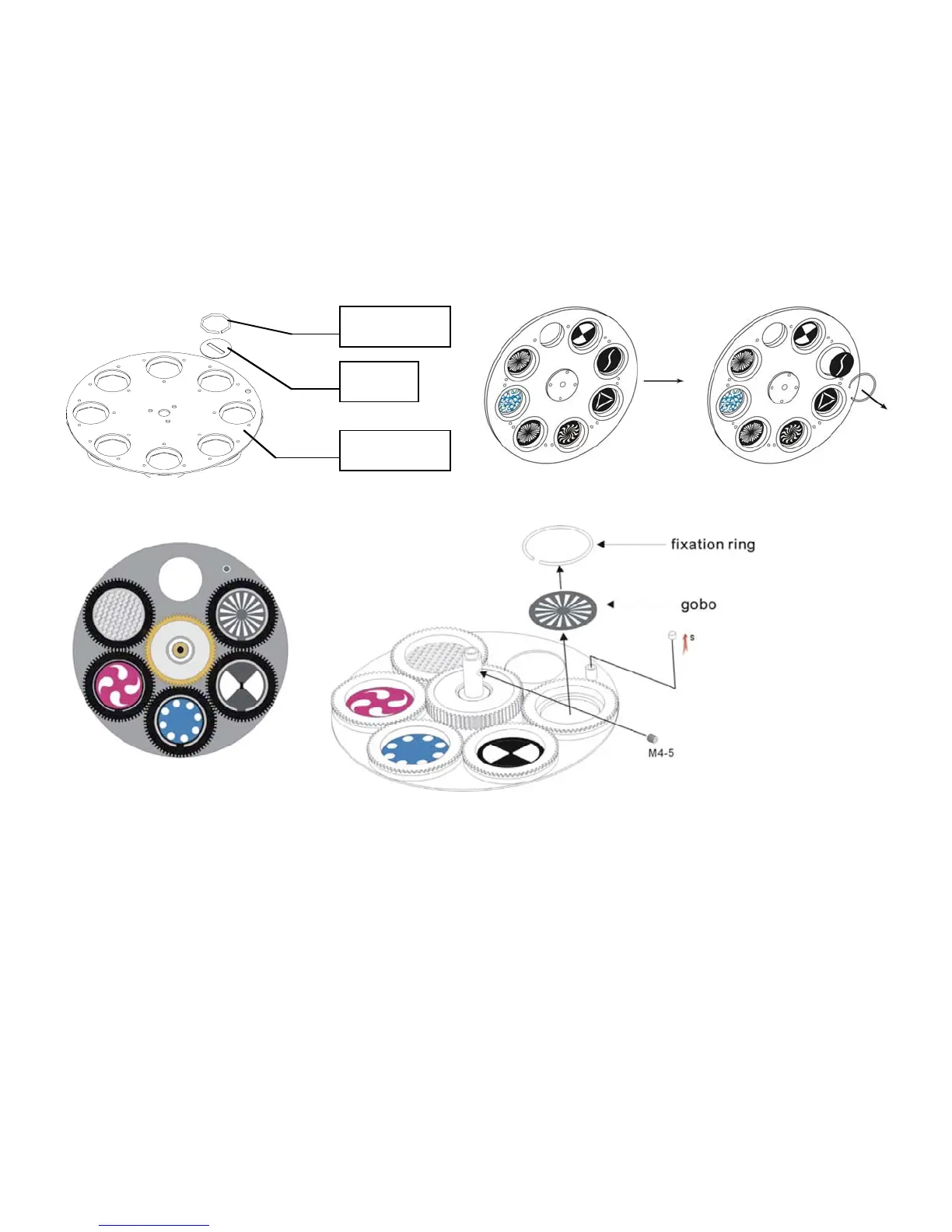
Replacing a Gobo from the Rotating Gobo-wheel
Gobo-wheel with rotating gobo’s
1. Disconnect mains power supply and set the switch to OFF.
2. Make sure that the gobo you want to insert has the same size (outer diameter is 37mm and the inner
diameter is 29mm).
3. Turn the gobo wheel, with the gobo you want to remove, to the upside.
4. Very carefully take the pinchcock (fig 7 and 8) out of the gobo wheel, but pay attention that the
pinchcock does not fall in the device. Then push the gobo out.
5. Place the new gobo in the gobo wheel. Carefully put the pinchcock back, gently press the pinchcock
a little bit together. Possibly use a pair of pliers to press the pinchcock a little bit together.
6. Replace the maintenance cap and fasten all screws.
pinchcock
gobo
Gobo Pan
Fig. 7 Fig. 8
Fig. 9
Replacing a Gobo from the Static Gobo-wheel
Gobo-wheel with rotating gobo’s
1. Disconnect mains power supply and set the switch to OFF.
2. Make sure that the gobo you want to insert has the same size (outer diameter is 37mm and the inner
diameter is 29mm).
3. Turn the gobo wheel, with the gobo you want to remove, to the upside.
4. Gently bend out the gobo holder to release it from the fixative holes and eject it from the pressing snap.
5. Very carefully take the pinchcock out of the gobo holder, but pay attention that the pinchcock does not fall
in the device. Then push the gobo out.
6. Place the new gobo in the gobo holder. Carefully put the pinchcock back, gently press the pinchcock
a little bit together. Possibly use a pair of pliers to press the pinchcock a little bit together.
7. Put the gobo holder back under the pressing snap and push it to the 3 fixative notches.
8. Replace the maintenance cap and fasten all screws.





 To Next Page