9Last update: 03.2014
Operating instructions
KFVkeyless
3.2 Mobile phone users
You can assign a total of six bluetooth-enabled mobile phones to the KFVkeyless.
3.2.1 Teaching in a mobile phone
Follow the next steps to teach a bluetooth-enabled mobile phone:
1.
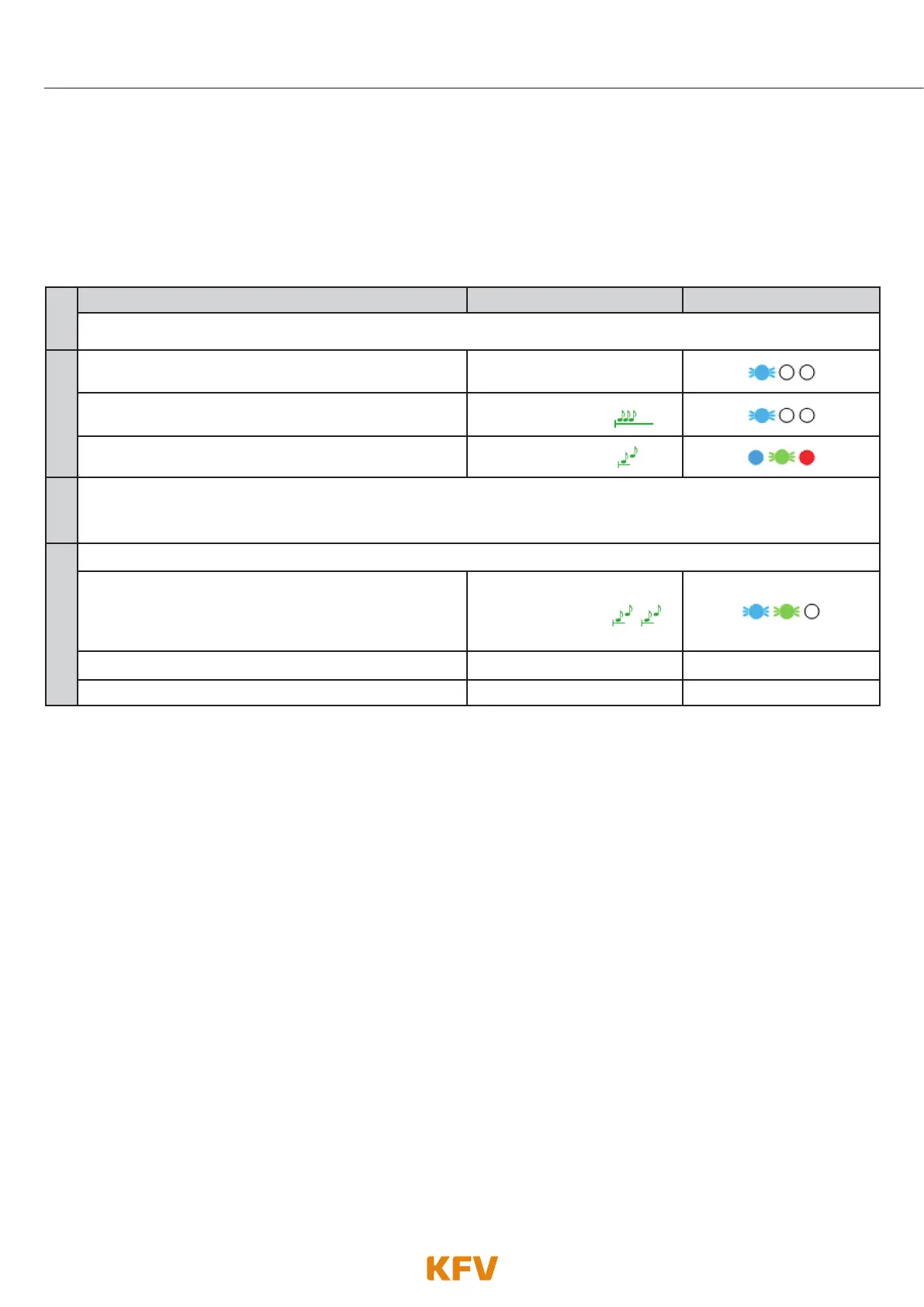
Teaching in a mobile phone Beeper Lighting
Switch on Bluetooth on your mobile phone.
2.
Enter 6-digit door PIN on the keyboard code.
Confirm procedure with OK.
Depending on the mode
selected
The programming mode initialises itself.
Single prolonged
high beep
The programming mode is active.
2 ascending tones
3.
Search for the "KFVkeyless" device in the Bluetooth settings on your mobile phone and select it.
Note: It is possible that the device is displayed as "Headset" or with its MAC address.
4.
Connecting your mobile phone to "KFVkeyless". To do this, type in your 6-digit door PIN and confirm with OK.
The mobile phone has been successfully taught in.
Note: The error message "Connection failed" must be
acknowledged with "OK" in Apple devices.
2 x
2 ascending tones
The door unlocks. ----------- -----------
The programming mode has been exited automatically. ----------- -----------
Tip: If you want to manage the mobile phone users via the app, first allocate a name to the new mobile
phone user via the app, before you teach in further mobile phones. In this way you can avoid any mix-
up between users.
The managing of the newly taught in mobile phone user can be done via the app which has been spe-
cially developed for this purpose (see chapter 5).



 To Next Page