17Last update: 03.2014
Operating instructions
KFVkeyless
5.4 Managing users via App
The app allows you to manage the individual users independently.
5.4.1 Changing user names
The name of a user can be changed via the app.
1. Follow the instructions in chapter 5.3 "Door management".
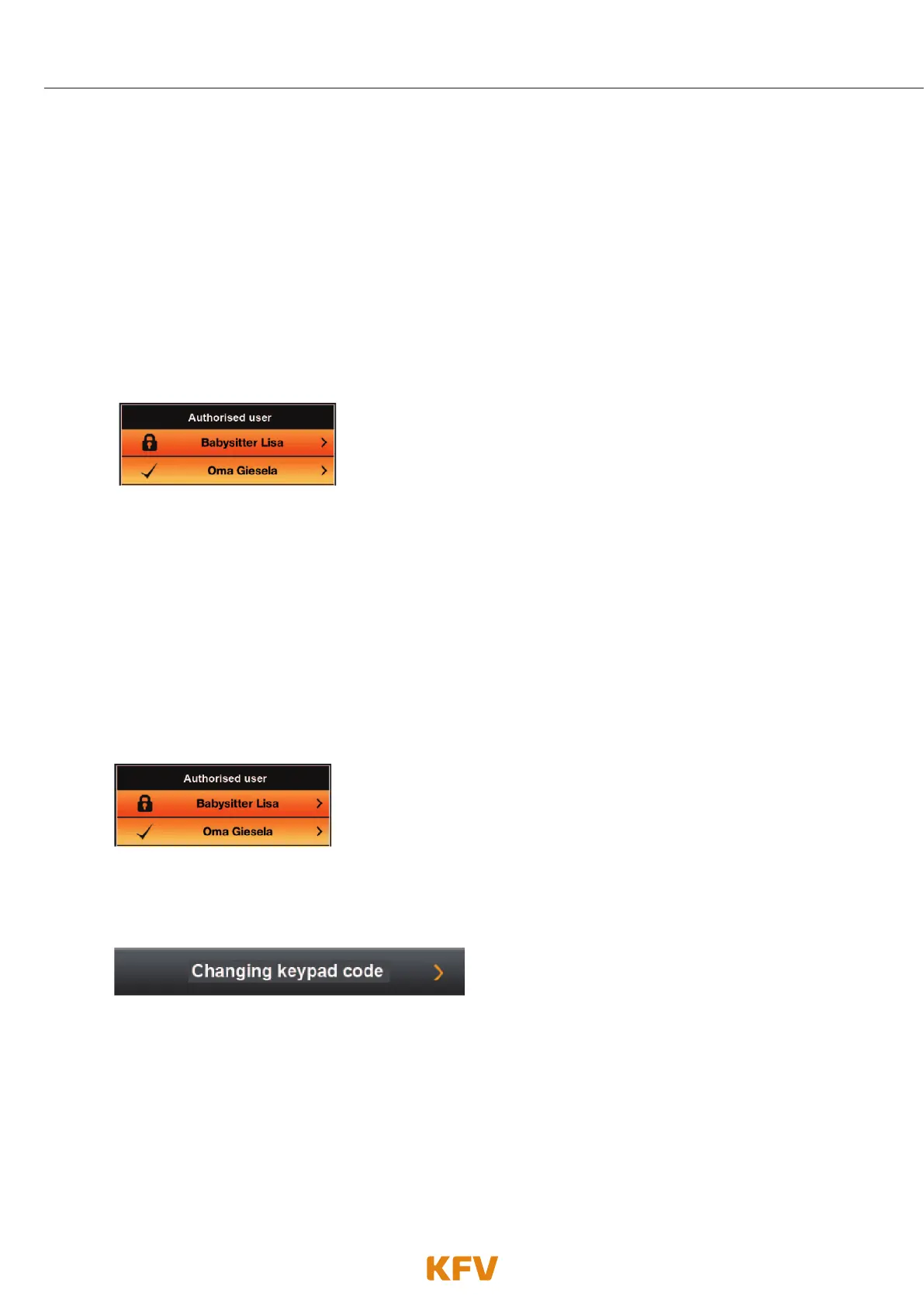
2. Select the desired user.
(If this has not yet been taught in, see chapter 3.2.1.)
3. Enter the desired user name.
4. Confirm the procedure by clicking "Save settings".
Note: The name of a newly taught in mobile phone is equivalent to the MAC address of the mobile phone.
5.4.2 Assigning keyboard code to a mobile phone user
keyboard codes can only be assigned to existing mobile phone users.
1. Follow the instructions in chapter 5.3 "Door management".
2. Select the desired user.
(If this has not yet been taught in, see chapter 3.2.1.)
3. Click on "Change keypad code".
4. Type in the individual keyboard code.
5. Confirm the procedure by clicking "Save".
Note: It is not possible to assign the same keyboard code to several users.



 To Next Page