14
Last update: 03.2014
KFVkeyless
Operating instructions
The iPhone is now authorised to open
the doors.
2 ascending tones
The door unlocks.
2 ascending tones
Depending on the mode
selected
Note: Connection problems with the Bluetooth connection could occur due to the sheer diversity of
Smartphones on the market and also due to the vast differences in technical equipment. Restarting
the Smartphone could help in this case.
5.3 Administration of door
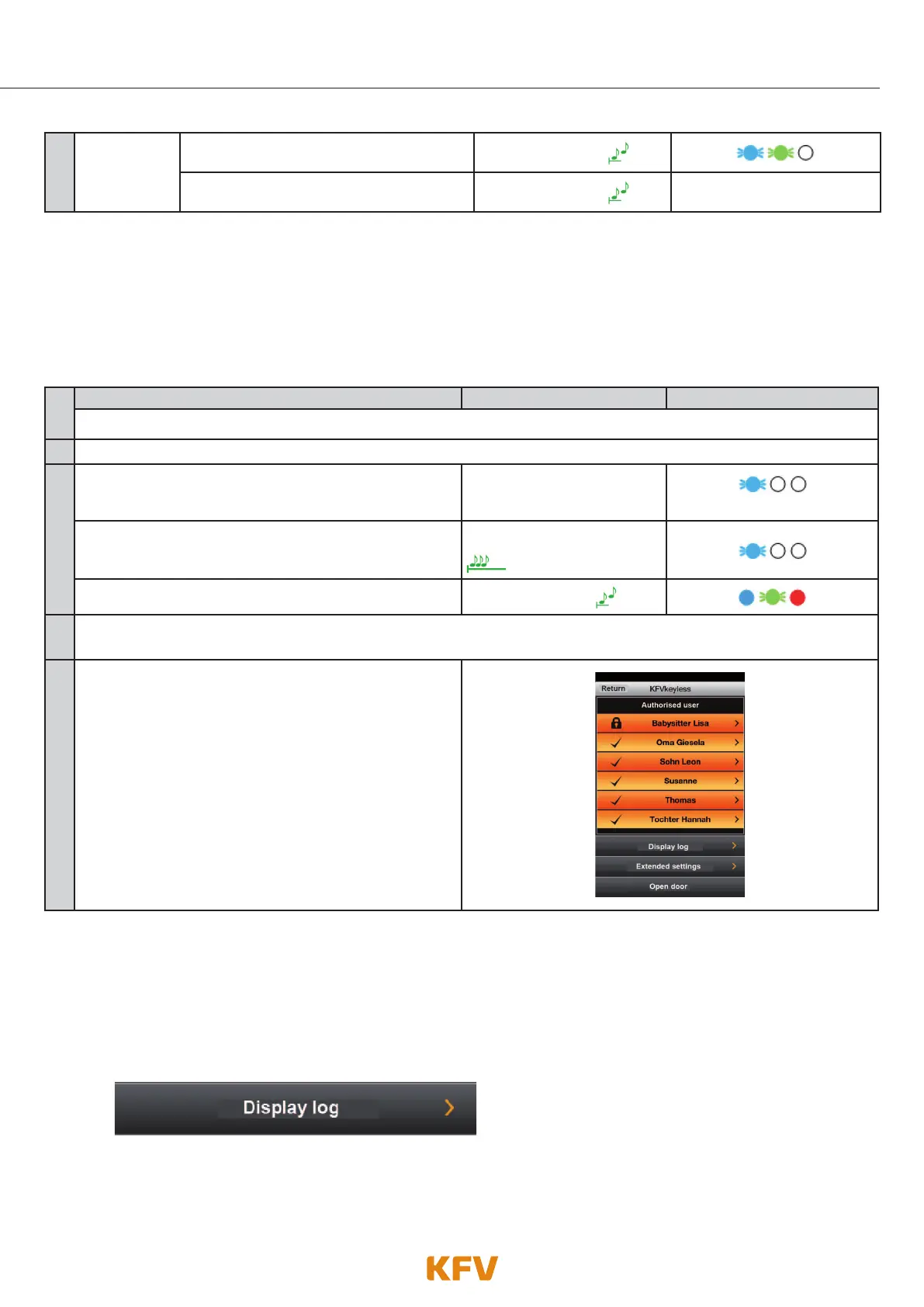
You must follow the following steps to manage door that has been set up:
1.
Managing a DOOR Beeper Lighting
Switch on Bluetooth on your mobile phone.
2.
Start the app on your Smartphone and register yourself.
3.
Enter 6-digit Door PIN on the keyboard.
Confirm procedure with OK.
Depending on the mode
selected
when key is pressed
The programming mode initialises itself.
Single prolonged
high-pitched beep
The programming mode is activated.
2 ascending tones
4.
Select the desired door in the app.
(If this has not yet been added, see chapter 5.2)
5.
You are now in the "Door management" menu.
5.3.1 Displaying log
The app gives you the opportunity to look at the most recent 20 accesses via the KFVkeyless module.
1. Follow the instructions in chapter 5.3 "Door management".
2. Click the menu item "Display log".
3. You can now check the 20 most recent accesses.
Note: The message "Access for app configuration" means that access has been granted before the module
was connected to an app for the first time.



 To Next Page