19Last update: 03.2014
Operating instructions
KFVkeyless
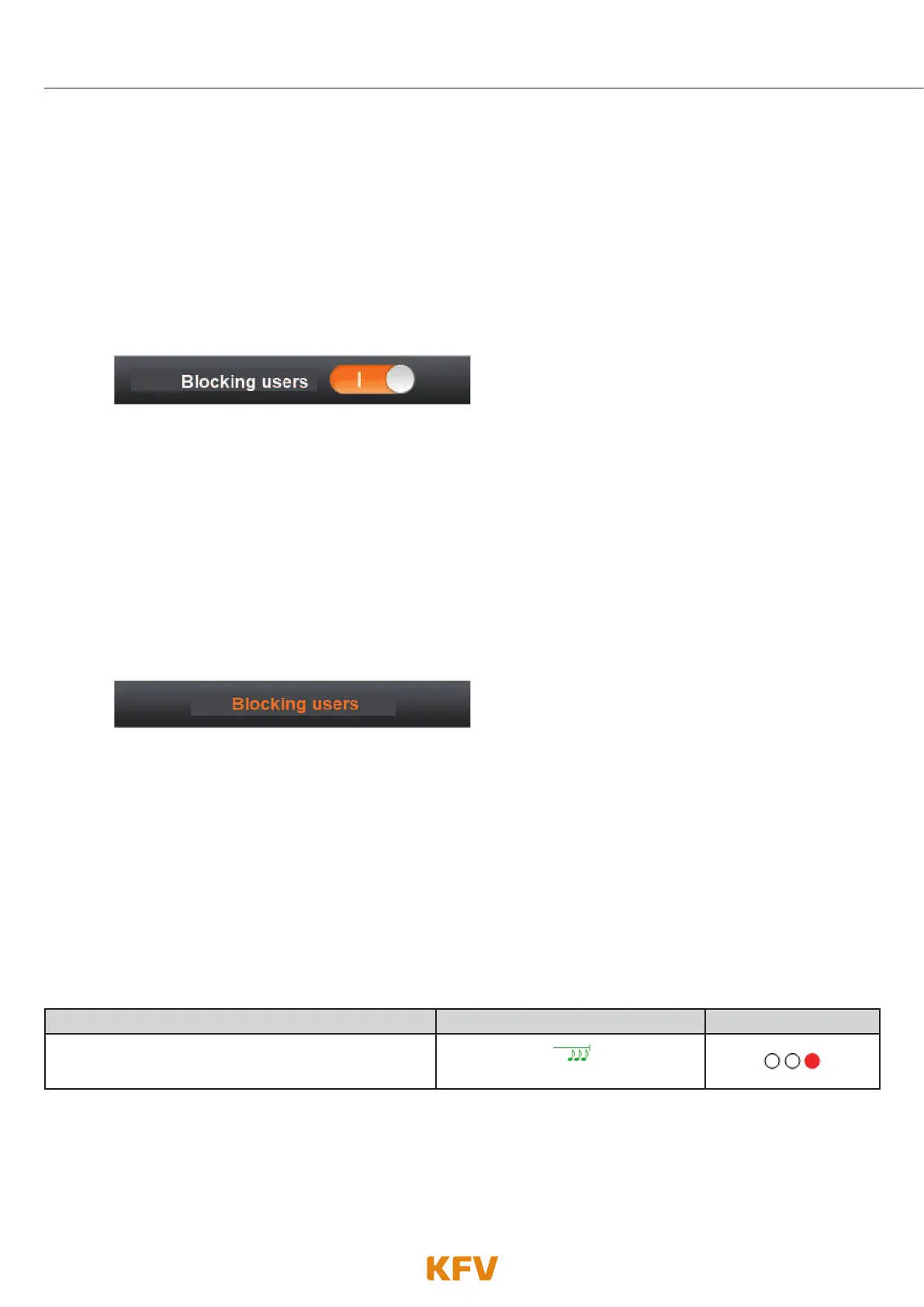
5.4.6 Blocking/releasing user
The authorisation of a user to open doors can be blocked via the app.
1. Follow the instructions in chapter 5.3 "Door management".
2. Select the desired user.
(If this has not yet been taught in, see chapter 3.2.1.)
3. To block the user, choose I and choose O on the "Block user" bar to authorise access to the user
once again.
4. Confirm the procedure by clicking "Save settings".
5.4.7 Deleting users
A user can be deleted either via the Bluetooth menu on the mobile phone (see chapter 3.2.2.) or via app.
1. Follow the instructions in chapter 5.3 "Door management".
2. Select the desired user.
(If this has not yet been taught in, see chapter 3.2.1.)
3. Click on "Delete user".
4. You will now be asked whether you really want to delete the user. Delete the user by clicking "Yes".
5.5 Ending management procedure
When you have carried out all the desired actions via the app, you must exit the programming mode by
clicking the "X" button or "OK" button on the KFVkeyless. The red LED lights up and a brief low-pitched
beep is emitted.
5.6 Connection terminated
If the connection between your Smartphone and the module is interrupted during management of the
KFVkeyless module via app, you will receive the following message from your module.
Connection terminated
Beeper
Lighting
The connection between your Smartphone and the
KFVkeyless is interrupted.
Single prolonged low-pitched beep



 To Next Page