13Last update: 03.2014
Operating instructions
KFVkeyless
1.
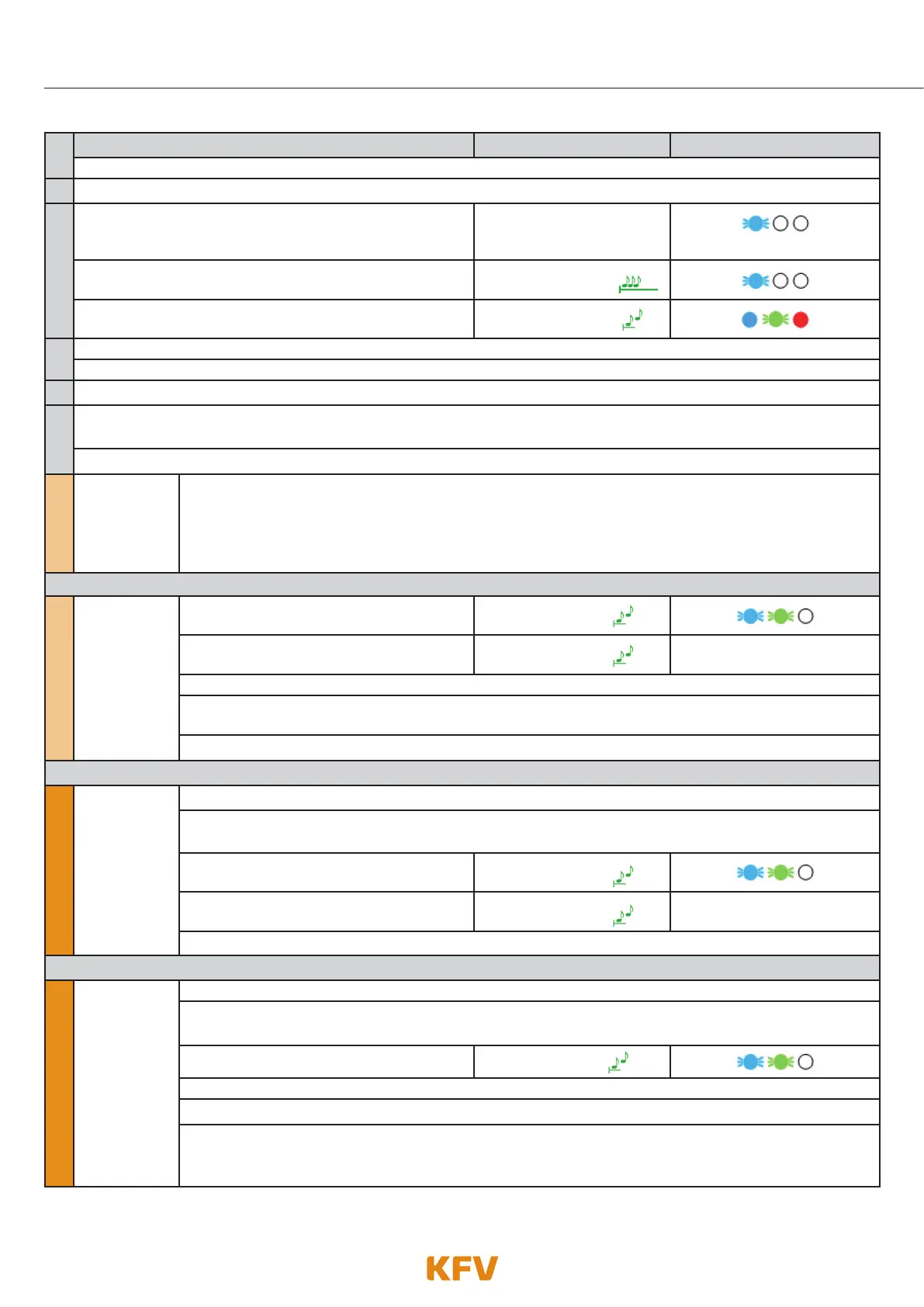
Setting up a door Beeper Lighting
Switch on Bluetooth on your mobile phone.
2.
Start the app on your Smartphone and log in.
3.
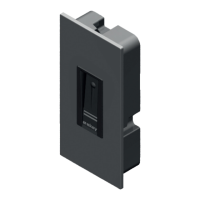
Enter 6-digit Door PIN on the keyboard.
Confirm procedure with OK.
Depending on mode se-
lected.
when key is pressed
The programming mode initialises itself.
Single prolonged
high-pitched beep
The programming mode is activated.
2 ascending tones
4.
Click on "Set up a door" in the door selection of the app.
A search is now made for available modules in the range.
5.
Select the available device "KFVkeyless" (on iPhone: "config.KFVkeyless").
6.
You will now be asked to enter the 6-digit door PIN of the selected device.
Confirm procedure with OK.
Attention: The following steps vary according to the situation and mobile. (4 possibilities)
Android
Android
smartphone
Mobile phone
user already
created
The door is now set up in the app.
or
Android
Android
smartphone
Mobile phone
user not yet
created
The Smartphone has been taught in.
2 ascending tones
The door unlocks.
2 ascending tones
Depending on the mode
selected
The programming mode has been exited.
You will now be asked to enter the 6-digit door PIN of the selected device again. Confirm procedure
with OK.
The door is now set up in the app.
or
iPhone
iPhone
mobile phone
user already
created
The door is now set up in the app.
You will now be asked to enter the 6-digit door PIN of the selected device again. Confirm procedure
with OK.
The iPhone is now set up as an app user.
2 ascending tones
The door unlocks.
2 ascending tones
Depending on the mode
selected
The programming mode has been exited.
or
iPhone
iPhone
mobile phone
user not yet
created
The door is now set up in the app.
You will now be asked to enter the 6-digit door PIN of the selected device again. Confirm procedure
with OK.
The iPhone is now set up as an app user.
2 ascending tones
The programming mode has been exited.
Note: The iPhone can not yet be used to open doors. (see next step)
Re-start the programming mode on the module. Now go to the Bluetooth settings on your iPhone (with
Bluetooth activated). Select "config.KFVkeyless". You will now be asked to enter the 6-digit door
PIN of the device again. Confirm procedure with OK.



 To Next Page