116 Resources
Section 6B
Frequently Asked Questions
⽧ How Can I Tell I’m Connected to 3G/4G? (page 116)
⽧ How Do I Connect to Wi-Fi? (page 116)
⽧ Is Roaming on 4G Supported? (page 117)
⽧ What Do I Do if I Forgot the Wi-Fi Password? (page 117)
⽧ What Do I Do if I Forgot the Administrator Password? (page 117)
⽧ If the Connection is “Always On,” Am I Always Being Billed? (page 117)
⽧ Questions About GPS and Sprint Location Services (page 117)
⽧ How Do I Access My Corporate Net
work Through a VPN? (page 118)
⽧ Are Terminal Sessions Supported? (page 118)
How Can I Tell I’m Connected to 3G/4G?
When you’re connected:
● The
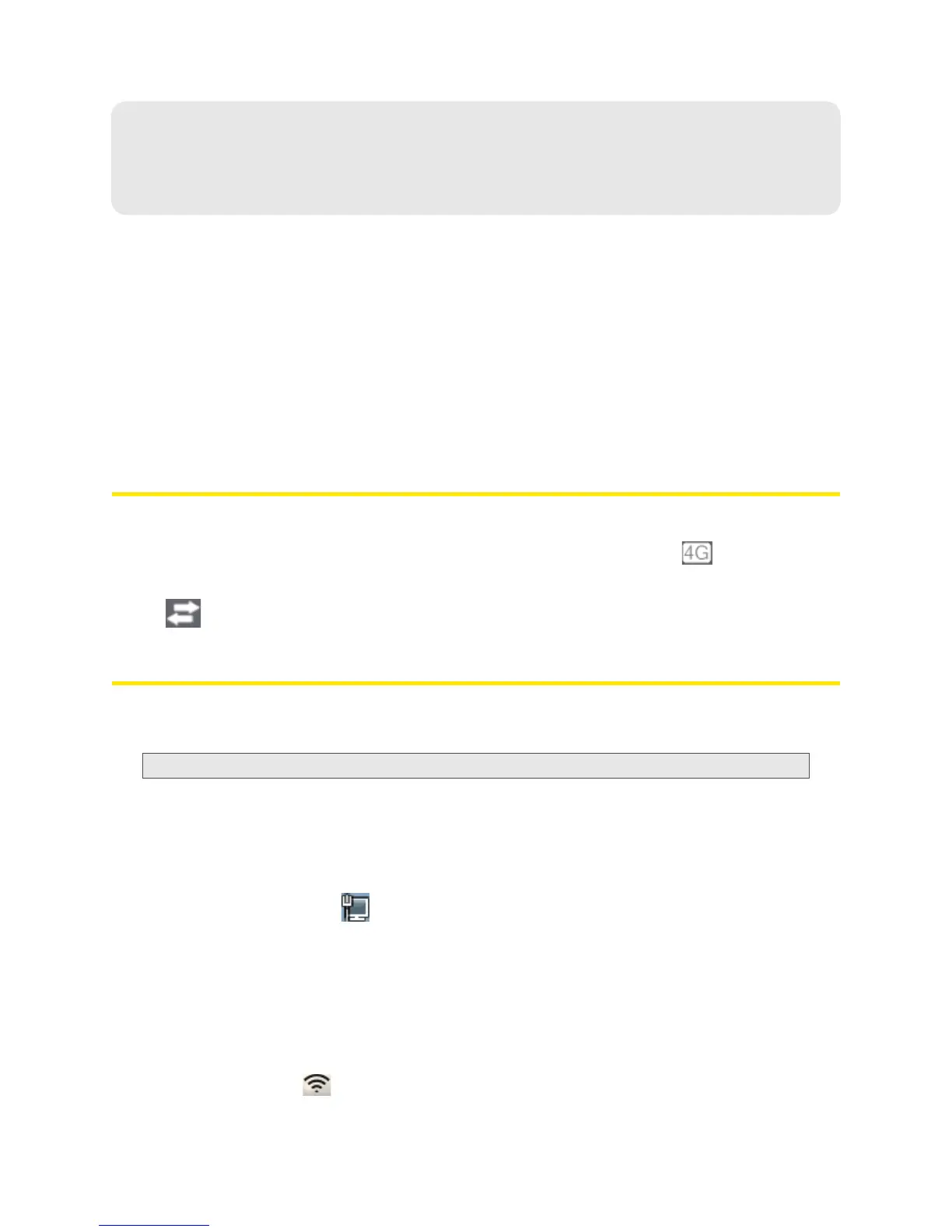
3G or 4G icon (on the left side of the home page) is solid. For example, .
● T
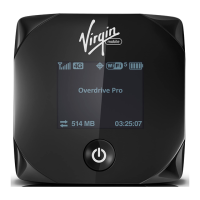
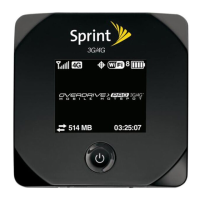
he bottom area of the device LCD, the Virtual Device, and the Mini Window show the data transfer
icon
and data transfer information (amount of data; connection duration).
How Do I Connect to Wi-Fi?
You may have to manually connect to Wi-Fi after certain events — for example, as part of the initial
device setup, or after a software update.
Tip:
The Wi-Fi network name is displayed on the device LCD.
To connect to Wi-Fi:
1. Do one of the following, depending on your operating system.
Windows
Windows 7: Right-click the icon in the system tray.
Windows Vista: Click
Control Panel > Network and Internet > Network and Sharing Center >
Connect to a network
.
Windows XP: Click
Control Panel > Network Connections > Wireless Network Connections > View
available wireless networks
.
Mac
Click the AirPort icon (in the upper right corner of your screen).


 To Next Page