Settings 83
Settings
Section 5G
Configuring the Wi-Fi Network
⽧ SSID (Wi-Fi Network Name) (page 83)
⽧ Wi-Fi Security (page 85)
⽧ Host Name (Device Name) (page 89)
⽧ Setting the Maximum Number of Wi-Fi Users (page 89)
⽧ Wi-Fi Channel (page 90)
⽧ Disabling Wi-Fi When Connected Through USB (page 90)
You can configure basic settings of the
Wi-Fi network through the setup pages.
1. Ensure you’re logged in to the home page.
2. Click Admin Setup ( ).
For more information, see “Changing the Password and Settings” on page 21.
You can configure basic and advanced settings of the Wi-Fi network through the
Advanced
Settings window.
1. Log in to the home page.
2. Click Advanced settings ( ).
3. Click Wi-Fi > Network.
For more information, see “Network Panel” on page 81.
See also:
● “Disabling Wi-Fi When Connected Through USB” on page 90.
● “Battery and USB Power Settings” on page 68.
● “AC Power Settings” on page 68.
SSID (Wi-Fi Network Name)
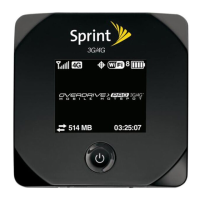
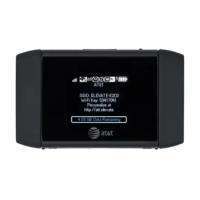
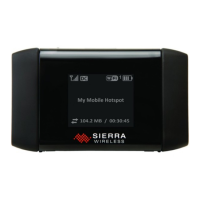
The SSID identifies your Wi-Fi network and is visible to other Wi-Fi-enabled devices. It appears on
your device’s LCD screen; if more than one Overdrive 3G/4G Mobile Hotspot is available, you can
use this name to tell the devices apart.
You can display the home page by typing the SSID in y
our Web browser (if Link SSID and
Hostname
is selected; see “Linking the SSID and the Host Name” on page 84).
You should make the SSID unique and change it on a regular basis for optimal security.
To change the SSID:
1. Log in to the home page.
2. Click Advanced settings > Wi-Fi > Network.
3. In the SSID field, enter the new name.


 To Next Page