Your Device 13
Your Device
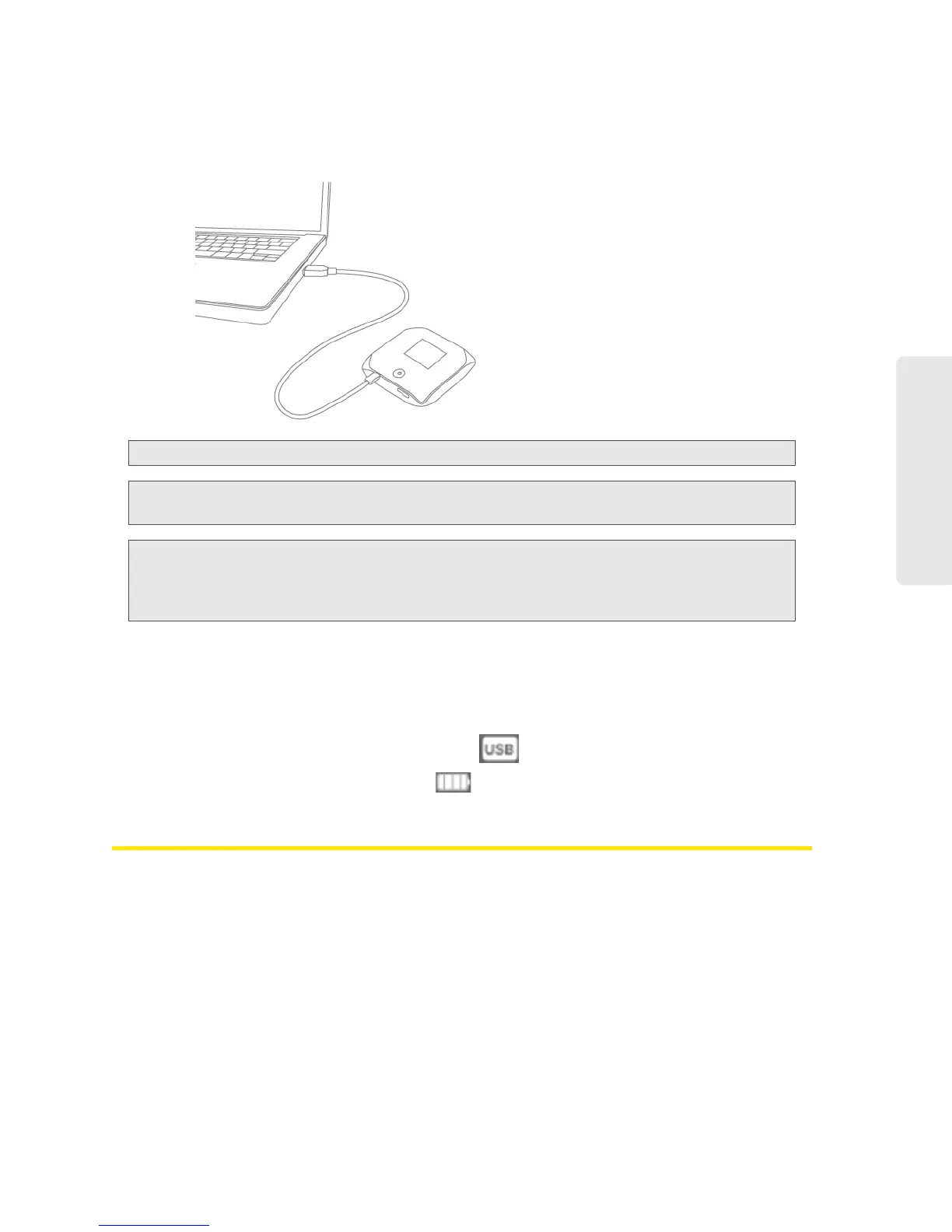
Charging Through a Computer
Note:
Charging through a computer usually takes longer than charging through the AC charger.
Note:
If you’ll be using USB for data transfer (and not just for charging the device), you must install the
device driver. See “Making a Tethered Connection” on page 27.
Note:
If you’re using Mac OS X 10.4.x, after you connect the device you may see a warning message that
your computer is running on UPS backup battery and that you should perform a computer
shutdown. You can continue with your work. To prevent this message from being displayed, install the
device driver. See “Making a Tethered Connection” on page 27.
1. Ensure the computer is turned on.
2. Insert the larger (USB) end of the USB to Micro B cable into the computer.
3. Insert the other (Micro B) end of the USB to Micro B cable into the USB connector on the
side of the device.
When charging, the LCD shows the animated icon
.
When the device is charged, the LCD shows
.
Power Button
Turning Your Device On and Off
Turning Your Device On
1. Ensure that:
䡲 The
device has a charged battery inserted.
— or —
䡲 The
device is connected to the AC charger or a computer (through the USB to Micro B
cable), as shown in the drawing on page 11 .


 To Next Page