10 Your Device
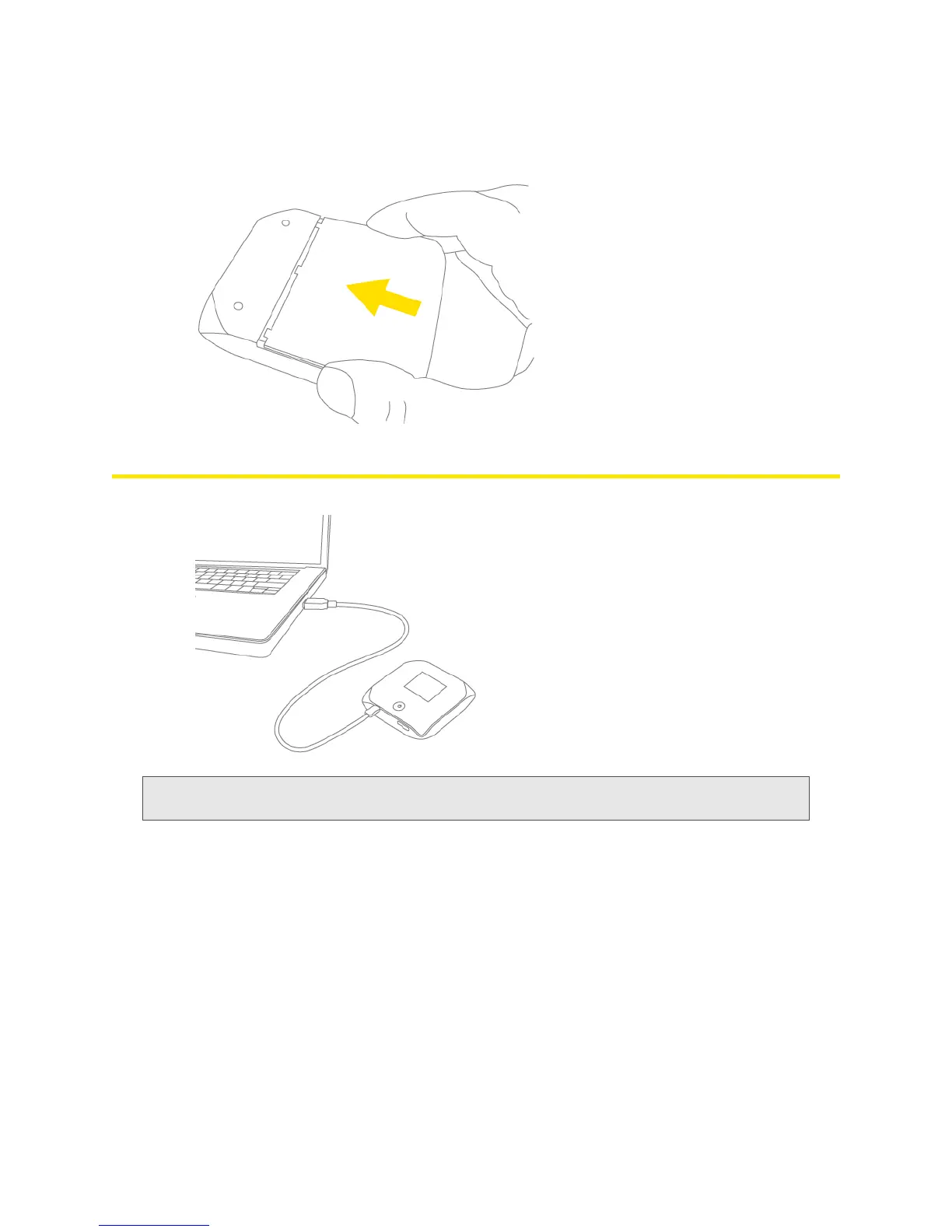
3. Replace the battery compartment cover.
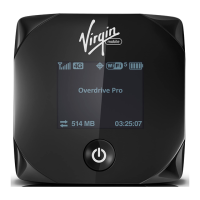
Connecting Through USB
Note:
If you’ll be using USB for data transfer (and not just for charging the device), you must install the
device driver. See “Making a Tethered Connection” on page 27.
Use the USB to Micro B cable to connect the device to your computer when:
● Y
ou want to charge the device, but you don’t want to use the AC charger, or the AC charger is not
available.
● Y
our computer does not have Wi-Fi.
● Y
ou want to block others from using the device. (See “Disabling Wi-Fi When Connected Through
USB” on page 90.)
To connect the device to your computer:
1. Insert the larger (USB) end of the USB to Micro B cable into the computer.
2. Insert the other (Micro B) end of the USB to Micro B cable into the USB connector on the side of
the device.


 To Next Page