Using Your Device 57
Using Your Device
5. In the GPS Information and Settings window, set GPS Mode to One-time, and click Get fix
now. (The top part of the window shows your location information.
Tip:
You can also display location information from Advanced settings > WAN > GPS — click Get fix
now
.
Alternatively, you can view your current location in a Web browser. See “Viewing Your Current Location
in a Web Browser” on page 57.
)
Viewing Your Current Location in a Web Browser
1. Ensure GPS is enabled.
2. For best results, minimize the number of obstructions between your device and the GPS
satellites.
3. In the horizontal row of buttons (across the top of the home page), click Map me ( ).
Performing a Location Search
To perform a search for establishments near your current location:
1. Ensure GPS is enabled.
2. In the horizontal row of buttons (across the top of the home page), move the mouse over Map
me
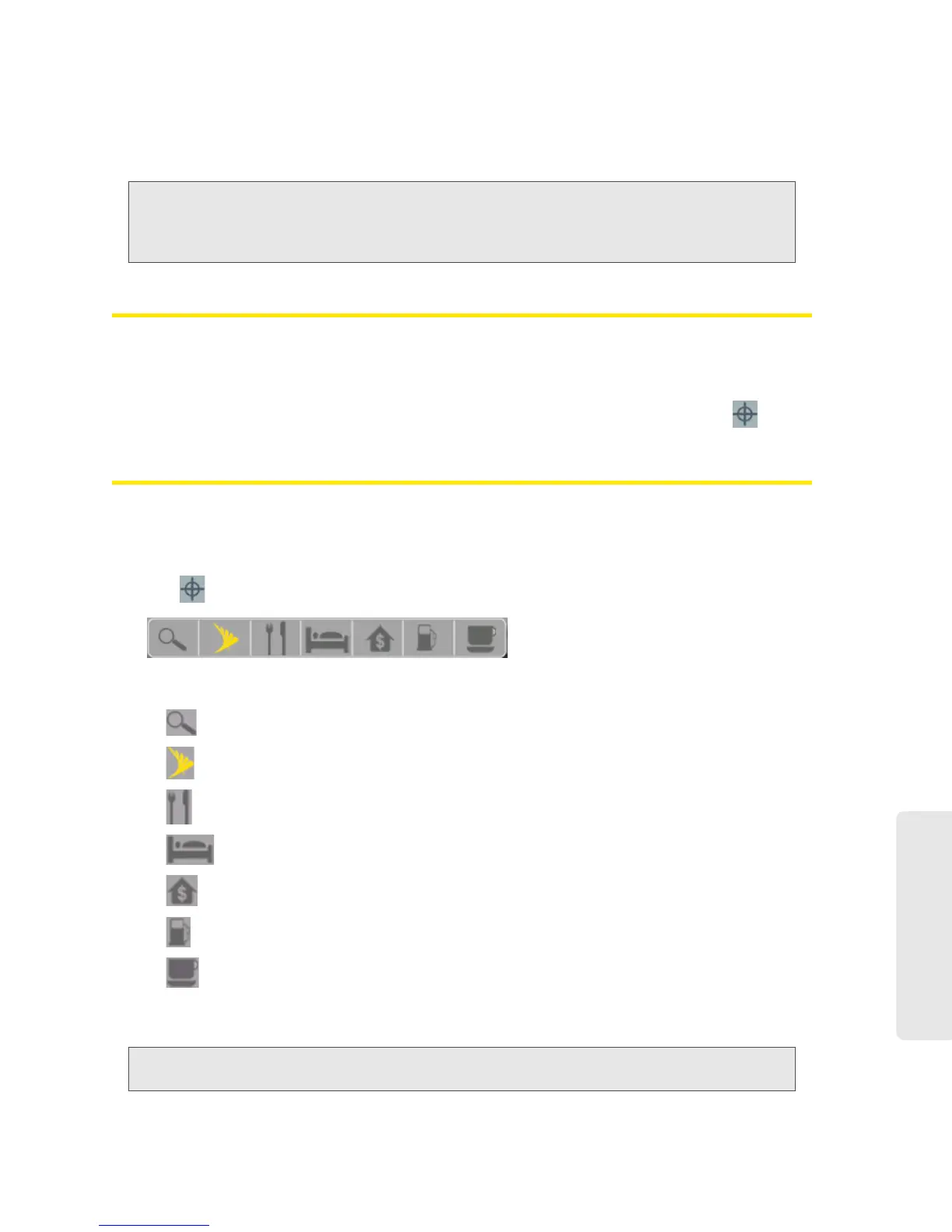
( ) to display a row of icons:
3. Click one of these icons to search for:
Text (search string) that you enter.
Sprint stores
Restaurants
Local hotels
Local banks (ATM machines)
Local gas stations
Local coffee shops
The results of the search are displayed in a new browser window or tab.
Note:
If a window displays “GPS Fix in Progress,” please wait while your device obtains a GPS location fix.
When a location fix has been acquired, your W
eb browser will display the mapping results.


 To Next Page