28 Using Your Device
5. Run the .exe file, and go through the installation of the Sierra Wireless USB driver. (Follow the
instructions on the screen.)
Mac
To install the device driver on Mac:
1. Ensure the device is turned on.
2. Connect the device to your computer through the USB to Micro B cable.
3. In the window that appears, double-click the .pkg file.
4. Go through the installation of the Sierra Wireless USB driver. (Follow the instructions on the
screen.)
5. When prompted for your password, enter your Mac password.
— or —
1. Using Wi-Fi, connect to the device. See “How Do I Connect to Wi-Fi?” on page 116 .
2. Ensure you’re logged in to the home page.
3. Click Advanced settings > Device > Basic.
4. In the TRU-Install section, click Mac OS X, to download the file to your computer.
5. If the “Welcome to the Sierra Wireless Driver Installer” window isn’t automatically displayed,
double-click the file that you’ve downloaded.
6. In the “Welcome to the Sierra Wireless Driver Installer” window, click Continue.
7. Follow the instructions on the screen.
Connecting the Device to Your Computer
1. Insert the larger (USB) end of the USB to Micro B cable into your computer.
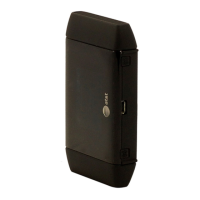
2. Insert the other (Micro B) end of the USB to Micro B cable into the USB connector on the side of
the device.


 To Next Page