AFTER SALES SUPPORT
1300 7 77 137
service@unclebills.com.au
MODEL: EA2476 PRODUCT CODE: 715222 03/2024
33
INSTRUCTIONS (CONT.)
4. If the file currently showing on the viewing screen is a photo, the will display
in the top left corner of the screen. If the file currently showing on the viewing
screen is a video, the
will display in the top left hand corner and the
OK
icon
will display in the bottom left hand side of the viewing screen.
5. To play the video file showing on the viewing screen, press the OK button. To
pause or stop the video playing, press the OK button once again. To resume
playing the video, press the OK button again. To fast forward or rewind the video
playing use the
and arrows.
NOTE: If you don't wish to finish watching the video that is playing (in playback
mode), and you want to view other saved files, first press the OK button to stop the
video. Then, press the
button, and use the and buttons to scroll through
the other saved photos/videos.
6. Once you are finished using playback mode, press the
button to access the
menu options and settings, switch the camera to the OFF mode to power off
or switch the camera to the ON (live) mode to continue recording in the current
camera settings.
Playback via Connected PC
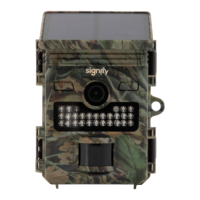
If you want to view your saved files on your PC, you can directly connect the Wildlife
Camera using the supplied USB-A to USB-C cable. This allows for viewing of the saved
files without the removal of the installed micro SD card.
Follow the steps below to view files on your PC without removing the micro SD card.
CAUTION: Do not remove the micro SD card from the Wildlife Camera.
1. Power on your PC and allow it to set up.
2. Fully uncoil the USB-A to USB-C cable.
3. Insert the USB-C end of the cable into the USB-C port located on the bottom of the
Wildlife Camera.
4. Connect the USB-A end of the cable to a USB-A port on your PC. Select SETUP or
ON mode on the Wildlife Camera.
5. Once the Wildlife Camera is connected to your PC, ‘Mass Storage’ and the built-in
battery power % will display on the camera’s viewing screen, and the
icon will
flash on the bottom left hand side of the screen (to show that the built-in battery is
charging). Within your PC's operating system, the camera will appear as a USB drive.


 To Next Page