SSB 30 A1
English - 43
9.3.4 “USB” mode
The sequence of the tracks/folders played is determined by the order in which they are copied to
the USB stick.
In this mode, you can use the sound bar to play back audio files stored on a USB storage device, e.g. a USB
stick. If connecting a USB hard drive, please note that the maximum current on the sound bar’s USB
connection is 200 mA. Please also see the user manual for the USB hard drive.
If you want to use a hard drive as a USB playback device, use a Y-cable with a separate power
supply to connect it.
Please note there can occasionally be compatibility issues between the USB storage device and
the sound bar, meaning only limited functionality is available or it may not function at all. If this
happens, try a different USB storage device.
• Connect the USB storage device to the USB port (3) on the sound bar.
• If there is a USB device connected already, press the “USB” button (40) on the remote control to select
this mode.
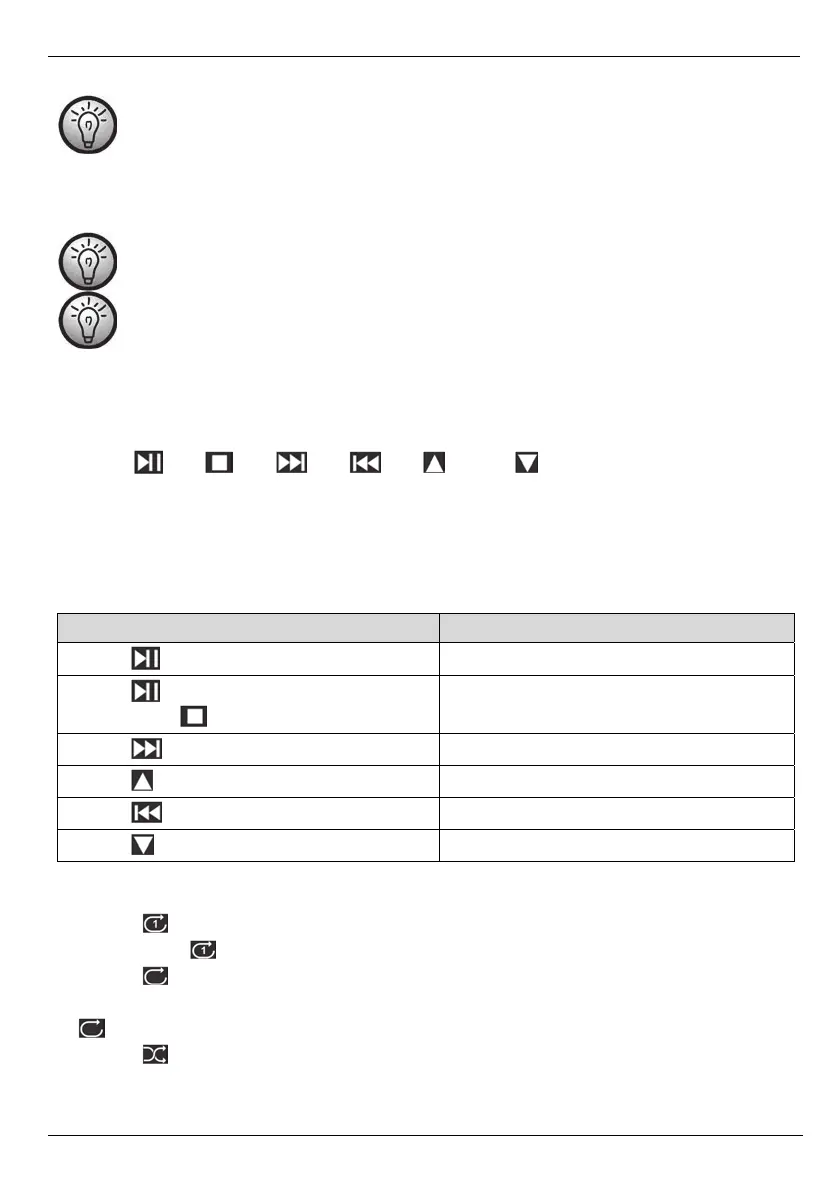
• Use the (20), (18), (21), (38), (19) and (22) buttons on the remote control to
control the music tracks.
• You can use the volume buttons (23, 37) to adjust the volume to your requirements.
•
If you wish, you can change the audio settings using the relevant buttons on the remote control.
Control functions available in “USB” mode:
Action Function
Press the button (20).
Pause / Resume current track.
Press the button (20) if playback was previously
paused with the button (18).
Resume playback at beginning of last title
played.
Press the button (21).
Skip to next track.
Press the button (19).
Skip to 1st track of next folder.
Press the button (38).
Skip to previous track.
Press the button (22).
Skip to 1st track of previous folder.
• In normal USB mode, all tracks are played once in the order in which they are stored on the USB data
medium.
• Press the button (41) to repeat the currently playing track (status LED (6) lights up and then flashes
once). Press the button (41) again to disable this function.
• Press the button (16) to repeat all tracks stored on the storage medium (status LED (6) lights up and
then flashes twice). This function is independent of the folder structure on the storage medium. Press the
button (16) again to disable this function.
• Press the button (17) to randomly play all tracks stored on the storage medium (status LED (6) lights
up and then flashes three times). Press the button (17) again to disable this function.


 To Next Page
 Loading...