CRYSTALCUBE—User Manual
Setting an Access Password (Security Lock)
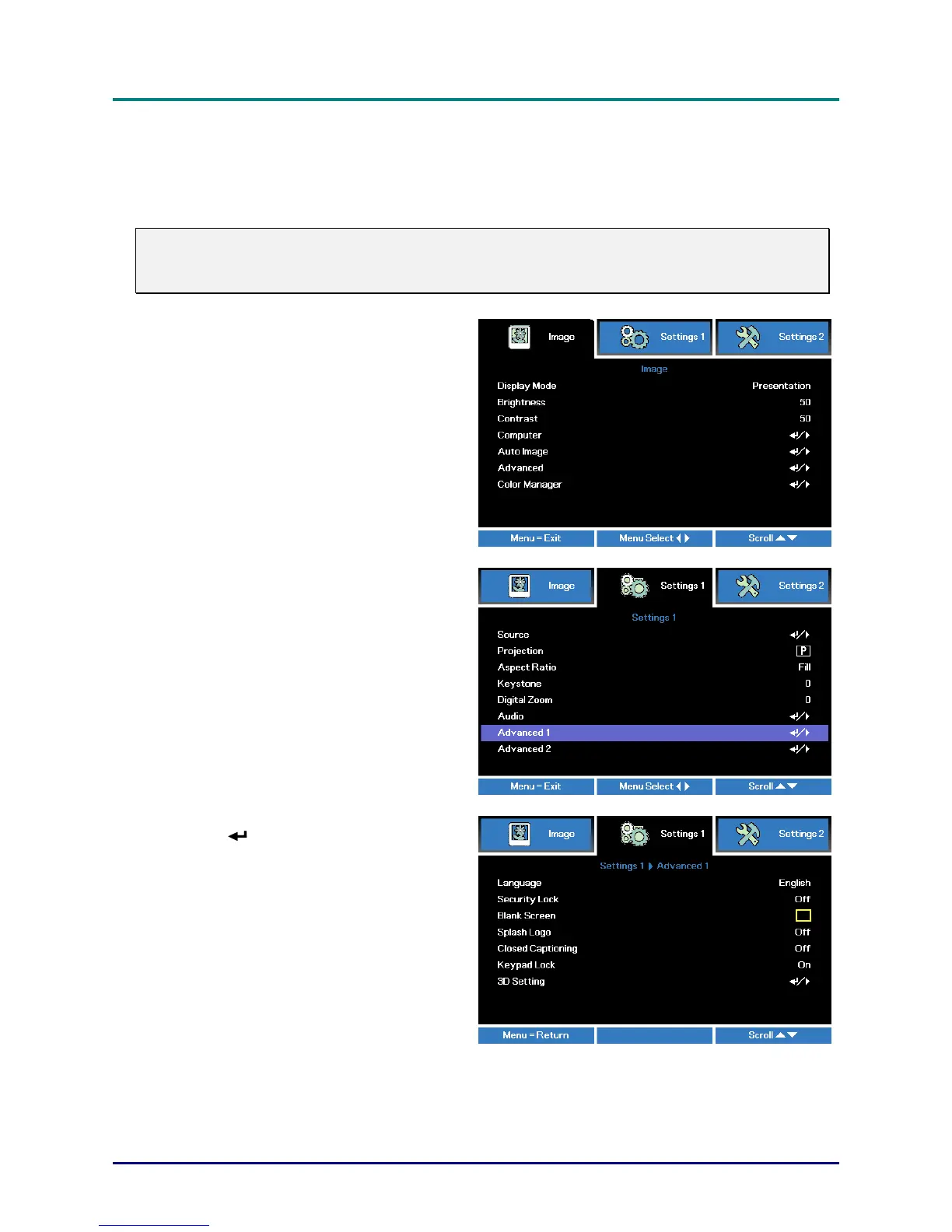
You can use the four (arrow) buttons to set a password and prevent unauthorized use of the projector.
When enabled, the password must be entered after you power on the projector. (See Navigating the
OSD on page 18 and Setting the OSD Language on page 19 for help on using OSD menus.)
Important:
Keep the password in a safe place. Without the password, you will not be able to use the projector.
If you lose the password, contact your reseller for information on clearing the password.
1.
Press the MENU button to open the
OSD menu.
2.
Press the cursor ◄► button to move
to the Settings 1 menu, press the
cursor ▲▼ button to select Advanced
1.
3.
Press (Enter) / ► to enter the
Advanced 1 sub menu. Press the
cursor ▲▼ button to select Security
Lock.
4.
Press the cursor ◄► button to enter
and enable or disable security lock
function.
A password dialog box automatically
appears.
— 12 —


 To Next Page