DE
11. Firmware upgrade
64
Firmware upgrade
11
.
11. Firmware upgrade
To ensure the best VIA experience, we recommend upgrading the firmware to the latest version. You can do this via
Simarine application, available on your smartphone application market as described in chapter Mobile application .
It is important to install the latest Simarine Application (or to update your installed application to the latest version) before proceeding
with the
firmware upgrade
The upgrade process requires the following steps:
1. Install or update the Simarine application – Simarine application on your smartphone.
2. Turn on Wi-Fi on your VIA.
3. Connect your smartphone to VIA through Wi-Fi.
4. Launch the phone application.
5. Go to the settings menu and tap > DEVICE SETTINGS > FIRMWARE UPGRADE and confirm the upgrade.
6. The upgrade process will put your VIA device in the upgrade mode.
7. Long press the button on your VIA to confirm the firmware upgrade. The upgrade process can take a few minutes
to complete.
8. After the upgrade, VIA reboots and is ready to use.
If there is no FIRMWARE UPGRADE option in the application menu (step 5), please make sure that you have updated your
App to the latest version.
Emergency mode firmware upgrade procedure:
1. Turn VIA OFF and back ON again (may require toggling power to the VIA, see note bellow)*.
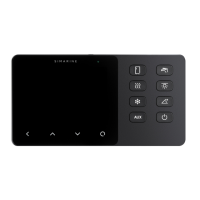
2. As soon as the start-up logo appears press and hold the left arrow key until VIA enters in text-only mode.
3. Connect your smartphone to VIA through Wi-Fi. A blue line of text will appear on VIA as soon as the connection is
established.
4. Lunch the phone application.
5. Wait for a red button labeled "FIRMWARE UPGRADE" to appear and press it.
6. Confirm the upgrade if prompted by the application.
7. After the upgrade, VIA reboots and is ready to use.
60


 To Next Page