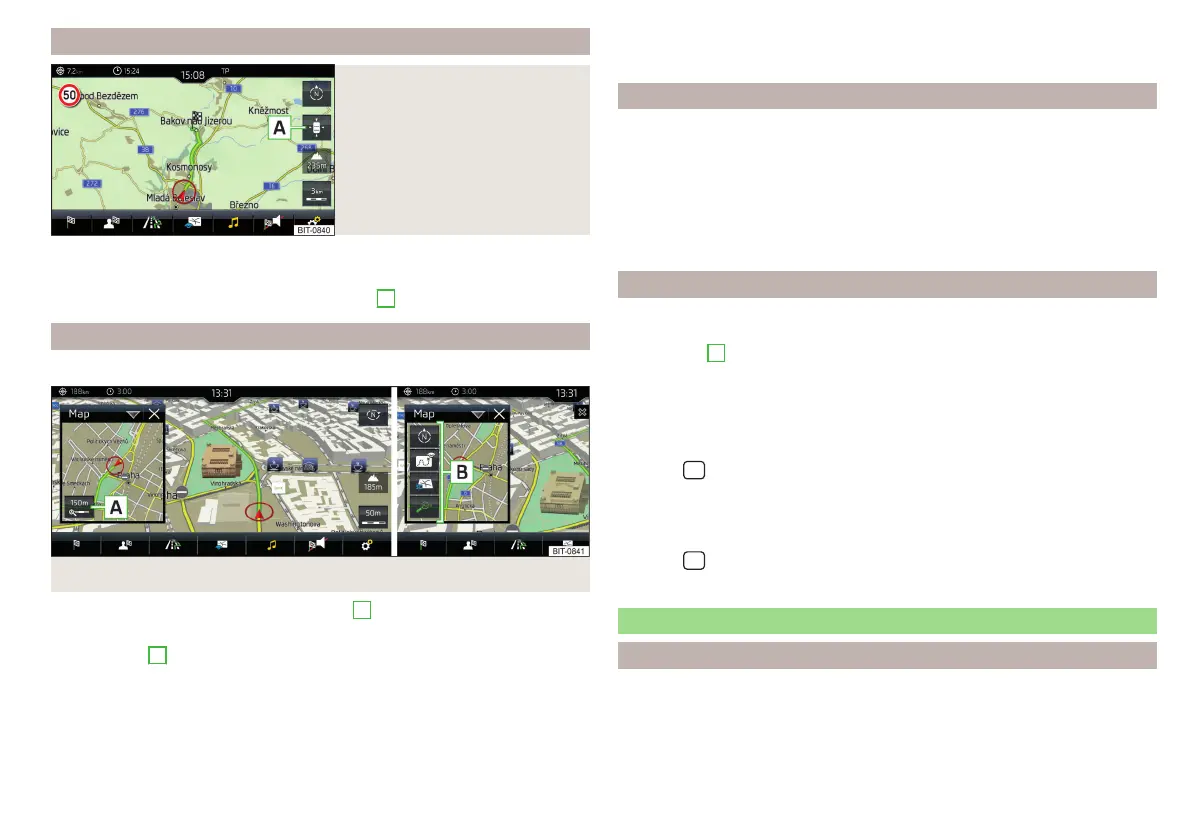
Map alignment
Fig. 236
Map alignment
The moved map can be centred/aligned to the vehicle, destination or route po-
sition.
›
To centre the map, tap on function surface
A
» Fig. 236.
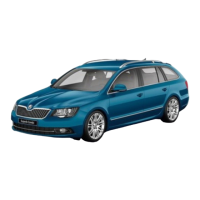
Options for map display in the split screen
Only valid for Infotainment Columbus.
Fig. 237 Map in split screen
›
In the split screen, tap on function surface
A
» Fig. 237.
Depending on the context, some of the following function surfaces will be dis-
played in area
B
.
Map display with the route from the current vehicle location to the desti-
nation
Change the map orientation
2D - Two-dimensional map display
3D - Three-dimensional map display
Turn on/off the automatic change of scale
POIs display
The Infotainment system offers the possibility of displaying POI symbols on
the map on the Infotainment screen.
›
To activate/deactivate the display, go to the main Navigation menu and tap
on the function surface →
POIs
.
›
To select the POIs to be displayed, go to the main Navigation menu and tap
on the function surface →
Map
→
Select categories for POIs
and select the de-
sired categories (max. 10).
Road sign display
Infotainment offers the option of displaying the traffic signs stored in the navi-
gation data or detected by the front camera during guidance on the Infotain-
ment screen
G
» Fig. 217 on page 179.
›
To switch on/off the road sign display in the main menu Navigation, tap the
function surface
→
Map
→
Show road signs
.
For some vehicles it is possible to set an alert when exceeding the permitted
speed limit set by a road sign.
›
Tap the
sensor field and then the function surface
→
driver assistance
→
speed warning:
.
For trailer towing, we recommend that you activate detection of road signs
relevant to trailers.
›
Tap the
sensor field and then the function surface →
Driver assistance
→
Show road signs relevant to trailers
.
Route guidance
Introduction to the subject
A routeis created by starting route guidance to a destination. Additional inter-
mediate destinations can be added to the route.
189
Navigation










 To Next Page