3.1 Automatic Recording
Video recording will start automatically when the engine turns on. The video recording indicator
and audio recording indicator will start to flash when recording has started. After the engine has
been turned off, video recording will also stop automatically after 12 seconds. The recorder will
save the latest video and then power off. Recorded videos will save on the micro SD card and
loop record the earliest video when the memory is full.
Please Note: Video length can be set in the menu settings (1/2/5 minutes). The default setting is
1 minute.
Video resolution can also be set in the menu (HD720P or VGA), with the default being HD720P.
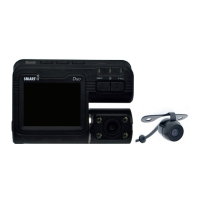
The recorder’s camera and the external camera footage will be stored in the micro SD card as a
‘DCIMA’ and ‘DCIMB’ file.
3.2 Manual Record
To start up the recorder, press the power button for 3 seconds. The video recording function will
be activated automatically with the video recording indicator and audio recording indicator
flashing. To shut down the recorder, press the power button for 3 seconds. The last video will
have been saved automatically before the power is off.
11
3. Operation Instructions
3.3 Photographic Mode
To enter photographic mode, press the camera button. When in photographic mode, the icon of a
video that is shown on the upper left corner of display will change into an icon of a camera. Press
camera button for taking photos. To switch back to video recording mode, press the REC button.
3.4 Movement Detection
To enter into movement detection mode, press the emergency button under standby for 3
seconds. Under movement detection mode, the recorder will automatically log images while
sensing moving objects. The recorder will enter into standby mode while there are no moving
objects. To exit movement detection, press the video lock button for 3 seconds.
Please Note: Please purchase an external battery for long-term movement detection.
The default setting of Movement Detection is off. The setting of Movement Detection resets to the
default setting while the recorder is shut down.


 To Next Page