APPENDIX A
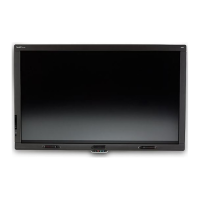
CONFIGURING AND CALIBRATING YOUR SMARTBOARD E70 INTERACTIVE FLAT PANEL WITH WINDOWS
24 smarttech.com/kb/170534
l If you have multiple displays for example and laptop connected to your E70, ensure that they
are set up correctly (See Setting up multiple displays).
l Check your graphics card configuration (see Graphics card configuration).
l Check your panel settings (see Panel settings).
l Calibrate or clear previously set calibration data (see ).
If there is no touch
l Ensure that the USB cable is properly connected.
l Try power cycling the SMARTBoard E70.
l Ensure that Windows automatically installed the required device drivers the SMART E70 and
AFO TCM10X-700 HID should be listed under Windows Devices and Printers.
l If you have multiple displays, ensure the pen and touch are settings are correct (see Setting
up multiple displays).
Graphics card configuration
If you’re using an unsupported graphics card configuration, you may experience a display problem
or issues with touch accuracy. For example, you may experience issues if your graphics card
scaling option is set to something other than full-screen.
IMPORTANT
When using an ATI video card they must go into the ATI Catalyst Control panel, go to the Flat
Panel menu, select Pixel Format and change it to RGB 4:4:4 timing.
Panel settings
Ensure that you set the SMARTBoard E70’s Screen Mode to either 16:9 or Full and that you select
the correct input source.
Ensure that you set Screen Mode to 16:9 or Full, and that you select the correct input source.
To select input
On the remote or on the side panel press Input. Use the arrows to select the correct input
source.



 To Next Page