SMART LightRaise Installation and User's Guide 53
Changing the Volume Level
Once the volume level indicator is illuminated, you can adjust the source's audio volume.
Volume levels are specific to the display source for the projector. This means that you can set
the volume level for the internal computer separately from the volume level for the VCR or
DVD player and the external computer.
To increase the volume level for the selected source, press the + button. More volume level
indicators will be illuminated.
To decrease the volume level for the selected source, press the – button. Fewer volume level
indicators will be illuminated.
Changing the Projector's Input Source
An indicator is illuminated beside the projector source on the right side of the control panel.
You can easily change the display source using the control panel's source selection buttons.
To change the display source:
1
Ensure the new source is connected and has power. For an external computer, you may
have to toggle between the LCD and the external video displays using the laptop's
Function key. Consult your computer's user manual for more information.
2
Firmly press the appropriate source selection button on the right side of the control panel:
for the internal computer
for the external computer
for the VCR or DVD player
Using Your SMART Board Interactive Whiteboard
Consult the
SMART Board User's Guide
or the online Help files for detailed information on
your SMART Board interactive whiteboard.
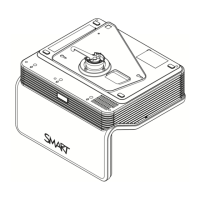
While every effort has been made for the SMART LightRaise projector mount to absorb
normal building vibration, you may find that the LightRaise mount does shift slightly with
normal use. If this happens, you'll notice that the cursor on the SMART Board interactive
whiteboard doesn't appear directly beneath your fingertip when you touch the whiteboard.
Correct this by performing an orientation procedure. Information on orienting your board is
located in the online Help for the SMART Board interactive whiteboard or the
SMART Board
User's Guide.


 To Next Page


