EasyManua.ls Logo

Smartwares WDVR740S - User Manual

Smartwares WDVR740S
40 pages
Print Icon
To Next Page IconTo Next Page
Loading...
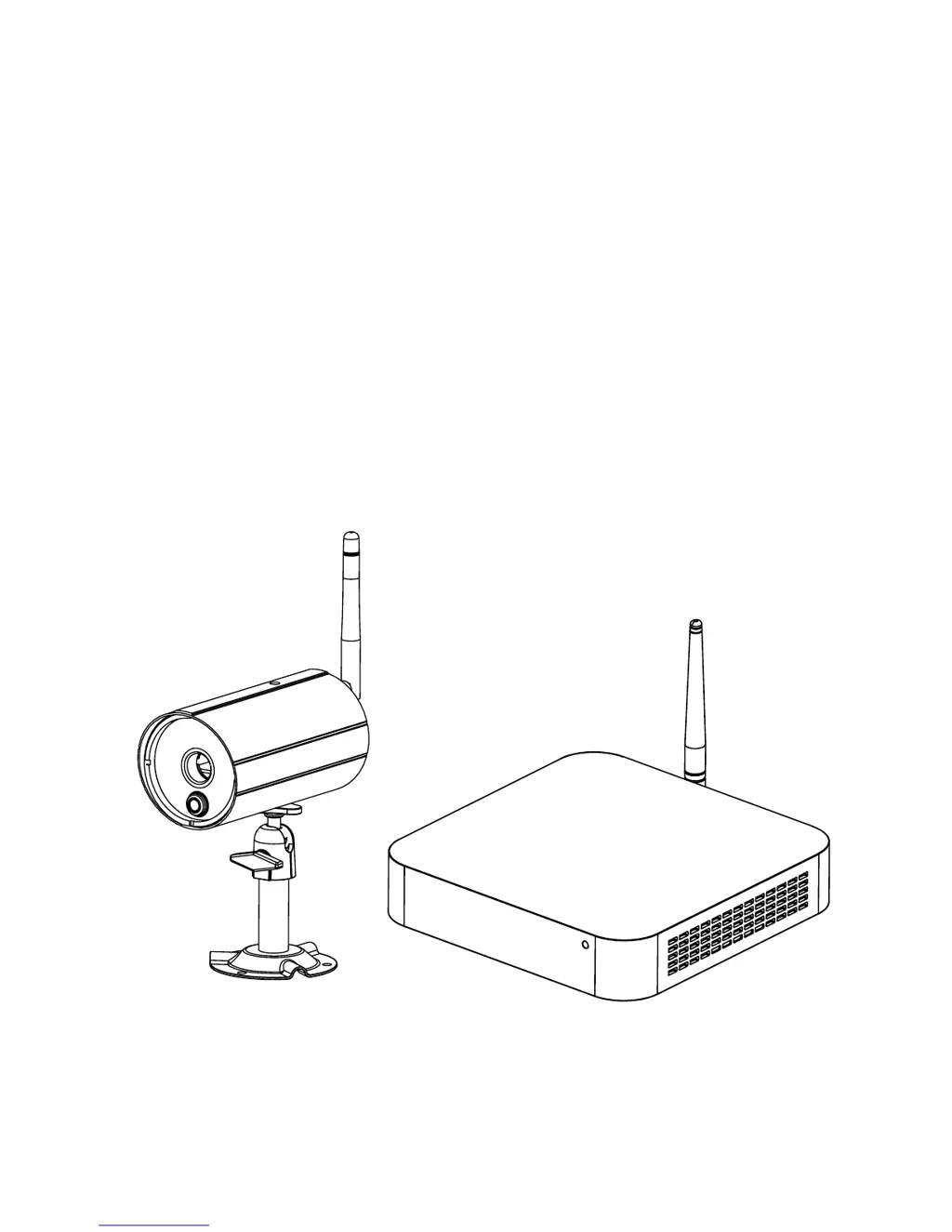
Wireless Digital Video Recorder
Installation and Operating Instructions
Model: WDVR740S
Version 1.0
PLEASE READ THESE INSTRUCTIONS CAREFULLY BEFORE USING THIS PRODUCT
AND KEEP THIS MANUAL FOR FUTURE REFERENCE.

Questions and Answers

  • J
    Jill BakerAug 1, 2025
    How to fix no signal on my Smartwares WDVR740S?
    • G
      gkingAug 1, 2025
      If your Smartwares DVR shows no signal or video, first, check the power adapter and power cord connection. If that doesn't work, unplug the camera power and plug it back in to reconnect it. You might also need to relocate the DVR or camera for better reception. Consider adjusting the antenna or using a proprietary extension cable with a high-gain antenna to improve the range. Finally, remove any major obstacles between the cameras and the DVR, such as water tanks, metal surfaces, or brick/marble walls.
  • H
    Heather CallahanAug 6, 2025
    Why can't I remotely view my Smartwares WDVR740S DVR?
    • V
      Veronica DominguezAug 6, 2025
      If your Smartwares DVR cannot be viewed remotely, ensure that your router's DHCP and UPnP are enabled. Also, verify that the Ethernet cable connection to the router is secure. Connect the DVR directly to the router, avoiding connections through hubs or switchers. Exit the DVR menu and try again. Confirm that your bandwidth is sufficient, as each remote connection requires 1.5Mbps. Check that your Android pad/smartphone has a 1.5G/dual-core processor, or that you're using an iPhone 4S/New iPad or above. Note that general routers may need 30 seconds to initiate the DVR network connection, and the maximum number of remote viewers is 3; a 4th connection might be rejected.
  • B
    Brittany SmithAug 12, 2025
    What to do if Smartwares DVR streaming video is low or unstable?
    • R
      Ricardo HawkinsAug 12, 2025
      If you are experiencing low or unstable streaming video on your Smartwares DVR, try relocating the WDVR or camera for better reception. Adjust the antenna or use a WDVR proprietary extension cable with high gain antenna to improve the range. Keep working motors (like hair dryers, heat fans, air conditioners, or water pumps) and microwave ovens away from the cameras and WDVR. Ensure cameras are at least 3 meters apart and keep the Wi-Fi router or hotspot away from the camera. Lowering the camera resolution and quality can also save bandwidth and improve streaming.
  • K
    kimgavinAug 18, 2025
    How to resolve TV display problems with Smartwares WDVR740S DVR?
    • D
      David LindseyAug 18, 2025
      If you are experiencing miscellaneous TV display problems with your Smartwares DVR, start by adjusting the TV's contrast, brightness, saturation, and sharpness. Avoid direct sunlight into the camera lens. Adjust the TV audio volume. Turn on the alarm sound from [Recorder Setup] - [Detection Setup]. Verify the HD interface cable connection, using the cable provided. Try changing the HD cable, suggesting a 1.5M or shorter cable, as compatibility issues may occur. From [System Setup], set the power save function to always ON.
  • J
    Jill SalazarAug 26, 2025
    Why is my Smartwares WDVR740S not recording?
    • A
      Angela AndersonAug 26, 2025
      If your Smartwares DVR is not recording, set a proper schedule for each camera to enable recording. Use the recommended storage media brand, model, and specifications (check the appendix). Install or uninstall storage media only after the DVR is powered off. Use the DVR to format the storage media and try again. Ensure that only one HDD or Flash disk is installed in the DVR.

Summary

Introduction and Safety Precautions

Important Safety Precautions

Crucial safety guidelines to prevent damage and ensure safe operation of the device.

Device Installation Guide

Connecting DVR to TV;Monitor

Guide for connecting the DVR unit to a TV or monitor for video and audio output.

Camera Installation

Step-by-step instructions for mounting and positioning the wireless camera.

Connecting External Storage

Instructions for connecting external storage devices for expanded recording capacity.

Connecting DVR to TV via HDMI

Details on using the HDMI cable to connect the DVR to a television.

Connecting DVR to Internet

Steps to connect the DVR to a network router using an Ethernet cable for internet access.

Inserting Memory Card

Guidance on inserting a memory card for video clip storage or backup.

Basic Operation Procedures

Remote Surveillance Setup

Understanding the Main Menu

Advanced Settings

Camera Pairing Procedure

Process to pair new cameras with the WDVR receiver.

Camera Connection Activation

How to enable or disable camera connections for live view and recording.

Recorder Setup Options

Detection Setup and Sensitivity

Event List Management

System Setup and Configuration

Storage Setup and Management

Network and Security Setup

Setting up network connection (Static IP/DHCP) and security code for remote access.

Product Specifications

Troubleshooting Common Issues

Troubleshooting No Signal or Video

Solutions for problems related to no power, pairing, or signal range.

Troubleshooting Unstable Video Stream

Troubleshooting steps for signal blockage, antenna limitations, and interference.

Troubleshooting Recording Issues

Solutions for issues like improper schedule setup or storage media errors.

Troubleshooting Remote Viewing

Troubleshooting steps for remote connection problems, bandwidth, and device compatibility.

Smartwares WDVR740S Specifications

General IconGeneral
Video OutputHDMI, VGA
Recording Resolution1080p
Video CompressionH.264
Hard Drive CapacityUp to 6TB
Remote ViewingYes
Motion DetectionYes
USB Ports2x USB 2.0
Power SupplyDC 12V
Video Input4 BNC
Hard Drive Support1x SATA HDD (up to 6TB)
Mobile AppYes
Operating System CompatibilityWindows, iOS, Android
Network InterfaceEthernet (RJ-45)

Related product manuals