© 2009 snom technology AG
man_snom870_v101_en
11
snom 870 User Manual
Setting up the Phone
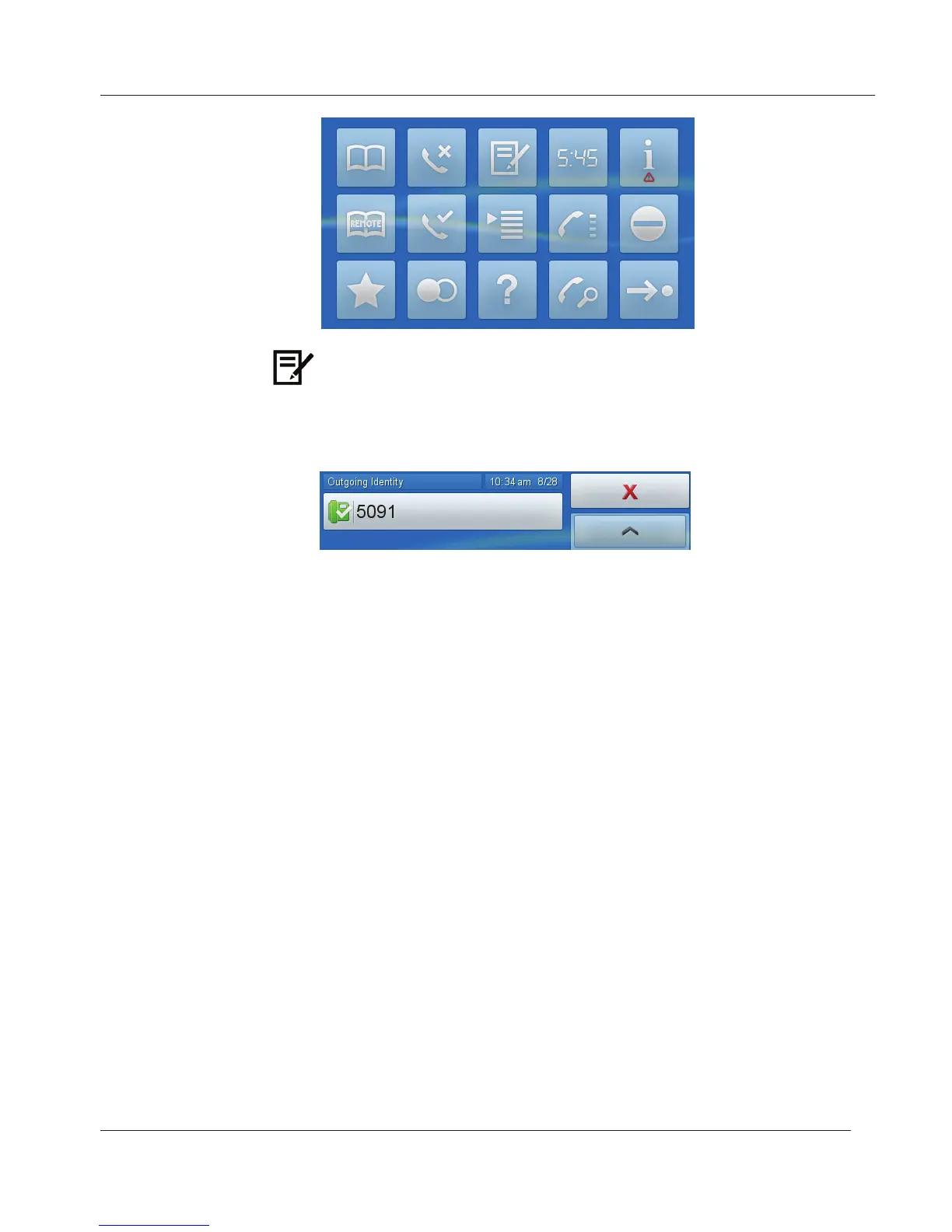
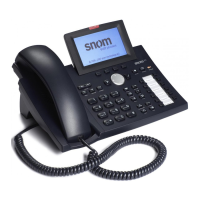
5. Tap the icon. Your phone was successfully registered if the display
shows a bright-green phone symbol with a checkmark on it, followed by
the account (phone number) you entered. See "Identities/Accounts" on
page 65 for further information on registering identities.
6. If the phone symbol is red and the phone does not work, check on the
phone's web interface whether the "Identity active" setting is "On" - see
"The Phone’s Web Interface" on page 26 and "Identities/Accounts" on page
65. If the setting is active, the server may be down, either for servicing
or due to a malfunction. The registration and initialization should be
completed as soon as the server is up and running again. You may want to
check with your administrator or your provider if nothing happens within a
reasonable time.
7. Don’t worry if time and date are wrong. See "Correcting the Clock" on
page 12 on how to change them.
Contact your network system administrator if the phone is operating or
supposed to be operating within a network.
If you are using a VoIP provider, you may need to enter further data, as
specifi ed by your provider.
Open the phone’s web interface - see "The Phone’s Web Interface" on page
26. Open Confi guration Identity 1, and enter any additional login information you
have received from your provider - see "Confi guring New Identity/Account" on
page 65.
www.InternetVoipPhone.co.uk | sales@internetvoipphone.co.uk | 0800 088 48 46


 To Next Page