© 2009 snom technology AG
man_snom870_v101_en
54
snom 870 User Manual
Using the Phone
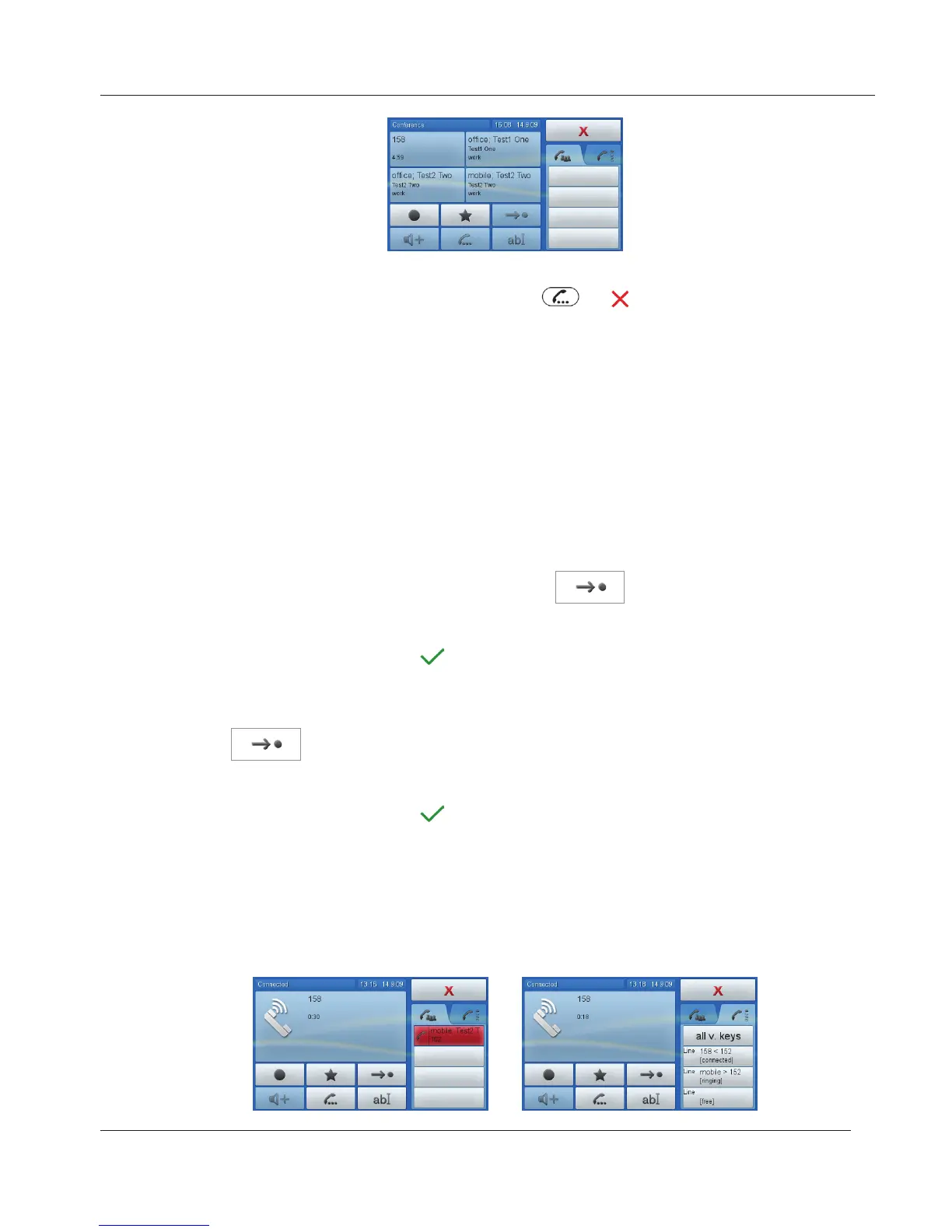
4. Drag-and-drop the call from the context are into the info area to remove a
participant from the conference. Press
or to put all participants on
hold.
Attended and Blind Transfer
When you have a call on the line, there are two ways to transfer the call to a
third party.
1. Put the call on hold - see "Hold" on page 53.
2. Dial the number you wish to transfer the call to and announce the call.
3. If the party wishes to accept the call, tap
.
4. Drag-and-drop the held call into the text field.
5. Tap the text field or press
to transfer.
1. Tap .
2. Type the number you wish to transfer the call to into the text field.
3. Tap the text field or press
.
Call Waiting
The default setting is "on", which means that waiting calls are announced by a
double beep and by the caller information being shown on a red button in the
info area.
www.InternetVoipPhone.co.uk | sales@internetvoipphone.co.uk | 0800 088 48 46


 To Next Page