76
D345 User Manual Customizing the Phone Settings
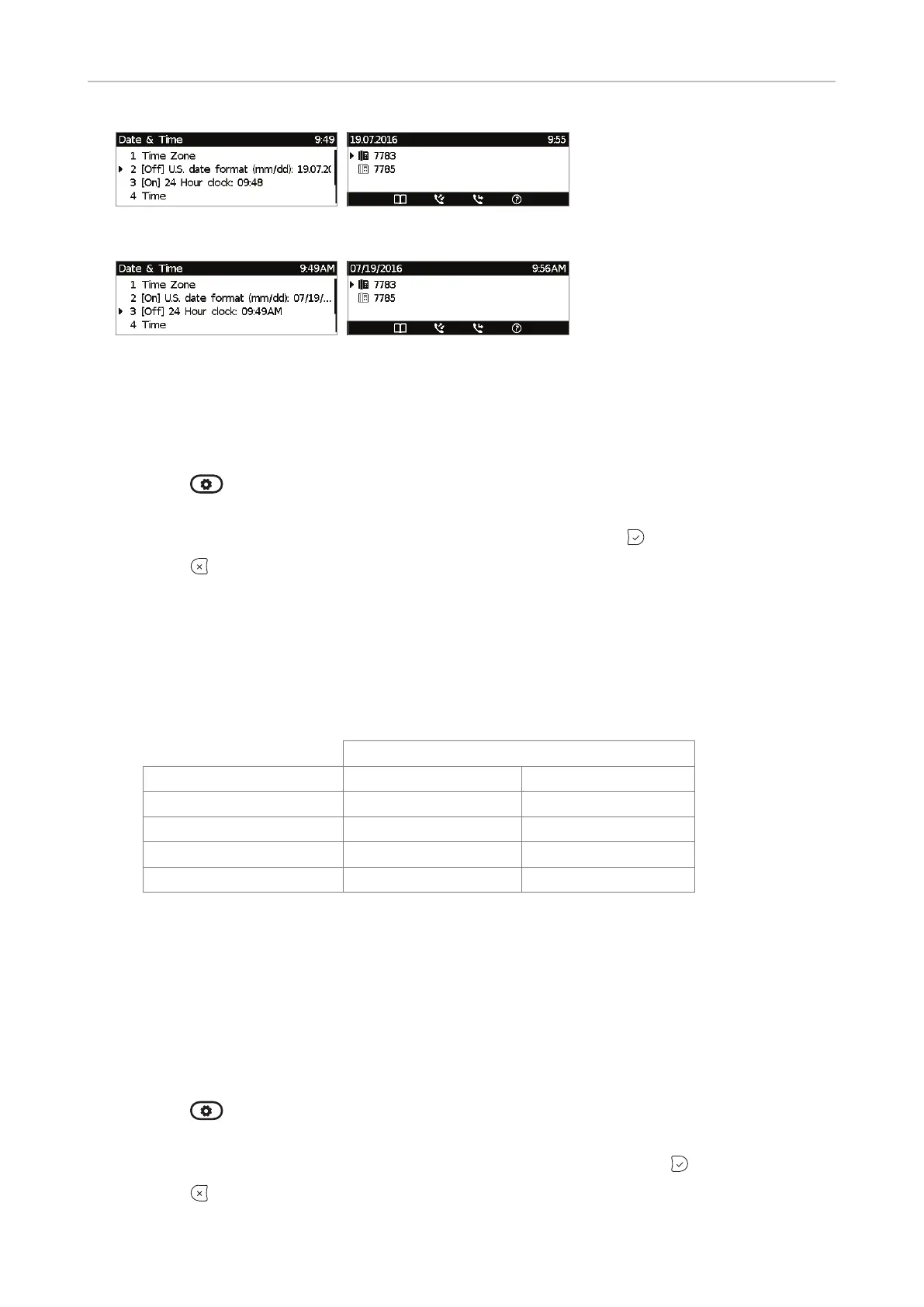
Fig. 3 Fig. 4
Fig. 5 Fig. 6
Date
• Phone settings.
1. Press
> 1 Preferences > 1 Date & Time (see Fig. 1, above).
2. In admin mode, press 2 (in user mode, press 1) to change U.S. date format from [On] to [O]
(Fig. 3). Alternative method: Scroll to "US date format" and press
.
3. Press
briefly to return to the previous menu or for two seconds to return to the idle screen.
• Web interface settings.
1. Open the Preferences page > General Information section > US Date Format. The default is
"on".
- Select "on" to have the date shown on the phone's display in "mm/dd/yyyy" format.
- Select "o" to have the date shown on the phone's display in "dd.mm.yyyy" format.
US Date Format
Date Setting "On" Setting "O"
March 5, 2012 03/05/2012 05.03.2012
March 12, 2012 03/12/2012 12.03.2012
December 5, 2011 12/05/2011 05.12.2011
December 10, 2011 12/10/2011 10.12.2011
2. Click on "Apply" and "Save".
Time
The time setting aects phones and/or firmware versions with a digital clock only. If the phone has a
clock face, changing the setting will not aect it.
• Phone settings.
1. Press
> 1 Preferences > 1 Date & Time (see Fig. 1, above).
2. In admin mode, press 3 (in user mode, press 2) to change the 24-hour clock setting from [On]
to [O] (Fig. 5). Alternative method: Scroll to "24-hour clock" and press
.
3. Press
briefly to return to the previous menu or for two seconds to return to the idle screen.



 To Next Page