October 21
st
, 2021 27
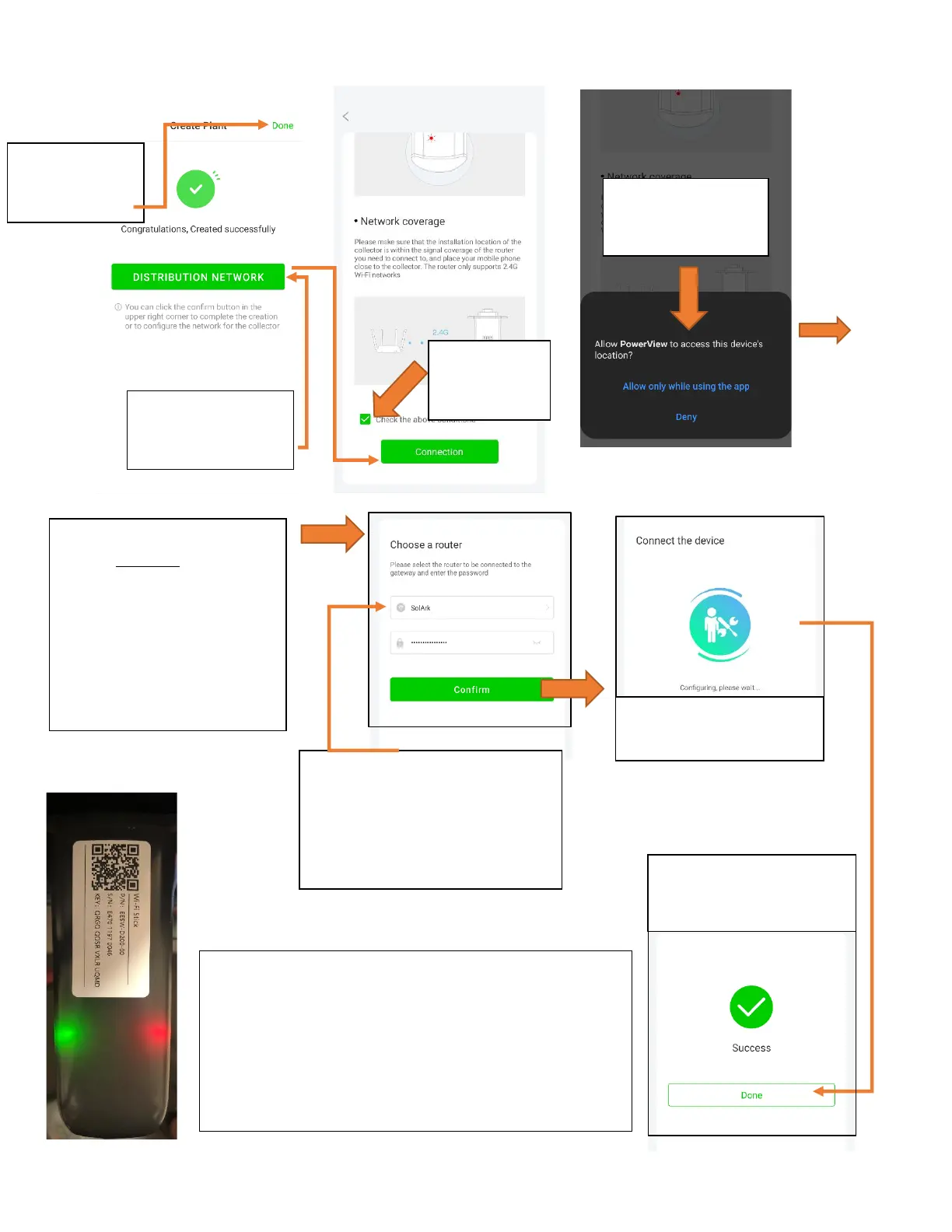
Connect the System to the Internet
Select Distribution
Network to pair
Dongle with WIFI
Read and
confirm
conditions
Once you see this screen, go
to your DEVICE’S Wi-Fi
settings and connect to the
Wi-Fi network that starts with:
EAP-#####
Password: “12345678”
Return to app once connected
Select the local Wi-Fi network
that will be providing the internet
connection to the system
Do NOT select the dongle’s Wi-Fi
network
If Location Services
are not enabled, it
will be requested
If Wi-Fi paired
with 10.10.10.1,
select Done
The app will buffer for a
few seconds
It takes about 60sec for the lights to turn on after setup
Red LED: Connected to Sol-Ark and has power
Green LED: Connected to Internet and Server
Flashing Green LED: Connected to router but not
server (usually a VPN or firewall issue)
You will receive
confirmation once
connection is established


 To Next Page