October 21
st
, 2021 25
Wi-Fi / Internet Connection
Remote Monitoring Setup
Ethernet Dongle
A. Open the dongle enclosure and thread the ethernet cable through the hole and plug into the RJ45 port
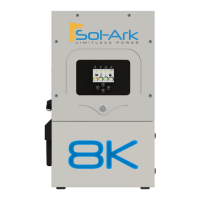
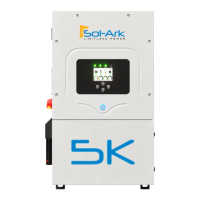
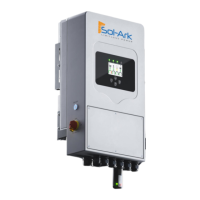
B. Reassemble the dongle housing and plug dongle into Sol-Ark and secure with screws
If all is well, you will see solid red and green lights
C. Register the dongle via the app or www.mysol-ark.com
Wi-Fi (Via Cell Phone or computer)
A. Plug Wi-Fi dongle into Sol-Ark
B. Using your device look for an "EAP" network containing the last 5 digits of the dongle S/N
C. Password: 12345678
D. Follow the instructions in the upcoming pages
Download PV Pro App
You can access PowerView on a computer with the following link:
http://www.mysol-ark.com
iPhone: (Will only show up as PV Pro)
https://apps.apple.com/lk/app/powe
rview-pro/id1247121391
Android
https://play.google.com/store/apps/
details?id=com.elinter.app.powervie
w&hl=en_US&gl=US
Attention Installers
If you plan to add an install to your installer account for monitoring multiple installs, you must first
make the plant under the customer’s account.
Once created, the customer can share the plant, with Manager permissions, to the installer via
the app (“…” next under My Plants) or webpage (press the “…” next to the plant name in Power
View).


 To Next Page