33
Turning off the display
characters
— Auto Clear
You can turn off the text information
automatically to enjoy images. The text
information appears only when the source, disc,
album, or track currently selected is changed.
1 Press (MENU).
2 Press < or , repeatedly to select
“Display,” then press (ENTER).
3 Press < or , repeatedly to select
“Auto Clear,” then press (ENTER).
4 Press (ENTER) repeatedly to select
“ON.”
5 Press (MENU).
The display returns to the normal display.
To restore display characters, select “OFF” in
step 4.
Storing the images
— Snapshot
You can store maximum 100 images from the
auxiliary equipment connected.
1 Press (SCREEN) repeatedly to select
the Video mode.
2 Press (IMAGE) repeatedly to select the
Video & Capture mode (page 14).
For details on changing the aspect ratio, see
“Selecting the aspect ratio” on page 31.
3 Start playing images on the auxiliary
equipment.
4 Press (CAPT URE) when the desired
image appears.
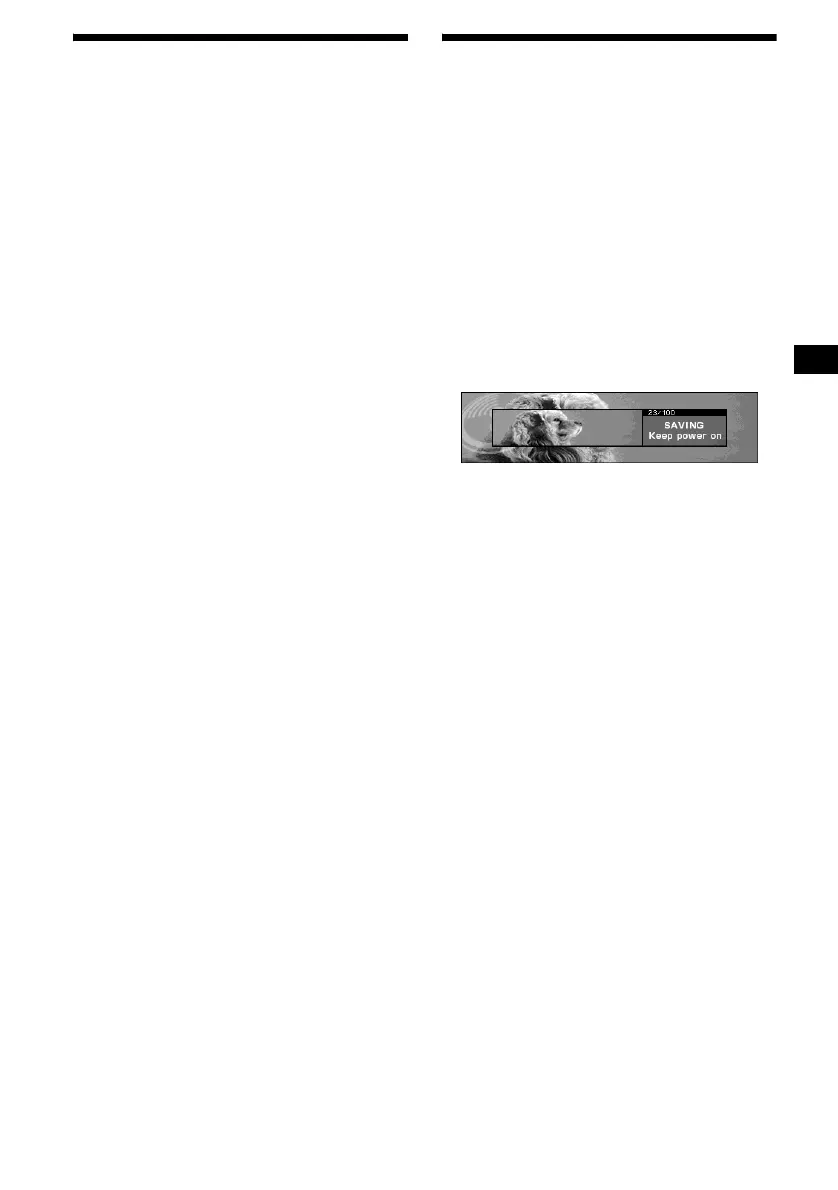
“Complete” appears, then the image is stored
on the unit.
Notes
• This unit is compatible with the PAL and NTSC
colour system connected auxiliary devices.
• To change the colour system of the unit, set “Video”
in “Setup” to “PAL” or “NTSC.”
• Do not turn off the unit while storing the image,
otherwise the image may not be stored.
• The stored image is limited to private use only. Use
for public and profit purposes require permission of
the copyright holders.
• Stored images may differ from the original aspect
ratio, or some characters may not be displayed
correctly due to compression or elongation.
continue to next page t




 To Next Page