[] Loading the print cartridge
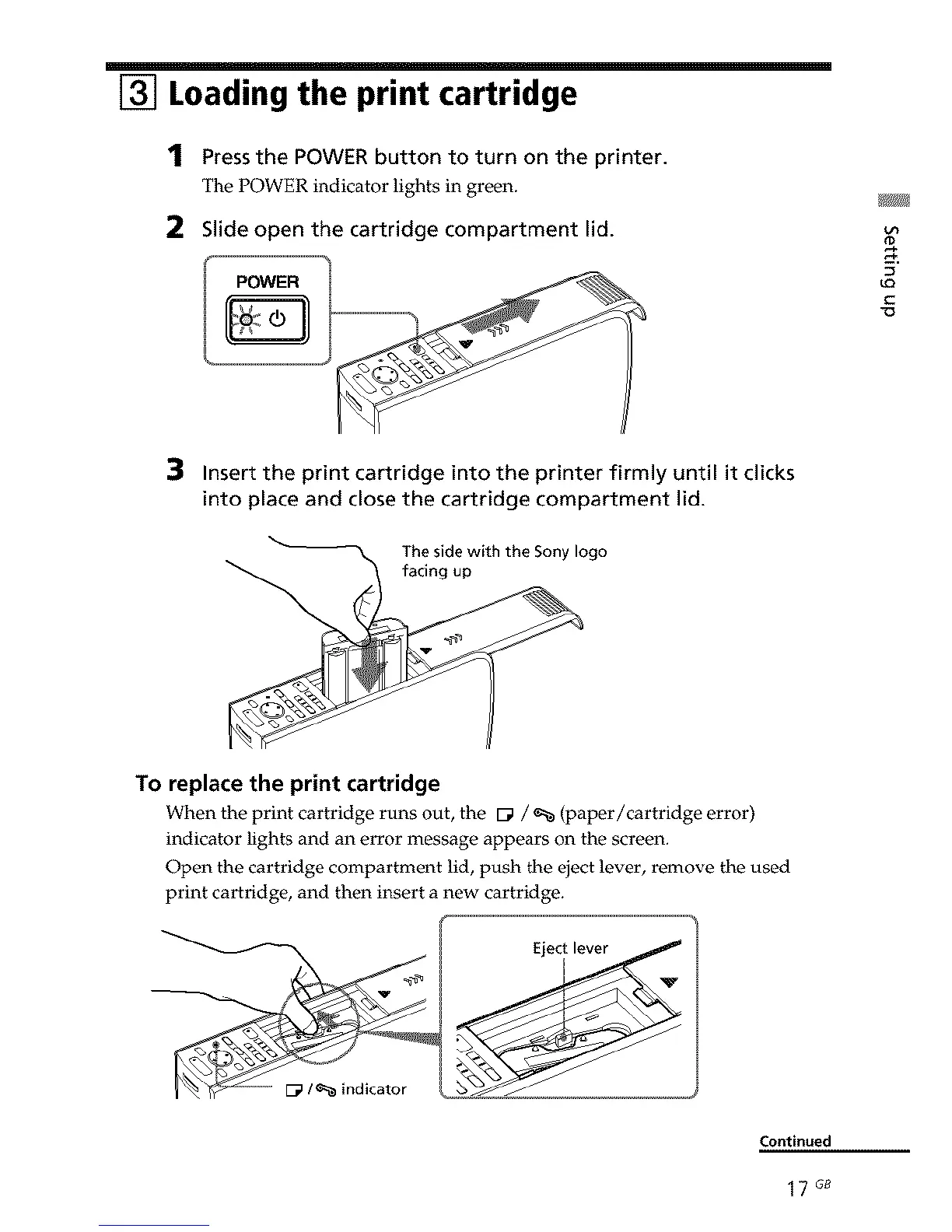
1 Press the POWER button to turn on the printer.
The POWER indicator lights in green.
2 Slide open the cartridge compartment lid.
"0
Insert the print cartridge into the printer firmly until it clicks
into place and close the cartridge compartment lid.
The side with the Sony logo
facing up
To replace the print cartridge
When the print cartridge runs out, the _ / _ (paper/cartridge error)
indicator lights and an error message appears on the screen.
Open the cartridge compartment lid, push the eject lever, remove the used
print cartridge, and then insert a new cartridge.
Continued
17 G8



 To Next Page